


The grep command is mainly used to simplify and automate text processing and data extraction tasks.System administrators and developers use grep to search log files for specific entries, find variables and functions within codebases, and identify system-related issues.
Learn about grep syntax and usage scenarios through a set of practical examples.
Prerequisites
- Access to a command line or terminal window.
- A user with the appropriate permissions to access the required files and directories.
What Is grep?
grep is a Linux command-line tool that enables users to search for a specified textual pattern within files. When a match is found, grep displays the lines containing the pattern in the terminal.
By default, grep outputs the entire lines that contain the match. Users can use various grep options to include extra context around the match or display only the matching portions of the line.
grep Syntax
In its basic form, the grep command consists of three parts:
- The
grepcommand. - The pattern you are searching for.
- The file name through which
grepsearches.
The syntax is as follows:
grep '[search_pattern]' [file_name]Single quotation marks (‘) are not required for simple patterns without special characters or spaces, but it’s considered good practice to use them.
For instance, to search for the term “cloud computing” in the example_file2.txt file, use the following command:
grep 'cloud computing' example_file2.txt
If the target file is not in the working directory, provide the full path to the file:
grep 'cloud computing' /home/phoenixnap/Documents/example_file2.txtgrep commands support various options, pattern variations, and file names. Users can combine multiple options as needed to achieve the desired results.
Note: Remember that grep is case-sensitive by default, so be sure to use the correct case when running commands.
grep Options
The following table lists common grep options, which enable users to perform advanced searches, target specific results, and automate various grep functions.
| OPTION | DESCRIPTION |
|---|---|
-i | The search ignores differences between uppercase and lowercase letters. |
-v | Display only lines that do not match the search pattern. |
-w | Match only whole words. |
-r or -R | Search through subdirectories for the pattern. -R also follows symbolic links. |
-x | Match only whole lines. |
-l | List files with the matching pattern only once. |
-L | List files that do not contain the pattern. |
-c | Count how many lines match the search pattern. |
-o | Display only the matching part of each line. |
-a | Search binary file as text. |
-m NUM | Stop searching a file after matching the following number (NUM) of lines. |
-A NUM | Show the following number (NUM) of lines after each matching line. |
-B NUM | Show the following number (NUM) of lines that precede each matching line. |
-C NUM | Show the following number (NUM) of lines around matching lines, combining the effects of-A and -B. |
-n | Show the line number for each matching line. |
-e or -E | Use extended regular expressions for complex patterns. |
-h | Don’t show file names when searching multiple files. |
-q | Do not display results; only indicate if there were any matches. |
-s | Hide errors about files that can’t be found or read. |
grep Examples
The following examples demonstrate how to use grep options to conduct searches more efficiently.
Search a File
Use the following command to search a file for a specific character pattern:
grep 'bare metal' example_file2.txtReplace bare metal and example_file2.txt with the pattern you’re searching for and the file you want to search in.

By default, grep prints every line from example_file2.txt that contains the pattern bare metal.
Ignore Case in Grep Searches
grepgrep commands are case-sensitive by default. Use the -i option to display results regardless of case, matching both uppercase and lowercase variations.
grep -i 'bare metal' example_file2.txt
The output will include lines with the pattern, regardless of case.
Inverse Search
You can use grep to display all lines that do not match a specific pattern. To invert the search, add the -v option to the grep command:
grep -v 'bare metal' example_file2.txtThe terminal will display all lines from example_file2.txt that do not contain the “bare metal” search pattern.
Search Multiple Files
To search multiple files, list the filenames you want to search, separated by spaces. In this example, the grep command searches for the word “server” in example_file1.txt, example_file2.txt, and example_file3.txt:
grep 'server' example_file1.txt example_file2.txt example_file3.txtThe terminal will display the matching lines, along with the filename where each match is located.
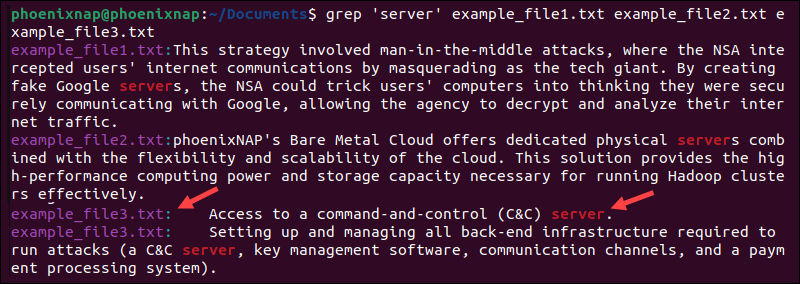
Add as many filenames as needed. The terminal will display the matching line, prefixed with the filename, for each match grep finds.
Note: Learn how to use the xargs command with grep to search for a string across a list of files.
Search All Files in Directory
To search all files in the current directory, use an asterisk (*) instead of a specific filename at the end of the grep command.
In this example, the search pattern is “ransomware”:
grep 'ransomware' *
The system will display each line that contains the term “ransomware,” along with the filename where the match is found.
Search for a String in Files with Specific Extensions
Use the asterisk (*) wildcard to narrow searches to files with specific extensions:
grep 'ransomware' *.txtgrep searches for the “ransomware” pattern in all files with a .txt extension in the current directory.
Find Whole Words Only
grep lets you search and display results for whole words only. To search for the word “server” in all files in the current directory, add the -w option to the grep command:
grep -w server *This option ensures that only lines containing the exact word “server” are displayed, along with the filenames where they are found.
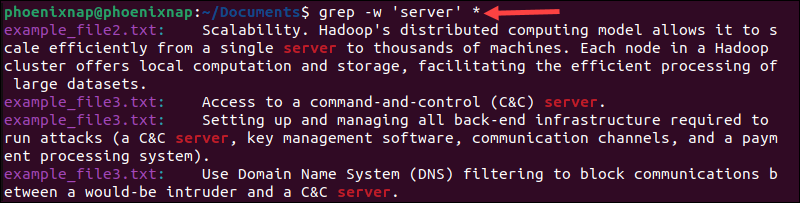
In this example, the output will exclude lines containing the plural form “servers.”
Search Subdirectories
To search all files recursively, including those in subdirectories, add the -r option to the grep command:
grep -r phoenix *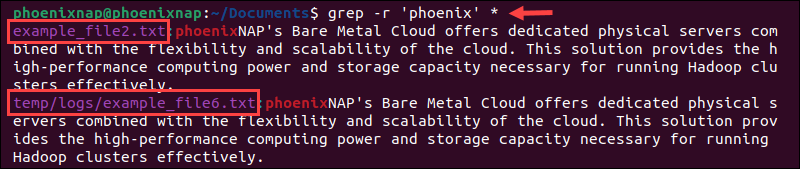
The system will display matches for all files in the current directory and its subdirectories, including the full path and filename. Use this option with caution, as searching for a common word across multiple directories can take time.
The -R option allows you to follow symbolic links within directories, extending the search to include linked files and directories.
Show Lines That Exactly Match a Search String
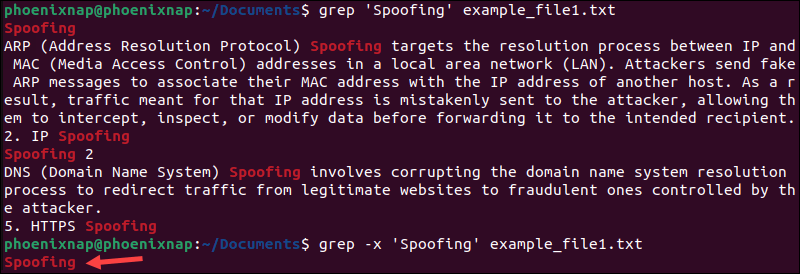
The grep command prints entire lines when it finds a match in a file. To display only lines that exactly match the search string, add the -x option.
grep -x 'Spoofing' example_file1.txtThe output will display only the lines that exactly match the search pattern. If there are any additional words or characters on the same line, grep will exclude them from the results.
The image below shows the grep results with and without the -x option:
List Names of Matching Files
To retrieve the names of the files that contain a word or string of characters, without displaying the actual matching lines, use the -l option:
grep -l 'server' *
The output will list the filenames that contain the word “server,” but it will not display the matching lines.
By default, grep does not search subdirectories, but it may show warnings like grep: temp: is a directory. To include all subdirectories in your search, combine the recursive -r option with the -l option.
Count Number of Matches
grep can count the number of lines that contain a pattern in one or more files. Use the -c option to count the matching lines:
grep -c server *
The command will display the number of lines containing the pattern “server” for each file in the current directory.
Show Only the Matched Part of the Line
Use the -o option to display only the portion of the line that matches the search pattern, rather than the entire line.
grep -o 'server' example_file2.txt
This command will display only the parts of example_file2.txt that match the pattern.
Search in Binary Files
Use the grep command with the -a option to search for a string in a binary file.
grep -a 'string' binary_file1The -a option tells grep to treat the binary file as if it were a text file.
Limit grep Output to a Fixed Number of Lines
Individual files, like log files, can contain many matches for a grep search pattern. To limit the number of lines in the output, add the -m option followed by a number to the command:
grep -m3 'server' example_file2.txtIn this example, the terminal will display the first three matches it finds in the example_file2.txt file.

If you don’t specify a file and instead search all files in a directory using the asterisk (*), the output will show the specified number of results from each file. It will also display the filename containing the matches.
Display Number of Lines Before or After a Search String
To provide more context in grep search results, use the NUM option.
The -A NUM option displays a specified number of lines after a match. For example, the following command tells grep to print 2 additional lines after the matched pattern:
grep -A 2 'ransomware' example_file1.txt
The -B NUM option displays lines before a match. The following command shows 2 additional lines before each “ransomware” pattern match:
grep -B 2 'ransomware' example_file1.txt
The -C NUM option displays the specified number of lines before and after the match. For example, the following command shows 2 lines before and after each “ransomware” match:
grep -C 2 'ransomware' example_file1.txt
Display Line Numbers with grep Matches
It can be helpful to see line numbers when grep finds multiple matches. Add the -n option to any grep command to display the line numbers.
Use the following command to show two lines before and after each match, along with their line numbers:
grep -n -C 2 ransomware example_file1.txt
This command example combines the -n option for line numbers with the -C 2 option to display two lines before and after each match for the “ransomware” pattern in example_file1.txt.
Search for Multiple Patterns
Use the -e option to search for multiple patterns in a single grep command.
grep -e 'server' -e 'cloud computing' -e 'phoenix' example_file2.txt
Alternatively, use grep -E (which is equivalent to the older egrep command) to achieve a similar result with extended regular expressions.
grep -E 'server|cloud computing|phoenix' example_file2.txtIn this example, grep searches for lines that match “server,” “cloud computing,” and “phoenix” in example_file2.txt.
Use of Regular Expressions in Searches
Users can add regular expressions to the grep command to perform more complex pattern matching. The following command searches example_file1.txt for lines that begin with any letter:
grep '^[a-zA-Z]' example_file1.txtRegular expressions like these are useful for filtering out empty lines or lines that begin with special characters or numbers.
Use grep with Pipes
grep can be combined with other commands using piping (|) for more complex searches or data processing.
In this example, the cat command displays the content of example_file2.txt and pipes it into grep to filter lines that contain the search pattern:
cat example_file2.txt | grep 'server'
Piping allows you to perform advanced grep search operations and interact with other command-line utilities.
Conclusion
By now, you should be familiar with how to use grep to search text files from the Linux terminal.
The grep command offers many additional useful options and can be combined with the find command to search through thousands of files at once.


