
Direct answer: The best free AI video generator for YouTube is Clipchamp when you already have footage, Canva for reusable channel designs, InVideo AI for prompt-to-video drafts, Adobe Express for polished short inserts, Pika for watermark-free generated clips, CapCut for script-led experiments, and VEED for testing a browser-based production workflow.
“Free” does not mean unlimited, and “AI video generator” describes several different products. Some synthesize a few seconds of new footage. Others turn a script, stock media, narration and captions into a rough video. A third group uses AI to assemble footage you provide. For most YouTube creators, the best result comes from combining one generator with an editor—not asking one prompt to produce a publishable channel video.
This comparison was checked on August 28, 2026 against current US-facing product, pricing, help and terms pages. Free plans change frequently. This is a documentation-based review: we compared published access, export and licensing conditions but did not create accounts or claim hands-on output-quality tests.
If you only need short synthetic footage, our broader guide to free AI video generators compares model credits, watermarks and usage rights. This article instead focuses on a YouTube workflow: 16:9 and Shorts formats, narration, captions, editing, export quality, watermarks and whether a free plan can produce something worth uploading.
Best free AI video generators for YouTube
| Tool | Best for | Free allowance | Export and watermark | Main limitation |
|---|---|---|---|---|
| Clipchamp | Editing videos from your footage | Unlimited projects and exports; AI auto-compose, captions, voiceovers and silence removal | Up to 1080p; no watermark with free assets | Not a text-to-video model; premium assets block export until removed or upgraded |
| Canva | Channel packages, explainers and Shorts | Up to 20 Premium AI uses monthly as an estimate; pooled allowance varies by task | Free MP4 export when the design contains only free or owned assets | Generated clips are only 4 or 8 seconds; Pro assets can create an export charge |
| InVideo AI | Fast faceless-video drafts | 10 AI minutes and four exports per week | Free exports carry InVideo branding | Free plan has no access to generative media features |
| Adobe Express | Short generated b-roll inside an editor | Two lifetime five-second video generations; projects up to 30 minutes | Watermark-free MP4 with eligible free assets | Two generations are a sample, not a recurring production allowance |
| Pika | Watermark-free synthetic inserts | 80 monthly credits; about six five-second 480p generations at 12 credits each | No watermark; commercial use listed | Free text-to-video is limited to 480p and short clips |
| CapCut | Script-led video experiments | Official page describes free use and no card, but publishes no stable quota | Official generator page claims no watermark | Model, credit and export eligibility can vary by account, device and region |
| VEED | Evaluating an all-in-one browser studio | Free editor; AI credits are not consistently documented for every account | Every free export has a VEED watermark | Free output is better for evaluation than a finished channel upload |
How we ranked them: We screened 12 credible services—Clipchamp, Canva, InVideo AI, Adobe Express, Pika, CapCut, VEED, Runway, Luma Dream Machine, Bing Video Creator, HeyGen and Descript. We compared zero-dollar access, account and card requirements, useful free allowance, watermark, export resolution, 16:9 and 9:16 support, narration, captions, editing control, stock-media licensing, commercial-use language, privacy considerations and suitability for a repeatable YouTube workflow.
We weighted finished-video usefulness above cinematic demo quality. Clipchamp therefore ranks above stronger generative models: a free 1080p editor with captions and voiceover can complete a YouTube video, while a beautiful five-second clip cannot. We excluded tools whose accessible documentation did not establish a practical ongoing free route or whose free terms were weaker than the selected alternatives.
Important distinction: published plan facts are confirmed from official documentation. Recommendations are our analysis of those facts. We did not measure render speed, prompt adherence or visual quality in logged-in tests, so those attributes are not ranked as hands-on findings.
1. Clipchamp: best free option for complete YouTube edits
Microsoft Clipchamp’s current plan comparison says personal users can export unlimited videos at up to 1080p without a watermark. The free tier includes AI auto-compose, automatic subtitles, text-to-speech voiceovers and silence removal, along with recording, timeline editing and a free stock library. A personal Microsoft account is required, but no payment or download is necessary for the browser editor.
Clipchamp is strongest when you have screen recordings, camera footage, product shots or licensed b-roll. Auto-compose can arrange supplied media; it does not synthesize an entire scene from a text prompt. For tutorials, commentary and product demos, that limitation is healthy: the creator’s original material remains the center of the video.
Pros: genuinely useful 1080p exports, no free-plan watermark, captions, narration, screen recording and standard YouTube aspect ratios. Cons: 4K, brand kits and premium stock require paid access. Microsoft’s watermark guidance says premium content does not add a watermark; instead, export is blocked until you upgrade or remove the paid element. Check the export screen before building around an unfamiliar asset.
2. Canva: best for repeatable channel visuals and Shorts
Canva Free combines templates, stock assets, captions, a timeline and several AI tools in one account. Its current plan page estimates up to 20 Premium AI uses per month for free users, drawn from a pooled allowance that varies with the tool and task complexity. This is more transparent than promising a fixed number of videos: an eight-second Canva AI video can consume a different amount than a standard AI action.
Canva’s Magic Media help page says text-to-video outputs are four seconds. Canva AI’s newer video clips are eight seconds with sound. Those clips are best used as an opener, transition or illustrative b-roll inside a designed 16:9 video or vertical Short, not as a complete episode. Magic Design can arrange uploaded media but does not generate footage from scratch.
Pros: the same project can hold thumbnails, lower thirds, intros, Shorts and long-form layouts. Cons: the AI allowance is pooled and approximate, and Magic Design can insert Pro assets. Free users must replace or license those assets before download. Canva says users own eligible Magic Media output as between the user and Canva, but copyright may be uncertain and recognizable people, brands or characters still require permission.
3. InVideo AI: best for fast faceless-video drafts
InVideo AI’s pricing page lists 10 AI minutes per week, one Express avatar and four exports per week on the free plan. It can turn a topic into a script-led draft with stock footage, narration, captions and an editable sequence. That is useful for exploring structure quickly, especially when a blank timeline is the main obstacle.
The boundaries are substantial. Free exports carry an InVideo watermark, and the free plan explicitly has no access to generative media features. In other words, “AI video” here means assembly and editing rather than unlimited creation of original moving images. The current free allocation is a weekly workspace allowance, not ten minutes of clean footage ready for a monetized channel.
Pros: fast script-to-draft workflow and a predictable weekly allowance with no card. Cons: watermark, stock-dependent visuals and no free generative media. Replace generic scenes, verify every claim and add original narration or reporting; a templated stock montage is not automatically distinctive YouTube content.
4. Adobe Express: best for two polished generated inserts
Adobe Express Free provides standard video editing, free templates and assets, 5 GB of storage, projects up to 30 minutes and two lifetime five-second Generate Video uses. The Generate Video workflow accepts a text prompt or starting image and exposes camera angle and shot-size controls. Landscape projects produce widescreen video; portrait projects produce reel-style output.
Adobe’s free video maker supports watermark-free MP4 export when the project uses eligible free assets. Two generations are enough to evaluate a hero shot or transition, but not enough to build a weekly channel. Treat the allowance as a sample and use the editor, free stock and your own footage for the rest.
Pros: strong editing context, controlled shot setup and watermark-free eligible exports. Cons: only two lifetime free video generations and paid assets can restrict download. Adobe describes non-beta Firefly features as designed for commercial safety, not as a guarantee against third-party claims; Content Credentials may also disclose AI assistance.
5. Pika: best for watermark-free generated b-roll
Pika’s Basic plan currently includes 80 monthly credits, 480p Pika 2.5 access, no-watermark downloads and commercial use. A five-second 480p text-to-video or image-to-video generation costs 12 credits, which is roughly six attempts per month if every job succeeds. More elaborate effects can consume 15, 20, 60 or even 80 credits.
Pika fits a narrow but real YouTube need: generating a brief visual that would be expensive or impossible to film. It does not replace a 1080p editor, and stretching 480p footage across a desktop player can expose artifacts. Use it as an insert, picture-in-picture element or stylized Short rather than the foundation of a long-form video.
Pros: recurring credits, explicit watermark-free downloads and published commercial-use language. Cons: low free resolution, short duration and few attempts. A commercial-use permission from Pika does not give you rights to someone else’s face, voice, logo, character or footage.
6. CapCut: best for testing script-led generation
CapCut’s official AI video generator page describes a no-card tool that can turn a prompt or script into a complete video with styles and voiceovers, supports YouTube formats and claims watermark-free output. Its connected editor adds captions, effects, audio and common social layouts.
The documentation does not publish a stable free credit allowance, supported model list or universal export entitlement. CapCut’s terms also allow service plans and available features to change. That makes it a conditional recommendation: start a disposable project, inspect the model, credit balance, asset labels and export screen in your US account, and only then commit to a production edit.
Pros: script, voice and edit tools in one workflow, with an official free/no-watermark claim. Cons: the most important free limits are not stated precisely enough for planning. Some templates, effects, media or AI routes may be Pro even when the base editor is free.
7. VEED: best for evaluating a browser-based studio
VEED offers editing, captions, scripts, avatars, synthetic clips and voice tools in one browser workspace. It can be convenient when a creator wants to test an end-to-end interface before choosing a paid service.
Its current watermark policy is unambiguous: every project exported without an account or from a free account receives a VEED watermark. Public pages do not establish the same AI-credit allowance for every region and account, so inspect the dashboard rather than assuming a search-result promise applies.
Pros: approachable all-in-one workflow and useful evaluation path. Cons: watermark on every free export and variable AI access. Use Free to test the workflow, not to promise a clean channel deliverable.
Which free tool should you choose?
- You have recordings or product footage: choose Clipchamp for the strongest free final export.
- You need consistent thumbnails, intros and Shorts: choose Canva and keep Pro assets out of the project.
- You want a first script-to-video draft: try InVideo, then replace generic material and accept the watermark boundary.
- You need one or two cinematic inserts: use Adobe Express before spending its two lifetime generations.
- You need recurring synthetic b-roll without a watermark: use Pika, provided 480p is acceptable.
- You want a quick script-led experiment: test CapCut’s export eligibility before doing the full edit.
- You are comparing paid studios: use VEED Free as an evaluation workspace.
Write a shot list before opening any generator. A prompt that names subject, action, setting, camera movement, duration and aspect ratio wastes fewer credits than “make a cool YouTube video.” Our prompt-engineering guide explains why explicit constraints produce more repeatable results, while our generative AI guide covers the model limitations behind inconsistent outputs.
A practical free YouTube workflow
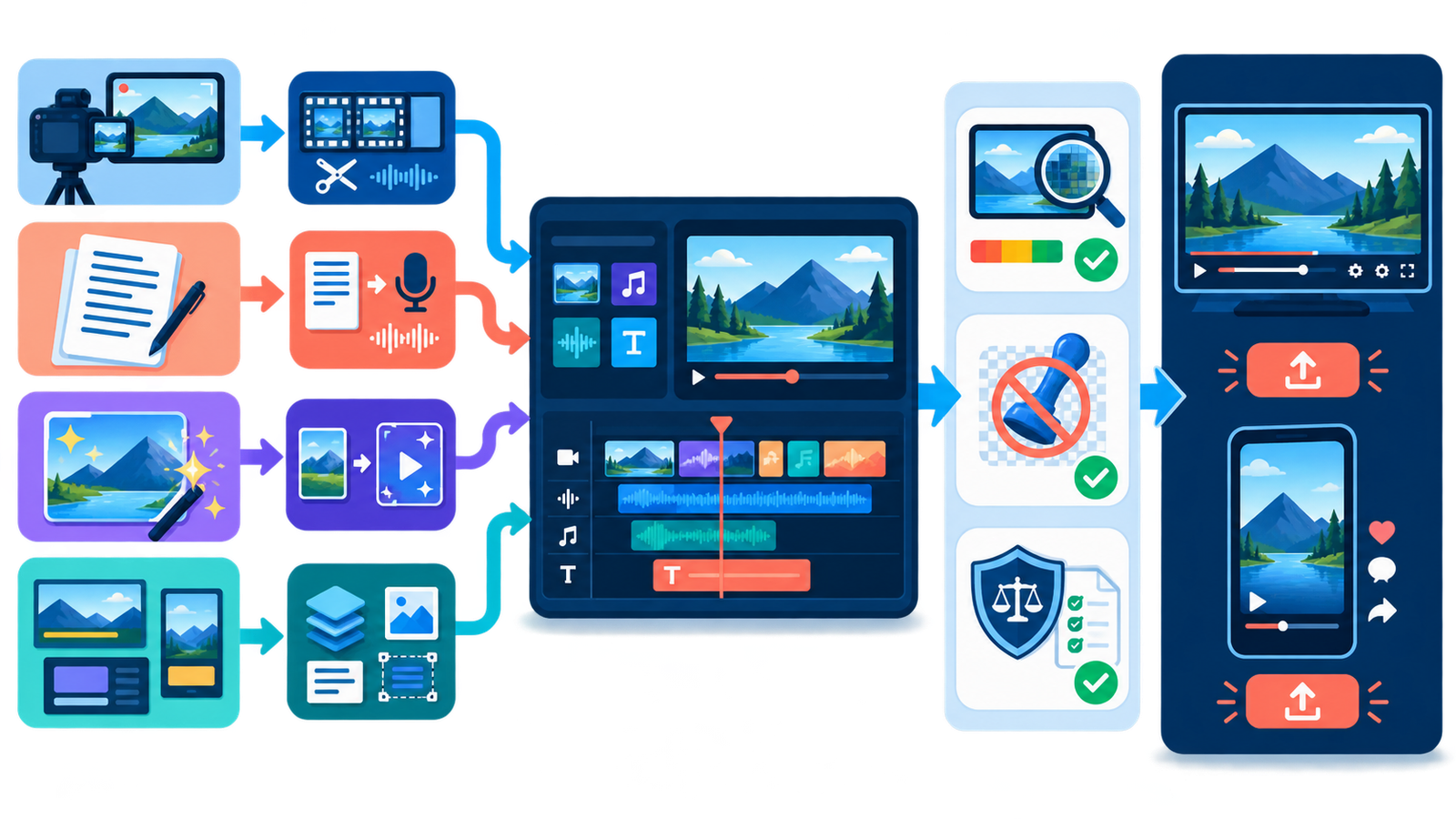
- Start with an original premise. Define the audience question and the creator insight that makes the video worth watching.
- Draft and fact-check the script. Verify names, dates, demonstrations and citations independently; an AI-written sentence is not a source.
- Record the irreplaceable material. Capture your voice, screen, hands-on demonstration or commentary before generating filler.
- Generate only missing shots. Use Pika or Adobe for a short insert, or Canva and InVideo to explore structure. Do not spend credits recreating footage you can record clearly.
- Edit for the destination. Use 16:9 for standard videos and 9:16 for Shorts. Check captions, music levels, pacing and safe areas on a phone.
- Audit every asset. Confirm stock, music, voice, likeness and commercial-use rights for the exact plan and asset used.
- Export a short test. Confirm resolution, watermark and paid-asset warnings before rendering the full project.
- Apply YouTube disclosures. Use the AI disclosure setting when realistic content is meaningfully generated or altered.
YouTube monetization, disclosure and rights caveats
YouTube does not automatically reject a video because AI helped create it. Its channel monetization policy focuses on original, authentic value and says mass-produced, repetitive templates with minimal educational, narrative or creative contribution may not monetize. A creator should add reporting, expertise, performance, critique or substantive editing—not merely publish a generated stock montage at scale.
YouTube’s current AI disclosure guidance requires disclosure when content meaningfully alters or generates a photorealistic person, event, place or realistic scene that did not occur. Minor production assistance such as script outlining or color correction generally does not require the same disclosure. Labeling by itself does not make a video ineligible for monetization.
Watermark-free is not the same as rights-cleared. Get consent before using a real person’s likeness or voice. Do not imitate a creator, public figure or private individual deceptively. Check the license for every stock clip, music track, font and template, especially before monetization or client work. Generated output may not be unique or copyrightable, and a platform’s commercial-use clause cannot clear a third party’s rights.
Also avoid uploading confidential footage, unreleased products, customer data or children’s personal information until you have reviewed the service’s retention, model-training and deletion settings. Tools that simplify production still receive the media and prompts you submit.
Frequently asked questions
Is there a completely free AI video generator for YouTube?
There are useful zero-dollar workflows, but no credible hosted tool provides unlimited prompt-to-video generation, unrestricted assets and clean high-resolution export. Clipchamp offers the strongest free final editor; Canva, Pika and Adobe provide limited generation; InVideo and VEED add watermarks; CapCut does not publish a stable universal quota.
Which free AI video generator has no watermark?
Clipchamp exports free projects without a watermark when they use eligible assets. Pika’s free plan explicitly lists watermark-free downloads, though text-to-video is limited to 480p. Adobe Express and Canva can export eligible free projects cleanly. Always run a short export test because a paid asset can change eligibility.
Can AI-generated YouTube videos be monetized?
They can be eligible, but monetization depends on originality, rights, advertiser suitability and the channel’s overall compliance—not on the generator alone. YouTube specifically warns against mass-produced, repetitive templates with little added value. Confirm commercial licenses and make the creator’s contribution unmistakable.
What is best for YouTube Shorts?
Canva is the most convenient option here for combining 9:16 layouts, branded design and short generated inserts. CapCut is useful when its free export route is available in your account. Pika can create a brief vertical visual, but you will still need an editor, captions and original context.
Do free AI video generators require an account?
Most do. Clipchamp requires a Microsoft account, and Canva, InVideo, Adobe Express and Pika use accounts to manage projects and allowances. VEED can begin without login, but its free export still carries a watermark. “No credit card” does not mean “no sign-up.”
Bottom line
Choose Clipchamp when a clean, complete YouTube export matters most; choose Canva for a repeatable channel design system; and use Pika or Adobe Express sparingly for synthetic b-roll. InVideo, CapCut and VEED are useful evaluations with clearer tradeoffs than their “free” labels imply. The winning workflow is not one-click generation—it is original reporting or performance, selective AI assistance, careful editing and a final rights-and-disclosure review.


