

The best AI writing tool for email depends on where you work. Gemini is the most convenient choice for personal Gmail in the United States, Microsoft Copilot fits Outlook and Microsoft 365, Grammarly is strongest for cross-app editing, Shortwave suits Gmail power users, MailMaestro offers a small permanent-free allowance, Superhuman Mail targets high-volume teams, and Lavender specializes in sales-email coaching.
This guide compares seven AI writing tools for email writing available to US users. It was checked on September 12, 2026, against current product, pricing, help and privacy pages. Features and allowances change quickly, so confirm the account meter and data controls before connecting a work inbox.
Best AI writing tools for email writing at a glance
| Tool | Best for | Free or trial boundary | Main limitation |
|---|---|---|---|
| Gemini in Gmail | Personal Gmail users in the US | Help me write is available to eligible personal accounts | Personal-account availability is currently US-only |
| Microsoft Copilot in Outlook | Microsoft 365 workplaces | Copilot Chat is included for eligible work accounts | Full app and organization grounding requires a paid add-on |
| Grammarly | Polishing email across apps | 100 generative prompts monthly on Free | No native inbox search or thread management |
| Shortwave | AI-first Gmail workflow | Free plan includes the AI assistant | Full-history search and writing personalization are paid |
| MailMaestro | A simple Gmail or Outlook add-in | Three compose, reply or improve requests weekly | Free plan is too small for daily use |
| Superhuman Mail | High-volume professionals and teams | 30-day trial; paid plans start at $25 monthly annually | No permanent-free Mail plan |
| Lavender | Sales outreach coaching | Five analyzed and personalized emails monthly | Narrow focus and low free allowance |
How we ranked AI email-writing tools
We screened 11 products and ranked seven. The review considered drafting and reply quality controls, access to thread context, tone and personalization, Gmail and Outlook support, free or trial access, published limits, pricing, privacy choices, team administration and the effort required to review a message before sending. ChatGPT, Claude, HubSpot Breeze and Fyxer were screened but not ranked because they were either less inbox-native for this intent, overlapped marketing and CRM workflows, or did not publish a sufficiently clear self-serve access boundary.
This is a documentation-based comparison, not a matched-inbox benchmark. GravityDevOps did not connect a production mailbox, purchase each plan or measure response rates. We used Associated Press reporting on Gmail’s 2026 AI rollout and Tom’s Guide’s Superhuman Mail evaluation as independent context. Vendor claims about time saved or communication outcomes were not used to rank the tools.
1. Gemini in Gmail: best for personal Gmail users
Gemini’s Help me write feature in Gmail can draft a new message, revise an existing draft, and change its tone or length without leaving the compose window. Google says it can use relevant details from email and Drive when the feature is invoked, and it provides a Sources control so users can inspect that context.
The access boundary matters. Google currently makes Help me write and suggested replies available to eligible personal Gmail accounts in supported languages only in the United States. Eligible Google AI and Workspace plans receive broader access. For businesses, Google Workspace Business plans start at $7 per user per month on an annual commitment or $8.40 on the flexible plan, and Google lists Gemini in Gmail among the included features.
Best for: people who already use Gmail and want the least disruptive starting point. Watch out for: personalized drafts may draw from other mail and Drive files. Inspect the cited sources, remove irrelevant details and follow your organization’s rules before using sensitive correspondence.
2. Microsoft Copilot in Outlook: best for Microsoft 365 workplaces
Draft with Copilot in Outlook turns a prompt into an email, lets the writer adjust tone and length, and supports rewriting selected text. Copilot can also provide coaching on tone, sentiment and clarity. In new Outlook and Outlook on the web, Microsoft says the drafting tool does not support messages composed as plain text, so HTML composition must be enabled.
Microsoft now separates included Copilot Chat from the more capable paid license. Copilot Chat is available at no additional cost to eligible Microsoft Entra users with Microsoft 365, with limited access inside select apps. The full Microsoft 365 Copilot Business add-on connects more work data and apps; the checked US offer starts at $18 per user per month paid yearly and still requires a qualifying Microsoft 365 license.
Best for: organizations already standardized on Outlook, Microsoft 365 and Entra controls. Watch out for: app availability varies by license and administrator settings. Confirm which users can access mailbox or organizational context before promising a workflow.
3. Grammarly: best cross-app email editor
Grammarly works across browser, desktop and mobile writing surfaces, so it can help in Gmail, Outlook and many webmail clients without replacing the inbox. It is particularly useful after a writer already knows what to say: grammar, concision, tone and sentence-level rewrites are more portable than mailbox automation.
The current Grammarly Free plan includes 100 generative AI prompts per month. Pro provides 2,000 prompts and costs $12 per member per month billed annually or $15 monthly. Grammarly also documents a product-improvement and training control that allows Free and single-user paid customers to opt out of model training.
Best for: polishing email across multiple apps while preserving an existing mail client. Watch out for: it is a writing layer, not a complete inbox assistant. It cannot reliably infer missing thread context unless that content is available to the product.
4. Shortwave: best AI-first Gmail workflow
Shortwave’s AI Assistant is built into its email client and can draft or improve messages, summarize threads, search the inbox, manage the calendar and organize mail. The product supports Gmail and Google Workspace rather than serving as a universal IMAP or Outlook client.
Shortwave’s Free plan includes its AI executive assistant and most core productivity features. The company places advanced AI search, full-history import and writing personalization on paid plans. Its public billing guide no longer publishes stable plan prices, so check the in-product upgrade page before comparing long-term cost.
Best for: Gmail users willing to adopt a new inbox interface in exchange for more contextual AI. Watch out for: free access does not include every AI feature, and moving an inbox into a third-party client expands the data-processing surface.
5. MailMaestro: best small free allowance for Gmail and Outlook
MailMaestro runs as an Outlook add-in or Gmail extension. It can compose, reply and improve drafts in 18 languages, while paid tiers add thread and attachment summaries, scheduling and priority-inbox features.
The MailMaestro Free plan gives a combined total of three compose, reply or improve requests per week after a 14-day full-feature trial. No card is required. Professional costs $15 per seat monthly or $12 per seat monthly on annual billing. The vendor says it anonymizes data sent to model providers; its privacy policy also states that the extension may process personal communications and authentication information, with retention varying by data type and contract.
Best for: occasionally drafting a sensitive or high-effort reply without changing mail clients. Watch out for: three requests per week is an evaluation-scale allowance, not a daily productivity plan.
6. Superhuman Mail: best premium option for high-volume teams
Superhuman Mail’s Email Assistant combines writing with triage: it can prepare replies in the user’s voice, label incoming messages and resurface follow-ups inside Gmail or Outlook. Its deeper features are designed for professionals whose bottleneck is managing a large inbox, not simply correcting prose.
There is no permanent-free Superhuman Mail tier. The product offers a 30-day trial. Starter costs $25 per member per month billed annually and includes Write with AI and Instant Reply; Business costs $33 per member per month billed annually and adds Auto Drafts, Ask AI, voice and tone matching, and CRM integrations. Monthly prices can be higher.
Best for: high-volume professionals who will use both inbox workflow and drafting features. Watch out for: the return on a premium email client depends on real message volume. Test it with a representative week and review tracking, CRM and retention settings before rollout.
7. Lavender: best sales-email coaching
Lavender’s Email Coach focuses on outbound sales messages. It analyzes drafts, suggests improvements for clarity and mobile readability, personalizes outreach and works with Gmail and Microsoft 365 Outlook. That narrow purpose makes it more useful for sales prospecting than everyday personal or operational email.
The Free Forever plan covers five analyzed emails and five personalized emails per month. A seven-day trial of paid features requires no card. Starter is $29 monthly or $27 per month billed annually; Individual Pro is $49 monthly or $45 per month annually. Lavender says students, job seekers and bootstrapped entrepreneurs can apply for free access, but eligibility is a separate program rather than the standard entitlement.
Best for: sales representatives who want feedback before sending short outbound messages. Watch out for: an optimization score cannot prove that a claim is accurate or that a recipient consented to outreach. Follow anti-spam law, company policy and the receiving platform’s rules.
How to use AI for email without sending the wrong message
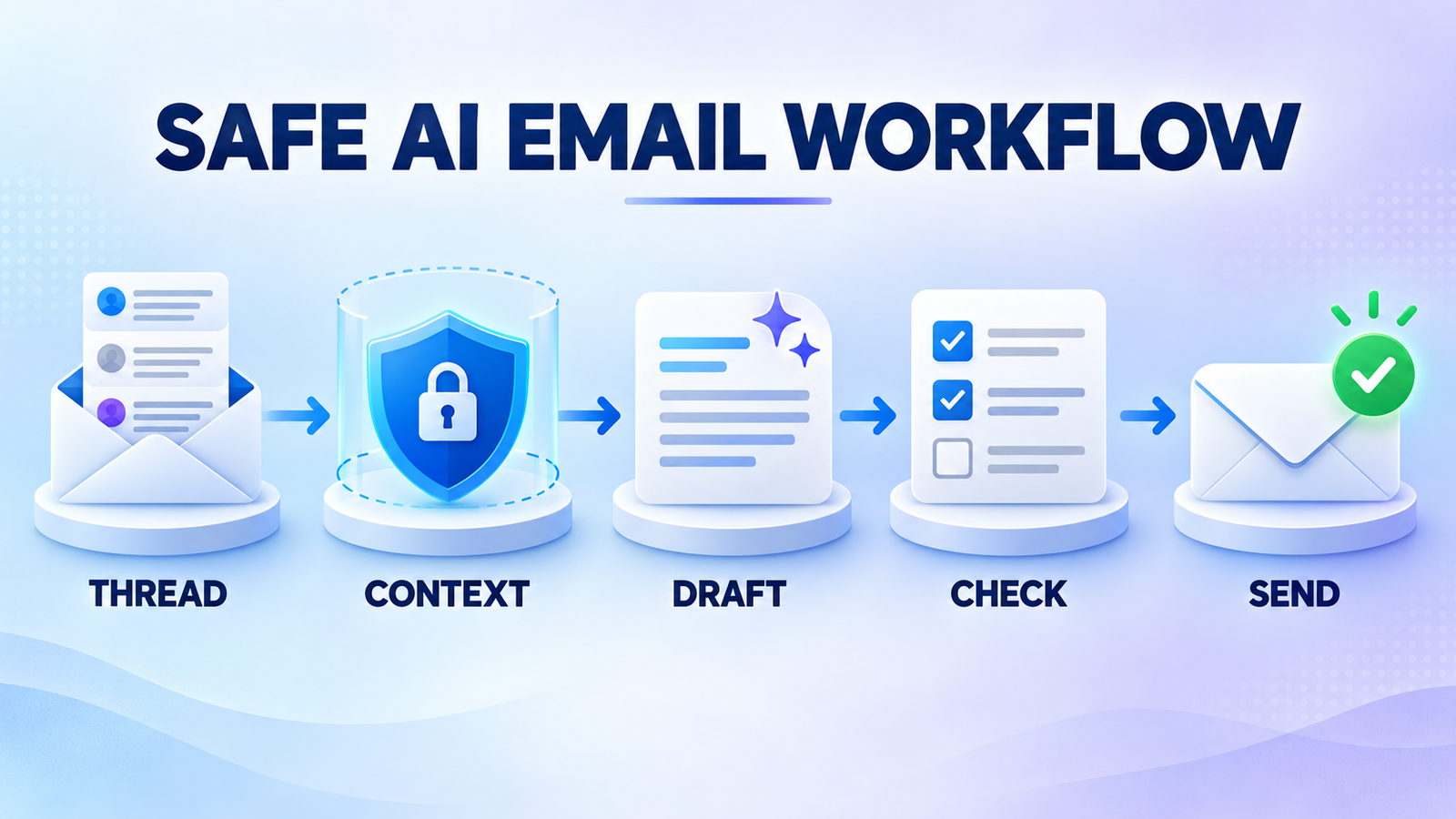
- Choose the context boundary. Decide whether the tool may see only the current draft, one thread, the full mailbox, Drive files or CRM records. Grant the smallest access that still solves the problem.
- Write the facts first. List the recipient, purpose, required action, deadline, attachments and any statement that must remain exact. Our prompt-engineering guide explains how constraints reduce vague output.
- Ask for one clear draft. Specify tone and length, but avoid asking the model to invent rapport, urgency, results or promises. A useful instruction is to leave a visible placeholder when information is missing.
- Check the entire thread. Verify names, dates, amounts, links, time zones and commitments against the source messages. AI can produce fluent text that is unsupported; our generative AI primer explains this limitation.
- Inspect recipients and attachments. Confirm To, Cc and Bcc, reopen every attachment and remove hidden or quoted information that should not leave the organization.
- Keep a human on Send. Disable automatic sending until the workflow is proven, and require review for financial, legal, medical, employment, security or disciplinary messages.
AI email tools are different from tools that create campaign copy at scale. If the job is newsletters, ads or lifecycle messaging, see our AI writing tools for marketing copy. If the email must synthesize reports, papers or documents, begin with the research and drafting comparison before compressing the result into a message.
Which AI email-writing tool should you choose?
Start with the assistant already governed by your email provider: Gemini for eligible Gmail accounts or Copilot for Microsoft 365 workplaces. Choose Grammarly when editing across many apps matters more than inbox context. Shortwave is a stronger fit for Gmail users who want an AI-native client, while MailMaestro provides a low-risk three-request weekly test in Gmail or Outlook.
Superhuman Mail makes sense when inbox triage, follow-ups and personalized drafts can justify a premium subscription. Lavender is the specialist choice for sales outreach. There is no universal winner: the right tool is the one that uses the least mailbox access, exposes a clear review step and fits the email system your organization already supports.
Frequently asked questions
What is the best free AI tool for writing emails?
For eligible personal Gmail users in the United States, Gemini’s built-in Help me write feature is the easiest starting point. Grammarly offers 100 prompts per month across apps, Shortwave includes a basic AI assistant on Free, and MailMaestro provides three email-writing requests weekly.
Can AI write a reply from an email thread?
Yes. Gemini in Gmail, Copilot in Outlook, Shortwave, MailMaestro and Superhuman Mail can use thread context when permissions and plans allow it. Always compare the draft with the source thread because the model may omit a condition, confuse a participant or invent a detail.
Is it safe to connect AI to a work inbox?
Safety depends on the provider, plan, administrator controls and the data in the mailbox. Review scopes, retention, model-training choices, subprocessors and deletion controls. Do not connect regulated, confidential or customer mail unless your organization has approved the tool and workflow.
Should an AI email assistant send messages automatically?
Use review-before-send by default. Automation may be appropriate for tightly constrained, reversible messages after testing, but sensitive or high-impact email should remain human-approved. A well-written mistake can still create a binding commitment or expose private information.


