
Recording a YouTube video is only the beginning. Once filming is complete, creators still need to review footage, remove mistakes, arrange clips, improve audio, add captions, and prepare the video for publishing.
For creators producing videos regularly, these tasks can take longer than filming itself. A simple tutorial or product review might include several takes, screen recordings, and supporting footage that need to come together.
AI-assisted video editing is making this process easier. Modern editing tools can help organize recordings, identify useful moments, assemble initial cuts, and handle repetitive work.
This guide explains how AI fits into the YouTube editing process, which tools are worth considering, and how to move from raw footage to a finished video.
What Is AI-Assisted YouTube Video Editing?
AI-assisted YouTube video editing uses artificial intelligence to simplify or automate different parts of video production.
Instead of manually reviewing every clip, creators can use AI to find useful footage, remove pauses, create captions, improve sound, and prepare an initial edit.
Some editors can also understand written instructions and make changes directly to a video timeline.
The main benefit is reducing repetitive work without losing control over the creative process. AI can help prepare the video, but creators still decide how the story should flow and what viewers need to see.
How Does AI Help Turn Raw Footage Into a YouTube Video?
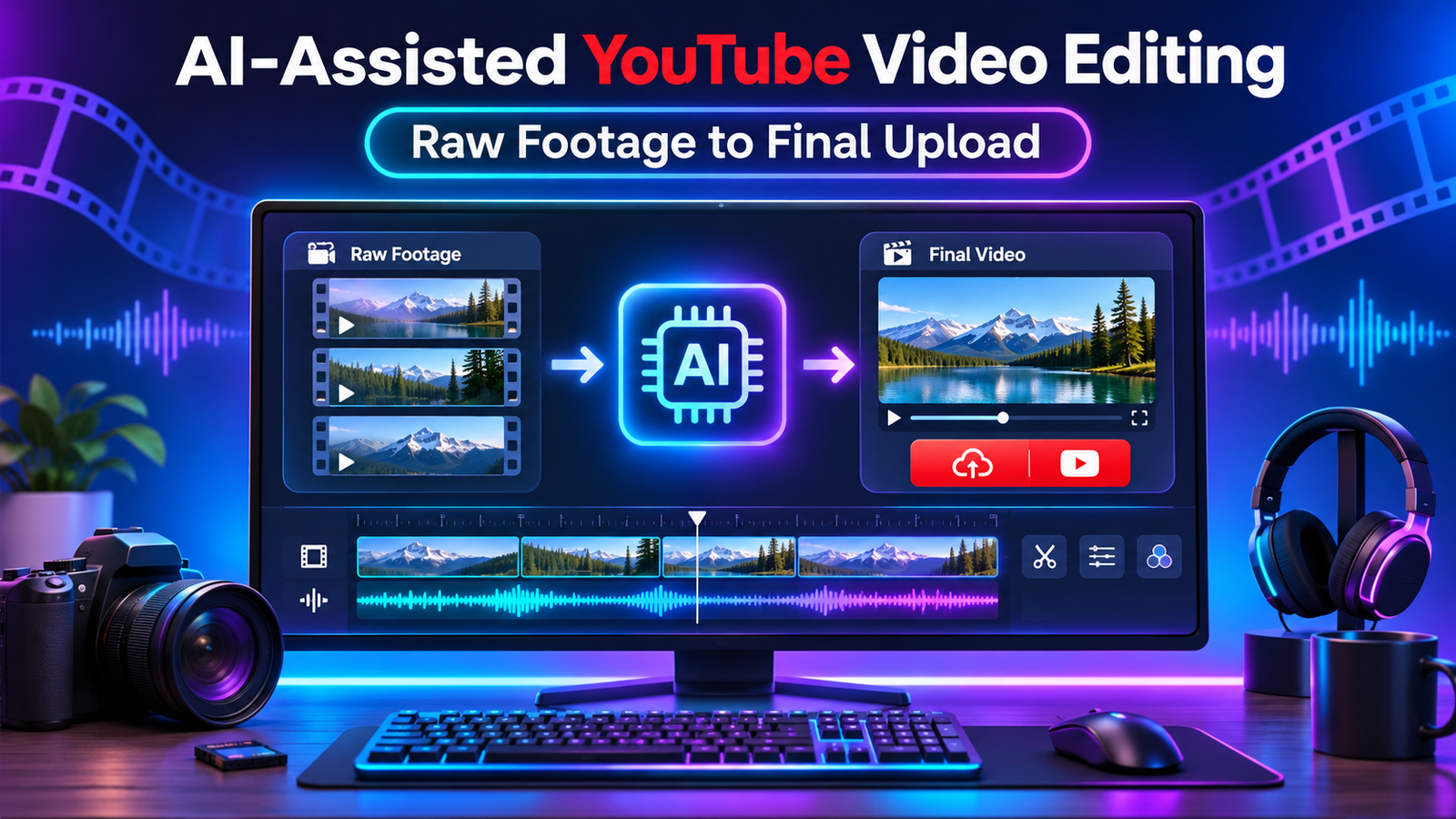
A reliable editing workflow moves through several stages, each offering opportunities for AI assistance.
1. Organizing and Reviewing Footage
Long recordings often contain repeated takes, mistakes, and unnecessary pauses.
AI tools can help identify dialogue, scenes, and important moments without requiring creators to watch every recording from beginning to end.
This is especially useful for interviews, tutorials, and product reviews involving multiple recordings.
2. Creating the First Cut
Once the footage is organized, the next step is assembling the main video.
AI-assisted editors can help remove unwanted sections, select usable clips, and arrange them into an initial sequence.
The creator can then review the structure, shorten sections, and adjust the pacing.
3. Improving Audio and Visuals
Clear audio is essential for YouTube videos. AI tools can help reduce background noise, improve dialogue, and balance sound levels.
Some editors also support automatic captions, color adjustments, background changes, and additional visual content.
4. Preparing Videos for Different Formats
Creators often want to turn their longer videos into YouTube Shorts or social media clips.
AI can help identify useful moments, reframe footage vertically, and prepare shorter versions.
GravityDevOps’ guide to AI video repurposing tools explores how these tools turn longer recordings into short-form content.
4 AI YouTube Video Editing Tools Worth Exploring
Different editors offer different levels of AI assistance. Some focus on professional timelines, while others simplify spoken-content editing or short-form production.
1. Invideo Editor
Invideo editor is a browser-based video editor with AI editing agents that handle repetitive tasks. You upload a long video, describe the clips you want, and the agents find those moments and place them on an editable timeline.
With invideo’s youtube video editor, creators can upload their recordings and describe the edit they want. AI agents can analyze footage by dialogue, actors, props, and camera angles, making it easier to find specific moments. They can also remove filler, silence, and unusable takes before assembling an editable first cut.
The platform offers keyframe editing, color grading, automatic captions, audio mixing, transitions, and effects. Creators can also cut footage to the beat of music or share a reference video to guide the pacing and editing style.
Invideo supports real-time collaboration, allowing team members to work on the same timeline and leave comments. Once editing is complete, users can create YouTube Shorts, export videos in up to 4K, or continue editing in Premiere Pro, Final Cut Pro, or DaVinci Resolve.
Key features:
- AI-powered footage search and logging.
- Automatic rough-cut assembly and cleanup.
- Multitrack timeline with keyframe editing.
- AI-assisted color grading and audio mixing.
- Automatic captions, Shorts, and 4K exports.
Best for: YouTube creators, professional editors, and creative teams that want AI-assisted editing with full timeline control.
2. Adobe Premiere Pro
Adobe Premiere Pro is a professional editing application designed for creators who need detailed control over video production.
Its AI features help simplify tasks such as finding footage, creating rough cuts, generating captions, and improving audio.
Premiere’s Media Intelligence feature helps editors search for specific clips, while Text-Based Editing allows creators to make changes through a transcript. Its AI Assistant can also help organize media and perform supported editing tasks through written instructions.
The software includes advanced controls for color correction, sound mixing, transitions, and visual effects.
Key features:
- AI-powered footage search with Media Intelligence.
- Text-based editing and automatic transcription.
- AI Assistant for organizing and refining projects.
- Generative Extend for supported clips.
- Professional color grading, audio, and effects tools.
Best for: Professional YouTubers, filmmakers, and creators managing detailed editing projects.
3. Descript
Descript is an AI-powered video and audio editor that allows creators to edit recordings through text.
After uploading a video, Descript generates a transcript linked to the recording. Creators can remove unwanted dialogue by deleting words from the transcript.
Its AI assistant, Underlord, can help clean recordings, remove filler words, add captions, and prepare shorter clips.
Descript also provides audio enhancement and screen recording tools, making it particularly useful for tutorials, interviews, podcasts, and educational YouTube videos.
Key features:
- Transcript-based video and audio editing.
- AI-assisted filler-word and silence removal.
- Underlord assistant for common editing tasks.
- Studio Sound for improving dialogue clarity.
- Automatic captions and short-form repurposing.
Best for: Educators, podcasters, tutorial creators, and YouTubers producing dialogue-heavy videos.
4. CapCut
CapCut is a video editing platform popular among creators producing short-form content. It combines timeline editing with AI-powered captions, visual effects, and ready-made templates.
Creators can import recordings, trim clips, add subtitles, improve audio, and adjust videos for different social platforms.
Its AI tools also support transcript editing, filler-word removal, automatic clipping, and background adjustments.
CapCut is particularly useful when creators need to prepare YouTube Shorts quickly without working through a complicated editing process.
Key features:
- Automatic captions and transcript editing.
- AI-assisted clipping and silence removal.
- Background removal and visual effects.
- Ready-made templates and transitions.
- Resizing and editing for vertical video formats.
Best for: YouTube Shorts creators, vloggers, and social media teams.
How to Edit a YouTube Video Using AI: Step by Step
AI-assisted editing works best when creators begin with a clear plan rather than expecting the software to make every decision.
Step 1: Upload and Organize Your Footage
Import video recordings, screen captures, images, audio, and supporting material into your editor.
Organize files by topic or recording session so the project remains easy to manage.
Step 2: Build the Initial Sequence
Use the editor’s AI tools to identify usable footage and remove obvious mistakes.
Review the first cut to make sure important explanations and transitions remain intact.
Step 3: Improve the Video
Adjust pacing, add supporting footage, correct colors, and improve dialogue clarity.
Use captions and graphics where they help viewers understand the content.
Step 4: Create Shorts and Supporting Clips
Select useful moments from the finished video and prepare shorter versions.
Check the framing and captions carefully when converting horizontal footage into vertical Shorts.
Step 5: Export and Upload to YouTube
Review the entire video before exporting. Check audio levels, captions, transitions, and the opening and closing sections.
Choose suitable export settings, prepare an accurate title and thumbnail, and upload the final video through YouTube Studio.
Creators developing channels without appearing on camera can also explore GravityDevOps’ guide to starting a faceless YouTube channel with AI.
What Should Creators Check Before Publishing?
AI can make editing faster, but it can also introduce mistakes.
Automatic cuts may remove important context, captions can contain incorrect names, and background noise removal can sometimes affect speech quality.
Creators should also confirm they have permission to use their music, footage, and other media.
For interview-based content, reviewing speech edits is especially important. GravityDevOps’ comparison of AI podcast editing tools explains why automated cleanup and transcript cuts still need human review.
A final playback on both desktop and mobile can help catch problems before publishing.
Conclusion
AI-assisted YouTube editing is making it easier to turn raw recordings into finished videos. From organizing footage and preparing first cuts to creating captions and social media clips, AI can reduce the time spent on repetitive editing tasks.
Tools such as invideo, Adobe Premiere Pro, Descript, and CapCut offer different approaches depending on the creator’s workflow.
The best results come from combining AI assistance with human judgment. Technology can handle much of the editing work, but clear storytelling and careful review remain essential.
Frequently Asked Questions
1. Can AI edit an entire YouTube video automatically?
Yes. Some AI editors can organize recordings, create initial cuts, add captions, and improve audio. However, creators should review the final video before publishing.
2. Which AI video editor is best for YouTube beginners?
CapCut and Descript offer approachable editing workflows. The best choice depends on whether the creator mainly produces short videos, tutorials, or spoken content.
3. Can AI turn long YouTube videos into Shorts?
Yes. AI video editing tools can identify useful moments, create shorter clips, add captions, and reframe footage for vertical viewing.
4. Does AI-assisted video editing replace manual editing?
Not completely. AI can handle repetitive tasks, but creators still need to make decisions about pacing, storytelling, accuracy, and the final viewing experience.


