
Direct answer: Gamma is the easiest starting point for turning a prompt or outline into a presentable web deck, while Canva is better for visual customization. Microsoft Copilot and Gemini are the safer choices when the final file must stay inside PowerPoint or Google Slides. Adobe Express, Pitch and SlidesAI offer useful alternatives with different free and export limits.
AI presentation tools can remove the blank-slide problem, but they do not remove the need for judgment. The best products generate an editable outline, apply a consistent visual system and make revision simple. The weakest merely spread generic bullet points across attractive templates. This guide compares seven practical options for people who need to create presentations without design skills.
Reviewed September 1, 2026. Plans, AI allowances and feature availability change frequently. GravityDevOps verified the limits below from current product, pricing and help documentation; we did not run a controlled visual-quality benchmark or test every paid plan.
Best AI tools to create presentations without design skills
| Tool | Best for | Current entry access | Main limitation |
|---|---|---|---|
| Gamma | Fast prompt-to-deck drafts | Free; up to 10 cards per prompt | Free exports retain Gamma branding |
| Canva | Visual customization and templates | Free plan with limited AI allowance | AI allowance is pooled and variable |
| Microsoft Copilot in PowerPoint | Native PowerPoint workflows | Eligible Microsoft 365 subscription | License and usage limits vary |
| Gemini in Google Slides | Google Workspace collaboration | Eligible Workspace or Google AI plan | Full-deck generation is desktop and English only |
| Adobe Express | Turning documents into editable decks | Five lifetime generations on Free | Free AI generation allowance does not renew |
| Pitch | Collaborative web presentations | Free with 100 one-time AI credits | No free PPTX export; free PDF is branded |
| SlidesAI | Generating inside Slides or PowerPoint | 12 presentations per year on Basic | 1,000-character input per presentation |
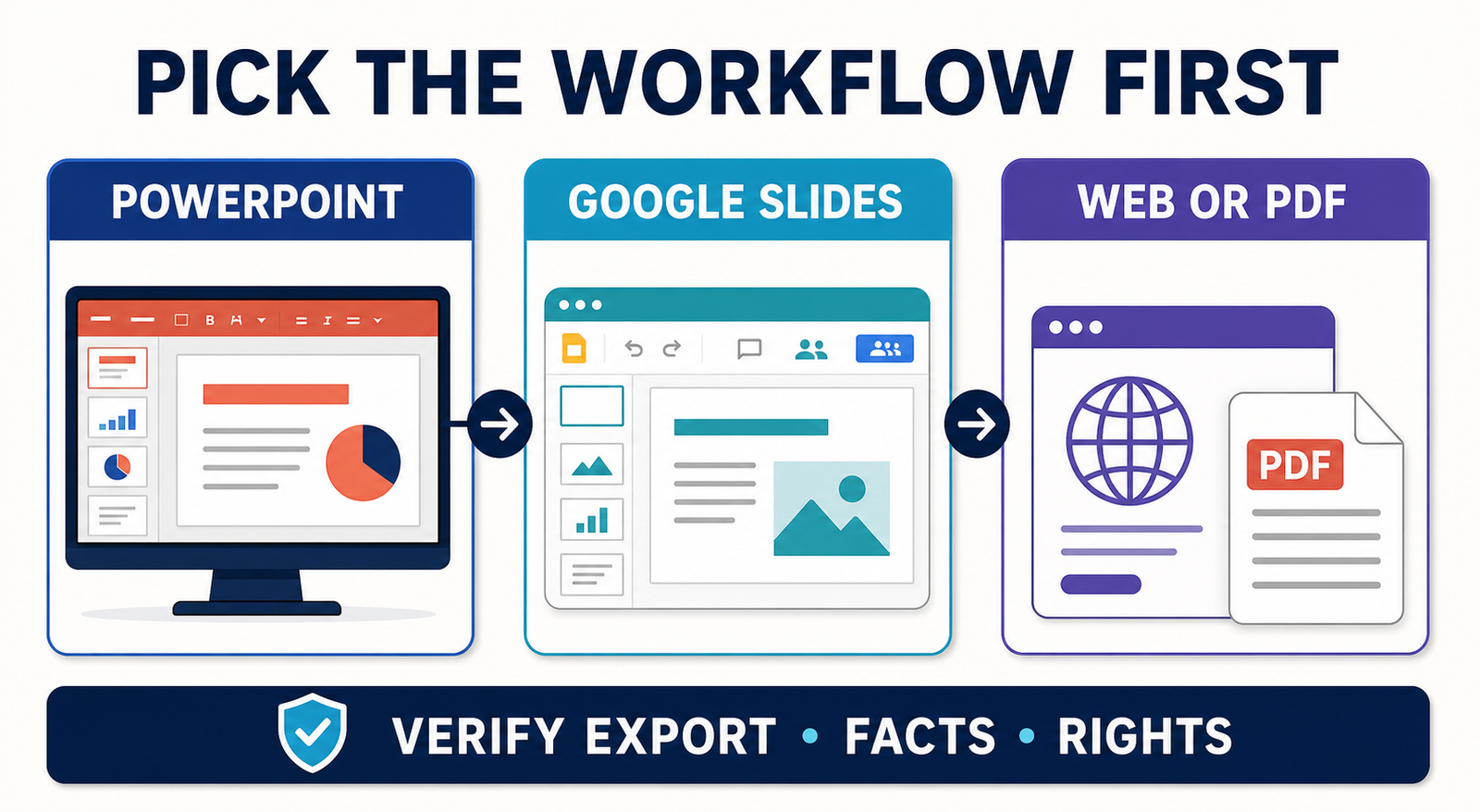
There is no universal winner. Choose the editor and export format first, then compare generation limits. A beautiful web deck is a poor choice if a client requires a fully editable PowerPoint file; a native PowerPoint tool may be unnecessary if the presentation will only be shared by link.
How we selected and ranked these presentation tools
We screened 11 credible products: Gamma, Canva, Microsoft Copilot in PowerPoint, Gemini in Google Slides, Adobe Express, Pitch, SlidesAI, Beautiful.ai, Plus AI, Prezi and Presentations.ai. The ranking emphasizes what matters to a non-designer: speed from prompt to coherent outline, automatic layout, ease of manual correction, editable elements, source-file support, PowerPoint or PDF export, collaboration, free or trial boundaries, branding, privacy documentation and the ability to keep a deck consistent.
Facts about limits and eligibility come from vendor documentation. Placement reflects our editorial analysis of workflow fit, not a claim that GravityDevOps tested every generator with the same prompt. Independent matched-prompt comparisons also suggest that architecture matters: AI-native canvases tend to produce faster first drafts, while tools embedded in PowerPoint or Slides reduce export friction. Either way, content and visual polish still vary by prompt and subject.
1. Gamma: best overall for a fast first draft
Gamma’s Free plan can create presentations, documents and web pages with up to 10 cards per prompt. It imports PDF and PPTX files and exports to PDF, PPTX, PNG and Google Slides. That combination makes Gamma unusually approachable: paste an outline, choose a visual direction, approve the structure and refine the generated cards.
The editor is designed around responsive cards rather than conventional slide objects, so beginners spend less time aligning boxes. It is a strong choice for internal explainers, project proposals and link-shared decks. The tradeoff is portability. Gamma says its exports support PowerPoint, but card-based layouts may need cleanup after conversion, especially when fonts, media or complex positioning matter. Free exports also keep Gamma branding; the Plus tier is required to remove it.
Pros: quick outline-to-deck workflow; imports common source formats; several export choices; no card required for Free. Cons: 10-card generation ceiling per prompt; branded Free output; exported PPTX files should be checked slide by slide.
2. Canva: best for people who want visual choice
Canva’s AI presentation maker turns a prompt into a themed deck, then opens every element in Canva’s familiar editor. Its advantage is not only AI writing: it is the surrounding library of templates, stock media, charts, icons and simple animation controls. A beginner can replace a weak image, restyle a page or switch layouts without learning professional design software.
The free boundary needs careful reading. Canva says Magic Design is available up to 10 times for free across presentation, search and video variants. Its broader Canva Free AI pool is estimated at up to 200 Standard or 20 Premium uses per month, but the tools share that allowance and complex actions may consume more. Free users also encounter premium assets and features inside the editor, so check every page before download.
Pros: broad template and media library; easy visual editing; real-time collaboration; flexible presentation modes. Cons: the AI meter is pooled rather than deck-based; premium elements can complicate a Free workflow; generated copy still needs aggressive trimming.
3. Microsoft Copilot in PowerPoint: best for native PowerPoint delivery
If the required deliverable is a PowerPoint file, generating inside PowerPoint avoids an entire conversion step. Copilot can create a presentation from a prompt or supported file, ask clarifying questions, build an outline and then generate editable slides. It can also add slides, restructure a deck and refine text without leaving PowerPoint.
Access is the catch. Microsoft says availability depends on subscription, organization settings and licensing; some creation features also depend on Microsoft Designer eligibility. For consumers, Microsoft 365 Personal costs $9.99 monthly or $99.99 annually in the US and includes Copilot in PowerPoint for the subscription owner, subject to usage limits. Business licensing follows different rules.
Pros: native editable PPTX; familiar review workflow; works with existing templates; useful for Word-to-PowerPoint conversion. Cons: paid and sometimes confusing eligibility; AI usage limits apply; Microsoft explicitly says generated output requires human review.
4. Gemini in Google Slides: best for Google Workspace teams
Gemini in Google Slides can generate a fully editable presentation after a short planning conversation. It can use selected Drive files, search permitted Workspace sources and the web, match the style of an existing deck, and let the user edit the outline before generation. That approval step is useful because correcting structure is easier before the system commits to slides.
Full-presentation generation requires an eligible Google Workspace or Google AI plan. Google currently lists it as desktop-only and English-only, with access also appearing in the Workspace Experiments program for some personal accounts. Teams should review source permissions before letting Gemini search Drive, Gmail or Chat, and should avoid submitting confidential information in feedback because Google notes that feedback may be human-readable.
Pros: editable native Slides output; strong collaboration; source selection and style matching; outline review before generation. Cons: eligible-plan requirement; current language and device restrictions; availability may vary across accounts.
5. Adobe Express: best for turning files into a presentation
Adobe Express Generate Presentation accepts prompts and source files including PDF, DOCX, PPT, TXT and XLS. Users choose a style, edit the proposed outline and receive an editable draft that can be shared, presented in Express or downloaded as PDF or PowerPoint. This is especially practical when the real starting point is a report rather than a blank prompt.
Adobe’s current US pricing comparison gives Free users five lifetime Generate Presentation uses. That is genuine no-cost access, but not a renewable free tier. The tool currently supports English and French and is unavailable to K–12 accounts. Some stock or AI assets may have separate plan boundaries, so inspect the finished deck before relying on commercial use.
Pros: broad source-file support; editable outline; PPT and PDF export; accessible template editor. Cons: only five lifetime Free generations; limited language availability; not available for K–12 accounts.
6. Pitch: best for collaborative web decks
Pitch Free includes unlimited presentations, custom templates and 100 AI credits. Pitch Agent can generate a presentation, while the editor supports link sharing and live collaboration. It is a sensible option for startup, sales or team decks that will be reviewed in the browser.
The 100 Free AI credits do not renew. Free PDF exports and public links carry Pitch branding, and PowerPoint export is reserved for paid plans. That means the free product is better for evaluating the workflow or publishing by link than for producing a clean client-ready PPTX.
Pros: unlimited manual presentations; useful collaborative editor; custom templates on Free; polished link-sharing workflow. Cons: one-time AI allowance; branded Free exports; paid plan required for PPTX.
7. SlidesAI: best for staying inside Slides or PowerPoint
SlidesAI works as a web app, Google Slides add-on and PowerPoint add-in. It can turn a topic, notes or text into editable slides, then use AI credits for actions such as rewriting and layout changes. Because it works within conventional slide editors, teams can keep their established commenting, theme and download workflows.
The Basic plan allows 12 presentations per year, a 1,000-character input for each presentation and 120 AI credits per year. That is enough for occasional short decks, but the input ceiling is restrictive for turning a detailed report into slides. Paid document upload starts with the Pro tier.
Pros: native Slides and PowerPoint workflow; clear annual allowance; editable output; no separate SlidesAI login when launched from Google Slides. Cons: short Free input limit; document upload is paid; occasional users must manage annual rather than monthly quotas.
Which tools did not make the top seven?
Beautiful.ai remains a credible auto-layout product, but its free access is a 14-day Pro trial that requires a debit or credit card and automatically converts to paid service. Editable PowerPoint and Google Slides export also require a paid plan. Plus AI is attractive for teams already committed to PowerPoint or Google Slides, but its entry access is a seven-day trial rather than a lasting free tier. Prezi and Presentations.ai were screened as alternatives, but their workflows and plan boundaries were less compelling for this broad beginner intent than the seven choices above.
How to choose an AI presentation maker
- Start with the required delivery format. Use Copilot for a native PowerPoint workflow, Gemini for native Google Slides, or Gamma when a link or PDF is acceptable.
- Separate a free tier from a trial. Gamma, Canva, Pitch and SlidesAI have ongoing free plans. Beautiful.ai and Plus AI offer time-limited trials, and Beautiful.ai requires a card.
- Check whether the allowance resets. Canva’s pool resets monthly, while Pitch’s 100 Free AI credits and Adobe’s five Free presentation generations are one-time allowances.
- Plan one human editing pass. Verify facts, remove invented citations, shorten slides, replace generic images and check that every visual supports the point.
- Open the exported file before sending it. Check font substitution, cropped images, chart labels, speaker notes, animations and editable elements in the actual destination app.
A strong prompt should name the audience, purpose, length, tone, desired action and source material. The principles in our prompt-engineering guide apply here: give the model constraints and context, then refine in small steps. If a deck summarizes research, use source-grounded notes and follow the verification practices in our AI research-report generator comparison.
Privacy, copyright and accuracy checks
Do not upload confidential strategy, customer records, unreleased financials or licensed media until you have reviewed the product’s data controls and your organization’s policy. Business and consumer plans can have different retention, training and administrator controls. Restrict source access to the files needed for the deck.
AI-generated text can contain factual errors, and generated images can create copyright, likeness or brand risks. Verify every statistic against the underlying source, obtain permission for identifiable people and protected material, and confirm that stock or generated assets permit the intended commercial use. Our RAG explainer shows why grounding helps but does not guarantee accuracy; the broader generative AI guide explains the same human-review requirement.
Frequently asked questions
What is the easiest AI presentation tool for a beginner?
Gamma is the easiest for a fast first draft because it combines outline generation and automatic layout in one workflow. Canva is easier when the user wants to browse many visual styles and manually adjust every element.
Which AI tool creates editable PowerPoint files?
Microsoft Copilot creates slides directly in PowerPoint. Gamma, Adobe Express and paid Pitch plans can also export PPTX files, but any converted deck should be checked for layout changes. SlidesAI works inside PowerPoint and Google Slides.
Can I make an AI presentation for free?
Yes, but the allowance differs. Gamma allows up to 10 cards per prompt, Canva has limited monthly AI access, Pitch provides 100 one-time AI credits, Adobe gives five lifetime presentation generations and SlidesAI allows 12 presentations per year. None of these limits should be assumed permanent.
Will an AI presentation be ready to present immediately?
Usually not. Treat it as a designed first draft. Check the argument, facts, citations, reading level, image rights, brand rules and export fidelity, then rehearse the actual presentation before sharing it.


