

Direct answer: Adobe Acrobat with Adobe Express is the strongest all-round AI tool for turning a PDF into a PowerPoint because it can analyze up to 150 source pages, create a new slide narrative, keep the deck editable and export PPTX. Plus AI is better for teams that want the conversion to happen inside PowerPoint, while Gamma offers the most practical free redesign workflow.
“PDF to PowerPoint” describes two different jobs. A conventional converter tries to preserve every page and object. An AI presentation maker instead extracts the useful ideas, condenses them and designs a new deck for an audience. The second approach is usually better for reports, papers and manuals, but it also creates more opportunities for omissions, invented claims and altered numbers.
Reviewed September 1, 2026 for US availability. Plans, quotas and file limits can change. This is a documentation-based comparison; GravityDevOps did not run a controlled conversion benchmark or claim that any tool perfectly preserves every PDF.
Best AI tools to turn PDF into PowerPoint
| Tool | Best for | Current access | Main limitation |
|---|---|---|---|
| Adobe Acrobat + Express | Long reports and polished redesigns | Limited complimentary generations; Free users supported | Exact free quota is not published |
| Plus AI | Native PowerPoint workflows | Seven-day free trial | No permanent free tier |
| Gamma | Fast free redesign and PPTX export | Free plan; no card required | PDF styling is not preserved |
| SlidesPilot | Source-grounded report decks | Free after signup; no card | Public free quota is not numeric |
| MagicSlides | Scanned PDFs and quick summaries | Three PDF conversions monthly | Vendor accuracy claims are unverified |
| SlidesAI | No-sign-up editable conversion | Free; up to three files and 100 MB | Better for reconstruction than editorial synthesis |
| Canva | Visual page preservation and manual redesign | Free converter | Imported PDF pages can become images |
Choose Adobe, Plus AI, Gamma, SlidesPilot or MagicSlides when the goal is a shorter, newly structured presentation. Choose SlidesAI or Canva when preserving the page order and visual appearance matters more than summarizing the document.
How we compared PDF-to-PowerPoint AI tools
We screened 11 products: Adobe Acrobat and Express, Plus AI, Gamma, SlidesPilot, MagicSlides, SlidesAI, Canva, Smallpdf, Presentations.ai, PopAI and Microsoft Copilot in PowerPoint. Seven made the ranking.
We compared PDF input limits, scanned-file support, summarization control, outline review, layout preservation, editable PPTX output, PowerPoint or Google Slides integration, free or trial boundaries, branding, privacy documentation and the ability to verify claims against the source. Product capabilities and limits below come from official documentation. The ranking is editorial analysis of workflow fit, not a matched-file quality test.
1. Adobe Acrobat and Express: best overall for turning a long PDF into slides
Adobe’s Generate presentation workflow in Acrobat is built around source documents rather than a blank prompt. It can accept PDF, Word, PowerPoint, Excel and web links, with up to 10 documents and 150 pages combined. Users specify the audience, length and detail level, review the proposed structure, then edit the result with Adobe Express and export it as PowerPoint or PDF.
This is the strongest fit for a research report, policy paper or business review because the PDF remains the source while the AI creates a new presentation narrative. Adobe can reuse images from the uploaded files, suggest Adobe Stock assets or generate new visuals. Every chart, number and quotation still needs human verification: the product itself warns that AI-generated content can be inaccurate.
Access is broader than it was earlier in 2026. Adobe says the feature is available to free Acrobat and Reader users as well as paid customers, but only a limited number of complimentary generations may be offered before a qualifying plan is required. Adobe does not publish one durable free count, so treat it as evaluation access rather than an unlimited free converter.
Pros: up to 150 source pages; outline and audience controls; editable Express workflow; PPTX export. Cons: undisclosed complimentary quota; cloud processing; generated summaries and visuals require review.
2. Plus AI: best for a native PowerPoint workflow
Plus AI accepts PDF, DOCX, PPTX and text files and creates the result directly inside Microsoft PowerPoint or Google Slides. That native placement is the main advantage for consultants, sales teams and analysts who must deliver an ordinary, editable deck rather than a proprietary web presentation.
Plus AI can summarize a long file into a new storyline, insert individual slides and remix crowded layouts. Its public product documentation says the output is a native PPTX, not a set of screenshots. That makes last-mile editing, speaker notes, template reuse and collaboration more familiar than exporting from a separate presentation app.
Plus AI is not permanently free. New users receive a seven-day trial, after which a paid plan is required. The trial boundary should be weighed against the cost of reformatting a complex deck by hand. Organizations should also review the security and retention terms for confidential PDFs before upload.
Pros: works inside PowerPoint and Slides; native editable files; strong revision tools. Cons: trial rather than free tier; extension installation and account required; source fidelity still needs checking.
3. Gamma: best free workflow for redesigning a PDF
Gamma Free imports PDF and exports PPTX without requiring a credit card. The plan currently allows up to 10 slides per prompt, making it useful for condensing a short report or one section of a larger document into a concise briefing.
Gamma offers two import paths. A plain import pulls text into cards, while an AI import can restyle and reorganize the material. The important caveat appears in Gamma’s import guidance: document imports currently bring in text, not the original styling and layout. That is helpful when the goal is a fresh story, but unsuitable when a compliance deck must visually match the PDF.
The exported PPTX may also differ from the web version because Gamma’s card layout, embeds and responsive design do not all have direct PowerPoint equivalents. Open the file in desktop PowerPoint, check fonts and overflow, and replace interactive elements before presenting.
Pros: genuine free plan; no card; PDF import; PPTX export; fast thematic redesign. Cons: text-first import; 10-slide prompt limit; complex web elements can change on export.
4. SlidesPilot: best for a source-grounded report deck
SlidesPilot’s PDF-to-PPT workflow is designed to extract the main argument rather than copy one PDF page into one slide. Users can guide the audience, purpose and sections to prioritize; the service says it can work with reports, research papers, manuals and scanned or image-based PDFs.
The current public page lists a 50 MB input ceiling, free access after signup and no credit-card requirement. Generated decks can be edited in SlidesPilot and exported to PPTX, Google Slides, PDF or PNG. The vendor says uploads and generated decks are private by default.
The limitation is transparency around allowance. SlidesPilot uses presentation creations and AI credits, and its help center says costs can change and the in-product meter is authoritative. The public PDF page does not state a fixed number of free conversions. Check the displayed balance before committing a time-sensitive project.
Pros: audience-driven summarization; scanned-PDF support; editable PPTX export; no-card signup. Cons: changing credit model; numeric free quota is not disclosed on the public converter page; vendor claims were not independently benchmarked.
5. MagicSlides: best for quick PDF summaries and scanned files
MagicSlides converts PDFs into editable PowerPoint, PDF or Google Slides output. It offers a choice between AI redesign and conventional conversion, and supports standard, scanned and image-based PDFs up to 100 MB. Users can set a theme and slide count before generation.
Free users currently receive three PDF conversions per month. That is enough for occasional classroom or internal briefing work, but not a recurring reporting pipeline. The vendor also advertises OCR, automatic chart and heading recognition, and broad language support. Those are vendor claims, not findings from a GravityDevOps accuracy test; complex tables and scanned footnotes must be checked manually.
Pros: three recurring free PDF conversions; scanned-file support; PPTX and Google Slides output. Cons: account required for the complete workflow; advanced and batch use is paid; OCR and layout accuracy claims need independent verification.
6. SlidesAI: best no-sign-up editable converter
The SlidesAI PDF-to-PPT converter accepts up to three PDF files with a 100 MB limit, requires no signup and exports an editable PPTX. SlidesAI says the tool rebuilds text and visual elements rather than inserting page screenshots.
This is a useful first choice when the source is already a slide-like PDF and the job is mostly format recovery. It is less clearly suited to turning a 60-page report into a new 12-slide executive narrative; for that, use the full SlidesAI presentation maker or one of the synthesis-oriented tools above.
The company’s free-tools guidance says generated files remain available for up to 24 hours and are then deleted. Sensitive documents still require a review of the current privacy policy, organizational approval and any contractual restrictions before upload.
Pros: no account; no stated watermark; editable PPTX; generous file ceiling. Cons: conversion is more reconstructive than editorial; short retention window; complex layouts require manual QA.
7. Canva: best for preserving a PDF’s visual pages
Canva offers a free PDF-to-PPT converter and a familiar design editor for adding layouts, graphics and AI-assisted elements. It is convenient when the PDF already looks like a presentation and the user mainly wants a PowerPoint-compatible copy plus light visual changes.
Canva’s own upload requirements add a major caveat: imported PDF pages become individual images in an A4 document rather than editable text. The service accepts PDFs up to 300 MB and 500 pages, but that apparent scale does not guarantee a fully editable slide structure. Use Canva when visual preservation matters; do not choose it for extracting and rewriting the argument of a long report.
Pros: free converter; large file and page limits; approachable visual editor. Cons: pages may be flattened as images; not a true source-grounded summary; text accessibility and editing can suffer.
AI redesign or faithful conversion: which should you choose?
| Goal | Recommended approach | Best starting tools |
|---|---|---|
| Summarize a long report | AI redesign with a target audience and slide limit | Adobe, Plus AI, SlidesPilot |
| Create a visually fresh briefing | Text-first import and new theme | Gamma, MagicSlides |
| Recover an old deck saved as PDF | Layout-preserving conversion | SlidesAI, Canva |
| Convert scanned pages | OCR-assisted workflow followed by manual checking | MagicSlides, SlidesPilot |
| Handle confidential material | Approved enterprise plan or local conversion | Organization-approved vendor; desktop review |
A traditional converter such as Smallpdf can be a better alternative when the PDF was originally a slide deck and no summarization is needed. AI adds value when the source must be condensed, reordered or tailored; it adds unnecessary risk when the only requirement is format conversion.
How to turn a PDF into a trustworthy PowerPoint
- Identify the job. Decide whether you need page preservation or a new presentation narrative.
- Remove material the audience does not need. A shorter source reduces irrelevant slides and privacy exposure.
- Give the AI a precise brief. State the audience, purpose, slide count, required sections and facts that must not change. Our prompt-engineering guide explains how constraints improve generated structure.
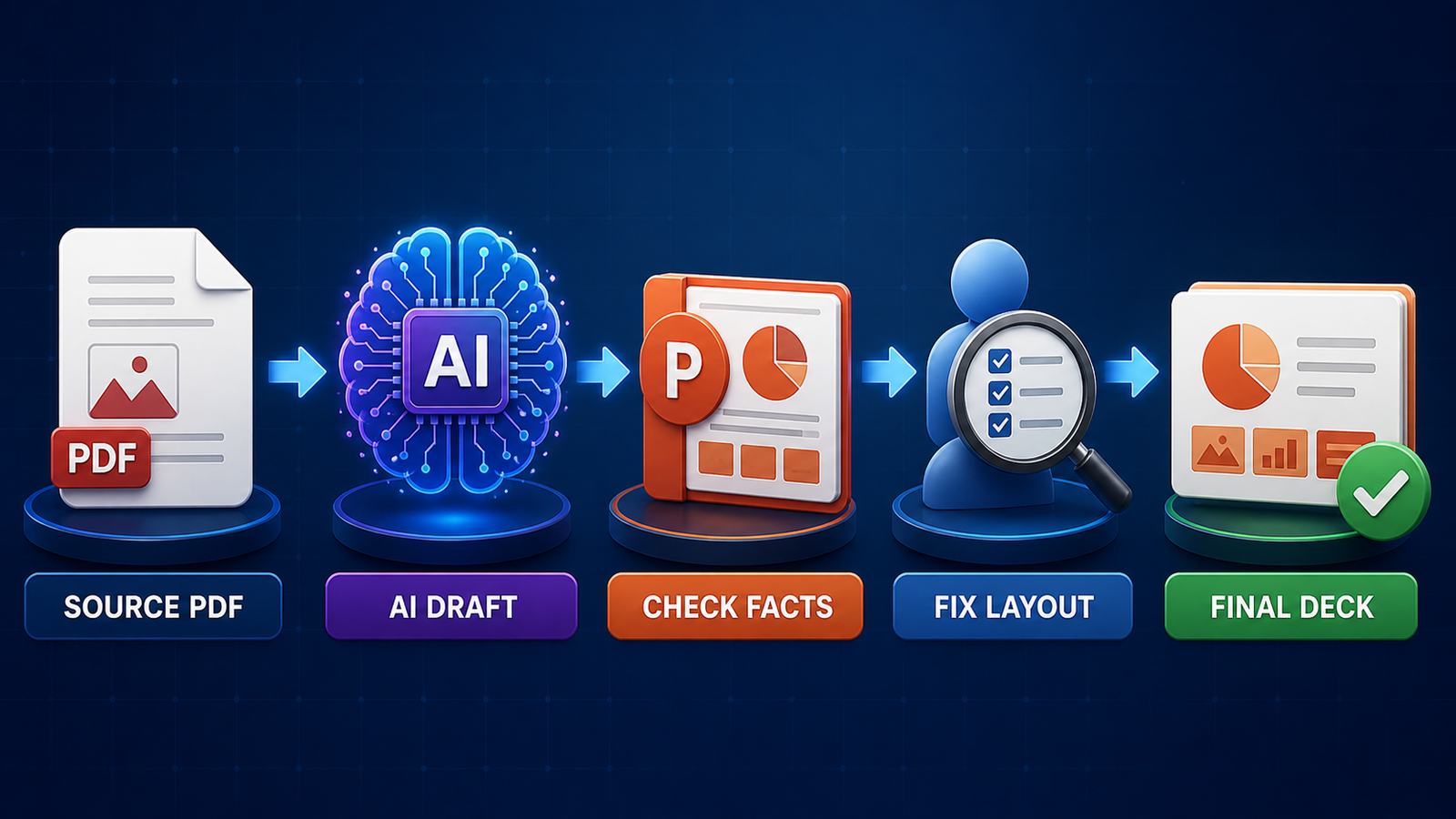
- Review the outline before design. Confirm that the sequence represents the PDF rather than merely sounding plausible.
- Verify every factual element. Check numbers, dates, quotations, citations, chart labels and conclusions against the original pages.
- Open the PPTX in PowerPoint. Look for font substitution, clipped text, rasterized charts, broken links and missing alt text.
- Record the source and tool. Keep the original PDF, the generation date and the final human-reviewed deck.
Readers new to the underlying technology can start with our generative AI introduction. For a broader view of prompt-to-deck products, see our comparison of AI presentation tools for people without design skills. Teams building governed document workflows should also understand retrieval-augmented generation and why source grounding does not eliminate the need for verification.
Frequently asked questions
Can AI convert a PDF into an editable PowerPoint?
Yes, but editability varies. Plus AI, Gamma, SlidesPilot, MagicSlides and SlidesAI produce PPTX output designed for editing. Canva may import PDF pages as images, which preserves appearance but limits text-level editing.
What is the best free AI PDF-to-PowerPoint tool?
Gamma is the most practical free option for redesigning PDF text into a new deck. SlidesAI is better for no-sign-up conversion, while Adobe offers limited complimentary AI generation but does not publish a fixed free quota.
Will an AI tool preserve charts and tables accurately?
Not reliably enough to skip review. Some services can extract or recreate charts, but labels, scales, citations and numerical values can change. Compare every data slide with the original PDF.
Is it safe to upload a confidential PDF?
Only when the service, plan and organizational policy permit it. Check retention, model-training, sharing and deletion terms, and remove personal or confidential material that is not necessary for the deck.


