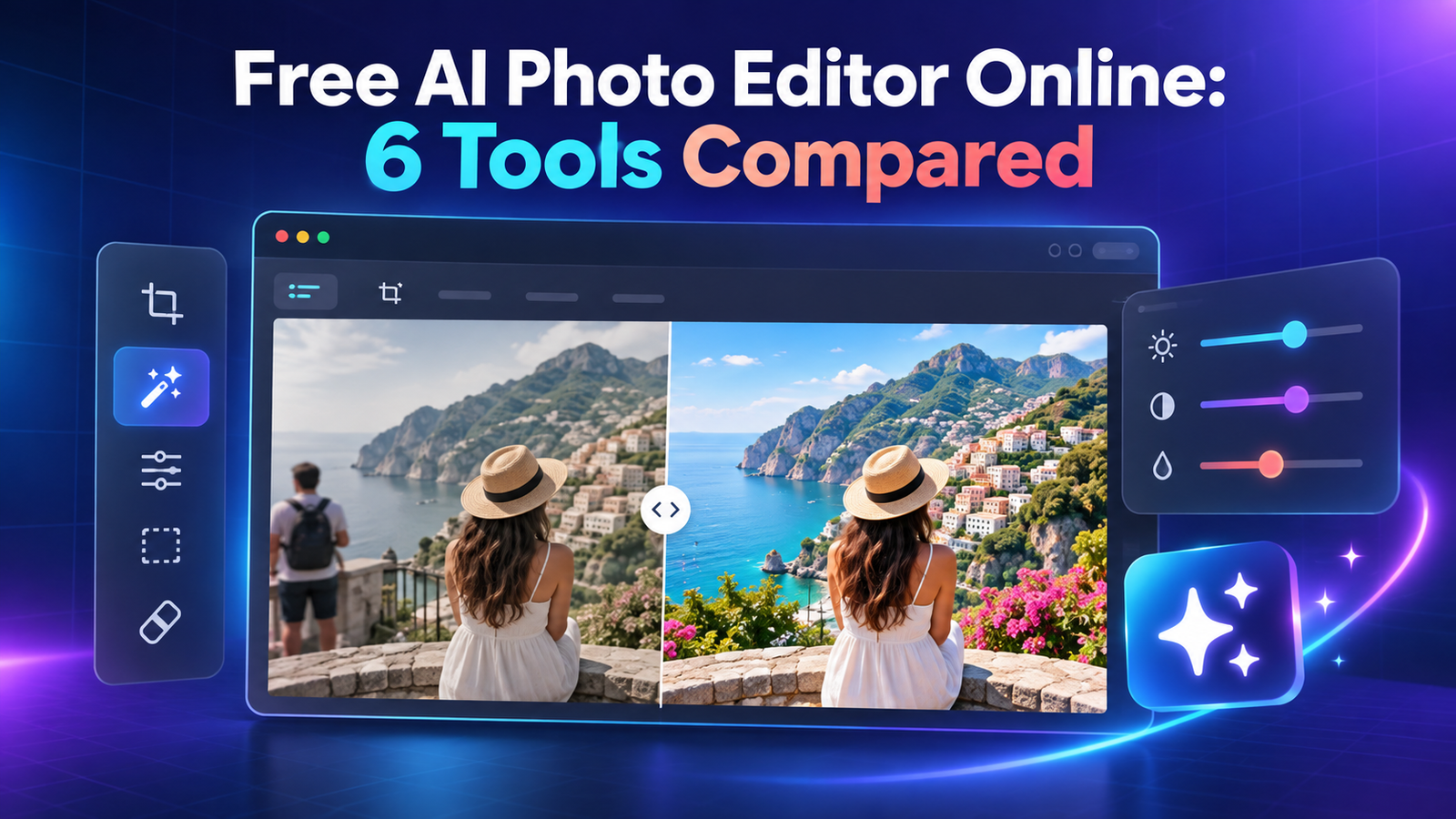

The best free AI photo editor online for most people is Adobe Express because its free plan combines everyday adjustments with limited daily generative edits. Pixlr is better when you want layers and detailed browser controls, while Photoroom is stronger for quick product-photo cleanup. Magic Studio, Fotor and YouCam are useful for occasional jobs, but their free downloads, credits or licensing are more restrictive. Free access was checked on September 20, 2026.
A free AI photo editor should do more than crop or add a filter. It should automate at least one difficult edit—such as removing an object, extending a frame, enhancing detail or changing a background—and still let you export a usable image without entering a paid trial. The catch is that “free” may mean a daily allowance, a few starter credits, a watermarked download or noncommercial use only.
Free AI photo editor online: quick comparison
| Tool | Best for | Current free access | Main catch |
|---|---|---|---|
| Adobe Express | Best overall browser workflow | Basic editor plus limited free daily generations; no card | Advanced assets and higher AI use require payment |
| Pixlr | Layers and detailed edits | Free browser editor; some tools work without an account | Generative tools and private mode are more restricted than paid plans |
| Photoroom | Product photos | Free Space with limited utilities, AI generations and exports | Free output is noncommercial and exact caps are not fixed publicly |
| Magic Studio | Simple one-click AI edits | 40 AI generations | Limited-resolution downloads carry a watermark |
| Fotor | Quick effects and touch-ups | Free basic plan with limited AI credits | Free JPG, PNG and PDF exports are watermarked |
| YouCam Online Editor | Portraits and old-photo fixes | Five starter credits; no card required | Free enhanced downloads can be watermarked; commercial use requires Pro |
Free plans change frequently. Check the provider’s live pricing or help page before editing a large batch or client image.
How we selected these free AI photo editors
We screened 10 browser-based services: Adobe Express, Pixlr, Photoroom, Magic Studio, Fotor, YouCam Online Editor, Canva, Picsart, BeFunky and Photopea. We compared the breadth of real photo-editing tools, useful zero-dollar access, account and card requirements, published generation or export limits, watermarks, editing control, privacy signals, licensing and whether the tool can produce a practical final file.
This is a documentation-based ranking. We reviewed current official pricing, product, help and terms pages, then used independent published testing as context. We did not run a controlled matched-photo benchmark across every editor, so we do not claim that one model produces universally better masks, repairs or retouching. Output quality changes with the source image and the specific AI model.
1. Adobe Express: best free AI photo editor online overall
Adobe Express combines a conventional browser editor with Firefly-powered features for inserting and removing objects. The current US pricing page lists standard photo adjustments and effects, erase tools, JPEG and PNG export, 5 GB of storage and limited generative AI access on the no-card Free plan. It describes Insert and Remove Objects as free daily generations rather than publishing one permanent numeric quota.
Why it ranks first: it offers a coherent path from upload to adjustment, AI edit, text or layout and export. It is easier to recommend than a single-purpose cleanup tool when the final image is destined for a blog, social post or presentation.
Limitation: the allowance is deliberately elastic. Adobe can slow or stop free generations for the day, and premium assets, extra storage and 250 monthly generative credits sit behind the paid plan. Firefly features are designed with commercial safety in mind, but that is not a guarantee that every result is legally risk-free. Review any recognizable brand, artwork or person before publication.
2. Pixlr: best for layers and hands-on control
Pixlr is the closest option here to a traditional desktop editor in a browser. Its current suite includes layers, masks, filters and text alongside object removal, generative fill, generative expand, image-to-image editing, upscaling and denoising. Pixlr says its free version works without an account, although advanced AI tools and an ad-free experience are promoted through paid plans.
Why it ranks here: a generated edit is rarely perfect. Pixlr gives you a stronger manual fallback than most one-button services, so you can mask a bad edge, correct color or repair a small area instead of regenerating the whole image.
Limitation: Pixlr does not publish a simple recurring AI allowance for anonymous free users. Its paid Plus plan starts with 80 monthly AI credits and estimates about 80 fast AI edits, which shows that generative operations are metered even if basic editing and some AI actions remain accessible. Private AI generations are also a paid feature, so do not assume a free generation is private.
3. Photoroom: best for product photos
Photoroom is built around product visuals rather than general photo retouching. Its Free Space includes limited access to utilities such as background removal, retouching, image enhancement, AI expand and resizing. The editor is especially practical when a cutout needs a new background, shadow, marketplace crop or simple promotional layout.
Why it ranks here: the workflow is focused. A seller can clean a product photo and move it toward a listing-ready composition without learning layers or masks first.
Limitation: Photoroom’s help center says the Free Space has lower daily utility limits, low AI-generation access and a monthly export cap, but it does not publish one fixed number for every account. More importantly, the Free plan is not licensed for commercial use. That makes it suitable for learning and personal tests, not a free production workflow for a store.
4. Magic Studio: best for occasional one-click edits
Magic Studio packages simple tools for object removal, background changes, blur and AI generation behind a beginner-friendly interface. Its official pricing page lists 40 AI generations on the Free plan, works on web and mobile, and processes one image at a time.
Why it ranks here: 40 generations are enough to try several cleanup and creative-editing ideas without starting a subscription. The tools are separated by task, which reduces the learning curve.
Limitation: free downloads are limited in resolution and include a watermark. That makes the plan better for experimentation, drafts and deciding whether the tool fits than for a polished final asset. The vendor does not clearly state on the pricing page whether the 40 generations renew, so treat them as a finite allowance unless the account says otherwise.
5. Fotor: best for quick effects and basic touch-ups
Fotor’s browser editor combines conventional adjustments, collage and design tools with AI effects, object and background changes, portraits and an AI agent. The Free Basic plan is genuinely zero-cost and includes basic editing plus a limited pool of free AI credits.
Why it ranks here: it covers many common jobs in one interface, from a quick exposure correction to an AI-assisted style or portrait edit. Fotor also supports daily check-in rewards, and its rewards page documents example credit costs for some generative features.
Limitation: the pricing page does not give a stable number for the recurring free-credit pool. Free JPG, PNG and PDF exports are watermarked, while HD and transparent watermark-free downloads are paid benefits. Do not begin a time-sensitive client edit without confirming that the final export meets your needs.
6. YouCam Online Editor: best for portraits and photo restoration
YouCam focuses on automated enhancement, object and background removal, old-photo repair, colorization, face retouching and style changes. New users currently receive five free credits without entering a credit card, which is enough to test the workflow on a small number of images.
Why it ranks here: its tools are organized around recognizable photo problems rather than professional editing terminology. A user with a blurry portrait or faded family photo can start with a specific repair action.
Limitation: this is starter access, not an unlimited free plan. YouCam’s FAQ says enhanced free images can carry a watermark, uploaded photos are temporarily stored on its servers, and only the Pro subscription grants commercial-use rights. Its terms also say free credits may be suspended and cannot be used commercially.
Why Canva, Picsart, BeFunky and Photopea were not ranked
Canva has a strong editor, but its free AI boundary is hard to summarize. Canva’s help center now describes a shared monthly AI allowance for Free accounts, with slower access after the limit is reached. However, individual photo tools and third-party apps can have separate limits or subscription requirements. It is a reasonable choice when you already work in Canva, but its public documentation does not expose a dependable tool-by-tool free quota.
Picsart is useful, but its current pricing page emphasizes paid Pro and Ultra plans. Standard editing tools are included broadly, while advanced background removal, object removal and the large model catalog are presented as subscription benefits. A free app exists, but the live page does not provide a clear recurring AI-credit allowance that we could confidently compare.
BeFunky’s free plan is primarily a conventional editor. The company says free users can make basic edits and export without a subscription, but its help center specifically places AI Photo Enhancer, background removal and other advanced AI editing behind BeFunky Plus. It therefore does not satisfy the main intent as well as the six ranked tools.
Photopea is a powerful free browser editor, but it is not primarily an AI photo editor. It remains valuable for PSD files, layers and manual retouching. For this ranking, we favored services whose documented free path includes a meaningful AI-assisted edit rather than ordinary image editing alone.
How to choose a free AI photo editor
- For one quick edit: use Adobe Express for a broad workflow or Magic Studio for a guided single-purpose tool.
- For manual correction after AI: choose Pixlr. Layers, masks and ordinary adjustments matter when the model changes too much.
- For a product image: try Photoroom, but upgrade or use another licensed workflow before commercial publication.
- For a portrait or old photo: YouCam’s specialized tools are convenient, but inspect faces, hands, jewelry and small text for invented detail.
- For private material: avoid uploading medical images, identification documents, confidential prototypes or children’s photos until you have reviewed retention and model-training policies.
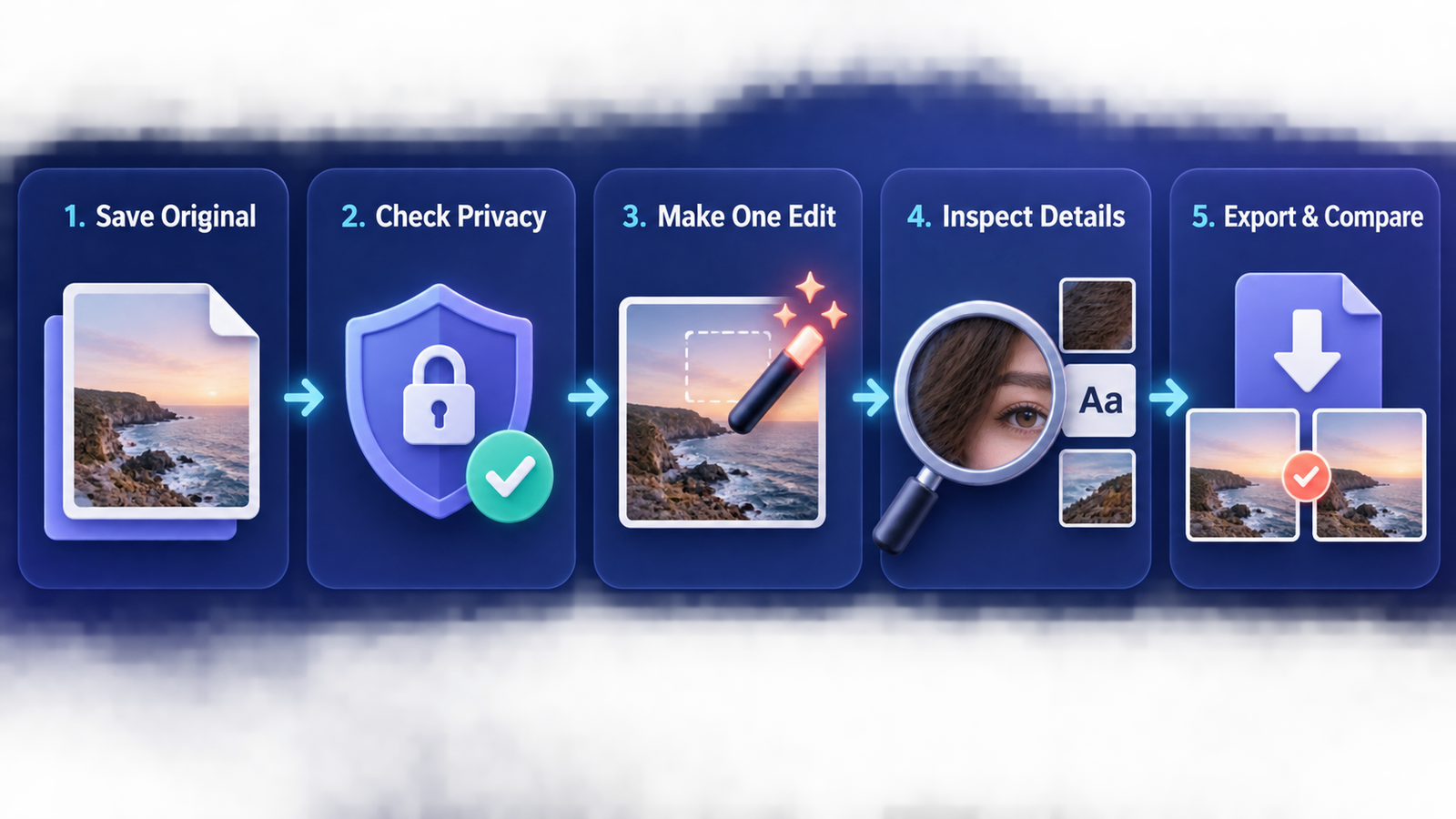
Keep the original file untouched. Export an edited copy at the original dimensions when possible, then compare it at 100 percent zoom. AI cleanup can quietly alter logos, skin texture, product labels, jewelry, reflections and background text. A visually pleasing thumbnail may still fail a close review.
Privacy, consent and commercial-use cautions
An editor’s free price does not grant rights to the source image or to another person’s likeness. Use photos you own or have permission to edit. Do not remove watermarks, fabricate endorsements, place a real person in a deceptive scene or use face edits to misrepresent identity. Product teams should preserve the original shot and maintain a human review step for every public asset.
Cloud editors receive uploaded pixels and may retain files for a period defined in their policies. “No account required” does not mean “no upload.” For sensitive work, use a vetted local editor or an enterprise plan with contractual data controls. Also distinguish personal-use access from commercial rights: Photoroom’s free plan and YouCam’s free credits explicitly carry commercial-use restrictions.
For adjacent workflows, see GravityDevOps guides to free AI background removers, free AI image generators, AI tools for realistic photos and AI image generators for product photos.
FAQ
Can I edit a photo with AI online for free?
Yes. Adobe Express provides limited free daily generative edits, Magic Studio lists 40 AI generations, Fotor offers limited free credits, and YouCam gives five starter credits. Pixlr and Photoroom also provide limited free AI-assisted workflows. None should be assumed to offer unlimited free generative editing.
Which free AI photo editor does not add a watermark?
Adobe Express and Pixlr can produce useful free exports for supported workflows, but the exact boundary depends on the feature and asset used. Magic Studio and Fotor explicitly watermark Free-plan downloads, and YouCam says free enhanced images can be watermarked. Always test the actual download before committing to a tool.
Do I need an account?
Pixlr says its free editor can be used without an account, although advanced AI access may require one. Adobe Express offers a no-card Free plan but may prompt for sign-in as you move into its full editor. Photoroom, Fotor and YouCam use accounts to manage credits, projects or exports.
Can I use free AI-edited photos commercially?
Only when you own or license the source and the tool’s current terms permit the output use. Photoroom says its Free plan is noncommercial, and YouCam reserves commercial use for Pro. Adobe describes Firefly features as designed for commercial safety, but users remain responsible for rights and review.
Will an AI editor keep my photo private?
Not automatically. Browser tools often upload images to vendor servers even when they do not require an account. Read retention, training and deletion terms, and avoid sensitive images unless the service offers controls appropriate to your risk.
Bottom line: start with Adobe Express for an easy all-round workflow, Pixlr when you need manual control, or Photoroom for product-photo experiments. Before publishing, verify the export, license and privacy terms—not just the quality of the preview.


