

Short answer: TensorPix is the best free AI video enhancer for most YouTube creators because it provides recurring weekly credits, several restoration filters and watermark-free output. CapCut and Clipfly are easier for quick edits, while QualityScaler and Video2X are genuinely free local options if you have compatible hardware and can accept longer processing times.
The best free AI video enhancers for YouTube do more than enlarge a file. They can reduce compression noise, sharpen edges, stabilize motion, interpolate frames or restore detail before YouTube compresses the upload again. We checked current US-facing product pages, plan documents and technical requirements on September 29, 2026. Free limits change, so test a short representative clip before processing an entire episode.
This guide focuses on tools that produce at least some usable zero-dollar output. It does not call a credit-card trial free, and it separates a downloadable result from a preview-only demo. If you still need to cut, caption or arrange scenes, start with our free AI video editor comparison. If the problem is the scene behind a subject rather than image quality, use the video background remover guide.
Best free AI video enhancers for YouTube compared
| Tool | Best for | Usable free access | Watermark | Main limitation |
|---|---|---|---|---|
| TensorPix | Best online option overall | Weekly login credits; current landing page advertises three minutes | No on credit-funded enhancement | Free inputs up to 720p; allowance can change |
| CapCut | Editing and enhancement together | Free desktop enhancer with HD, UHD and 4K choices | Usually none with free assets | No stable global AI quota; rules vary by account and region |
| Clipfly | Fast browser enhancement | Free enhancement and download advertised | Advertised as watermark-free | No durable numeric allowance is published |
| Vmake | Testing very short clips | Five-second video-quality enhancement | Plan page is not clear for this tool | Too short for normal long-form YouTube footage |
| QualityScaler | Private Windows processing | Free local app with no service quota | None | Windows 10 or 11 and a DirectX 12 GPU with at least 4 GB VRAM |
| Video2X | Open-source control | Free local processing on Windows or Linux | None | Vulkan GPU, AVX2 CPU and more setup than a web tool |
Verified from official documentation on September 29, 2026. “Free” here means a continuing zero-dollar plan, recurring credits or open-source local processing. It does not mean unlimited cloud rendering. Account, storage, export and commercial-use terms can change.
How we selected the best free AI video enhancers
We screened nine credible services and applications. Six were ranked across usable zero-dollar output, allowance and reset behavior, account and card requirements, upscale and restoration controls, watermark, input and export limits, local versus cloud processing, privacy, licensing, YouTube workflow fit and documentation clarity. Media.io, Cutout.Pro and HitPaw were screened but not ranked because their free enhancer access is limited to previews rather than a practical finished video.
This is a documentation-based comparison. We did not run a controlled matched-footage benchmark, purchase paid plans or claim that one model recovers objectively true detail better than another. AI upscalers infer pixels; they cannot reconstruct information that the camera never captured. Recent video-super-resolution research also treats detail generation, temporal consistency and processing speed as separate tradeoffs, so a higher output resolution is not proof of a better picture.
1. TensorPix: best free AI video enhancer for YouTube overall
TensorPix offers the clearest recurring cloud allowance in this group. Its current pricing page lists a Free plan with credits earned weekly by logging in, inputs up to 720p, 1 GB of storage and as many as four enhancement filters per video. It says one credit is roughly enough for two minutes of enhanced video. The separate free video enhancer page currently advertises three minutes, no credit card and no watermark.
The service can upscale, interpolate frames, stabilize, denoise and unblur footage. That makes it useful when an old 480p or 720p clip has several problems, not just low pixel dimensions. Cloud processing also avoids tying up your own GPU.
Why it ranks first: TensorPix publishes more useful free-plan detail than most browser competitors, provides a recurring route rather than a one-time preview and allows a clean download. It is the most practical place to test whether AI restoration helps a real YouTube source.
Limitation: the Free plan accepts source video only up to 720p, and the exact number of weekly credits is not fixed on the current pricing table. TensorPix says uploaded videos and images are deleted 30 days after creation, which is still a meaningful cloud-retention window for private or unreleased footage.
2. CapCut: best when you also need to edit the video
CapCut combines enhancement with a full editor. Its official AI video upscaler page describes HD, UHD and 4K choices, while the video enhancer page covers sharpening, deblurring, brightness and color correction. The desktop workflow lets you trim, caption and export without moving the enhanced file into another editor.
Why it ranks here: YouTube creators often need enhancement as one step in a larger edit. CapCut is more convenient than downloading a restored file, importing it elsewhere and rebuilding the timeline. The desktop app also avoids the short preview boundary found on several cloud tools.
Limitation: CapCut does not publish one durable global quota for AI enhancement. Features, Pro labels, assets and export rules can differ by platform, account and region. A free project can normally export cleanly when it uses only free assets, but premium media or effects may change that result. Open the export panel before committing a long video, and review the current US terms if the footage is commercially sensitive.
3. Clipfly: best for a quick no-install test
Clipfly’s AI video enhancer runs in a browser and advertises automatic sharpening, deblurring, denoising, low-light correction, color correction and 4K upscaling. Its current product page also says the enhanced file can be downloaded without a watermark.
Why it ranks here: the workflow is simple enough for a creator who wants to test one clip without installing a desktop application. It also targets more than resolution, which matters when YouTube footage is dark, noisy or heavily compressed.
Limitation: Clipfly does not publish a stable numeric free allowance, maximum duration or reset schedule on the current enhancer page. “Try for free” therefore describes access, not a promise of unlimited finished exports. Test the exact duration, resolution and download path with a disposable sample before uploading client material or a full video.
4. Vmake: best for testing a five-second YouTube Short segment
Vmake is designed around short social and ecommerce video. Its current plan comparison gives Free users a five-second Video Quality Enhancer allowance. The broader free editor can export at up to 720p, while higher-resolution enhancement and commercial-use entitlements sit on paid tiers.
Why it ranks here: five seconds is enough to compare a difficult face, product shot or compressed motion sequence before deciding whether the paid workflow is useful. It can also fit a very short bumper or a single shot inside a YouTube Short.
Limitation: this is a test allowance, not a realistic way to restore an ordinary YouTube episode. The plan language has also changed over time and is not equally detailed across every localized page. Confirm watermark, download resolution and commercial rights in the live workspace before treating the result as publishable.
5. QualityScaler: best private free enhancer for Windows
QualityScaler is an MIT-licensed Windows application that enhances, upscales and denoises images and videos locally. It supports common video formats, automatic tiling for limited VRAM, multiple GPUs, adjustable interpolation between the original and enhanced result, and stop-and-resume processing. Because the footage stays on the computer, there is no cloud upload allowance or service watermark.
Why it ranks here: it is the strongest option for creators who do not want unreleased footage stored by an online service. There is no per-minute fee, so a capable computer can process longer videos repeatedly.
Limitation: the official requirements list Windows 10 or 11, at least 8 GB of RAM and a DirectX 12-compatible GPU with at least 4 GB of VRAM. Local enhancement can be slow, power-hungry and storage-intensive. QualityScaler is software, not a hosted support service, so test outputs and keep the source file rather than assuming every model will suit faces, text or animation.
6. Video2X: best open-source option for control and repeat use
Video2X is an AGPL-licensed video super-resolution and frame-interpolation framework. Version 6 supports Windows and Linux, includes a Windows GUI and can use Real-ESRGAN, Real-CUGAN, Anime4K and RIFE models. The current architecture processes locally and needs storage only for the final output rather than a separate extracted-frame workspace.
Why it ranks here: Video2X has no account, watermark, cloud-retention window or per-minute charge. It is suitable for repeatable batch work when a creator wants explicit control over the upscaling or frame-interpolation model.
Limitation: the prebuilt binaries require an AVX2-capable CPU and a Vulkan-capable GPU. The project lists Windows and Linux, not macOS. Model choice, processing time, codecs and GPU memory make it less beginner-friendly than a browser service, and the software’s AGPL license matters if you modify or redistribute it.
Why Media.io, Cutout.Pro and HitPaw are not ranked
All three can help evaluate whether paid enhancement is worthwhile, but their current free paths do not meet the same standard as a usable finished-video allowance.
- Media.io: its enhancer pricing page allows a registered Free user to upload up to ten one-minute, 100 MB videos and preview the first 45 frames at 2×. The preview cannot be downloaded.
- Cutout.Pro: its desktop enhancer plan provides a free preview of only the first three seconds and adds a watermark.
- HitPaw: the current online pricing table describes AI video enhancement and upscaling on Free as preview-only. The desktop trial requires accepting an auto-renewing subscription boundary, so it is a trial rather than a continuing free plan.
Topaz Video is another established paid option, but its current public plan starts with a subscription or annual bundle rather than a continuing free tier. It is useful market context, not a match for this query.
How to enhance video for YouTube without making it look artificial
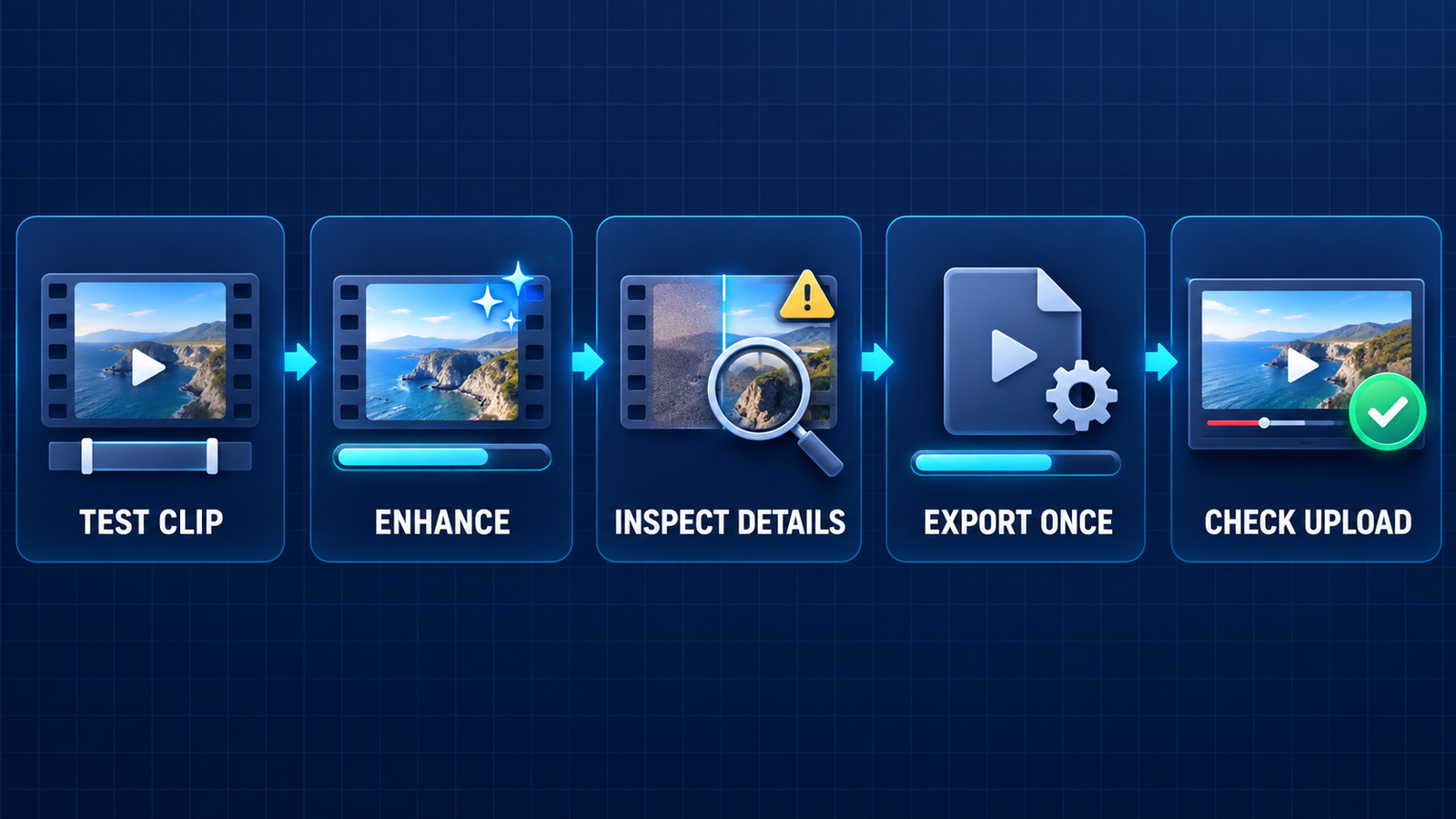
- Diagnose the real defect. Upscaling helps low resolution; denoising helps low-light grain; stabilization helps camera shake. Applying every filter can erase texture and create halos.
- Trim a representative sample. Include a face, on-screen text, fine texture and fast motion. A quiet landscape frame will not expose temporal flicker or mouth artifacts.
- Compare at 100 percent. Check eyelashes, hair, hands, logos, subtitles and straight edges. AI can invent plausible detail that changes between frames.
- Preserve the original frame rate unless interpolation solves a specific problem. YouTube recommends uploading at the frame rate in which the material was recorded. Artificially increasing 24 or 30 fps to 60 fps can create warped motion.
- Export once at a sensible quality. Repeated recompression destroys the detail the enhancer is trying to recover. YouTube’s recommended upload settings call for progressive H.264, the original frame rate and, for SDR, roughly 8 Mbps for standard-frame-rate 1080p or 35–45 Mbps for 4K.
- Review the uploaded result after YouTube finishes HD or 4K processing. The local file and the streamed encode are not identical. Inspect the same difficult scenes on the public or unlisted upload.
Upscaling 720p footage to 4K can give YouTube a higher-resolution input, but it cannot make a soft lens sharp or recover clipped highlights. The safest goal is cleaner, more consistent footage—not invented detail. If enhancement materially changes a realistic person, event or place, review YouTube’s altered-content disclosure guidance. Routine color correction or noise reduction is different from making a real event appear to show something that did not happen.
Which free AI video enhancer should you choose?
- Choose TensorPix for the best documented recurring online allowance and a clean cloud export.
- Choose CapCut when enhancement belongs inside a larger captioning and editing workflow.
- Choose Clipfly for a quick browser test, but verify the live quota and final download first.
- Choose Vmake only for a five-second test or very short segment.
- Choose QualityScaler for private, repeatable Windows processing with a straightforward GUI.
- Choose Video2X when open-source control matters more than ease of use.
If the source is fundamentally unusable, generating a new shot may be more honest than aggressive restoration; our free AI video generator guide separates generation credits, watermarks and rights. For ordinary footage, the beginner’s guide to generative AI explains why model output should be treated as a prediction rather than recovered ground truth.
Bottom line
TensorPix is the best free online AI video enhancer for most YouTube creators because its recurring credits, multiple filters and watermark-free result form a credible zero-dollar workflow. CapCut is more convenient when enhancement is only one part of an edit. QualityScaler and Video2X offer the most durable free access, but they trade cloud limits for hardware requirements and processing time.
Whichever tool you choose, run a short test before processing the full timeline. Compare faces, text and motion, keep the original file, confirm the export has no watermark, and upload using YouTube-compatible resolution, frame-rate and bitrate settings.


