

SEO excerpt: Learn how to run LLMs locally with Ollama in 2026, including installation, model selection, CLI commands, REST API examples, app integration, hardware planning, security tips, troubleshooting, and next steps for developers.
Quick Answer
Ollama lets developers run large language models locally on macOS, Linux, and Windows using a simple command-line interface and a local HTTP API. In practice, you install Ollama, pull a model such as Llama, Gemma, Qwen, Mistral, or another supported model from the Ollama library, run prompts from the terminal, and connect your application to http://localhost:11434. It is useful for private experimentation, offline development, local AI prototypes, coding assistants, RAG testing, and cost-controlled workflows where every prompt does not need to leave your machine.
Running LLMs locally will not replace every hosted AI API. Cloud models are still easier for very large models, production scale, managed reliability, and frontier capabilities. But for developers, DevOps engineers, platform teams, and AI builders, Ollama is one of the fastest ways to understand how local inference works and to build useful AI features without starting with a complex serving stack.
What Is Ollama?
Ollama is a local model runner for language models. It packages model download, model management, runtime configuration, and serving behind a developer-friendly CLI and REST API. Instead of manually compiling inference engines, finding compatible model files, and wiring a server, you can run commands such as ollama pull, ollama run, ollama list, and ollama serve.
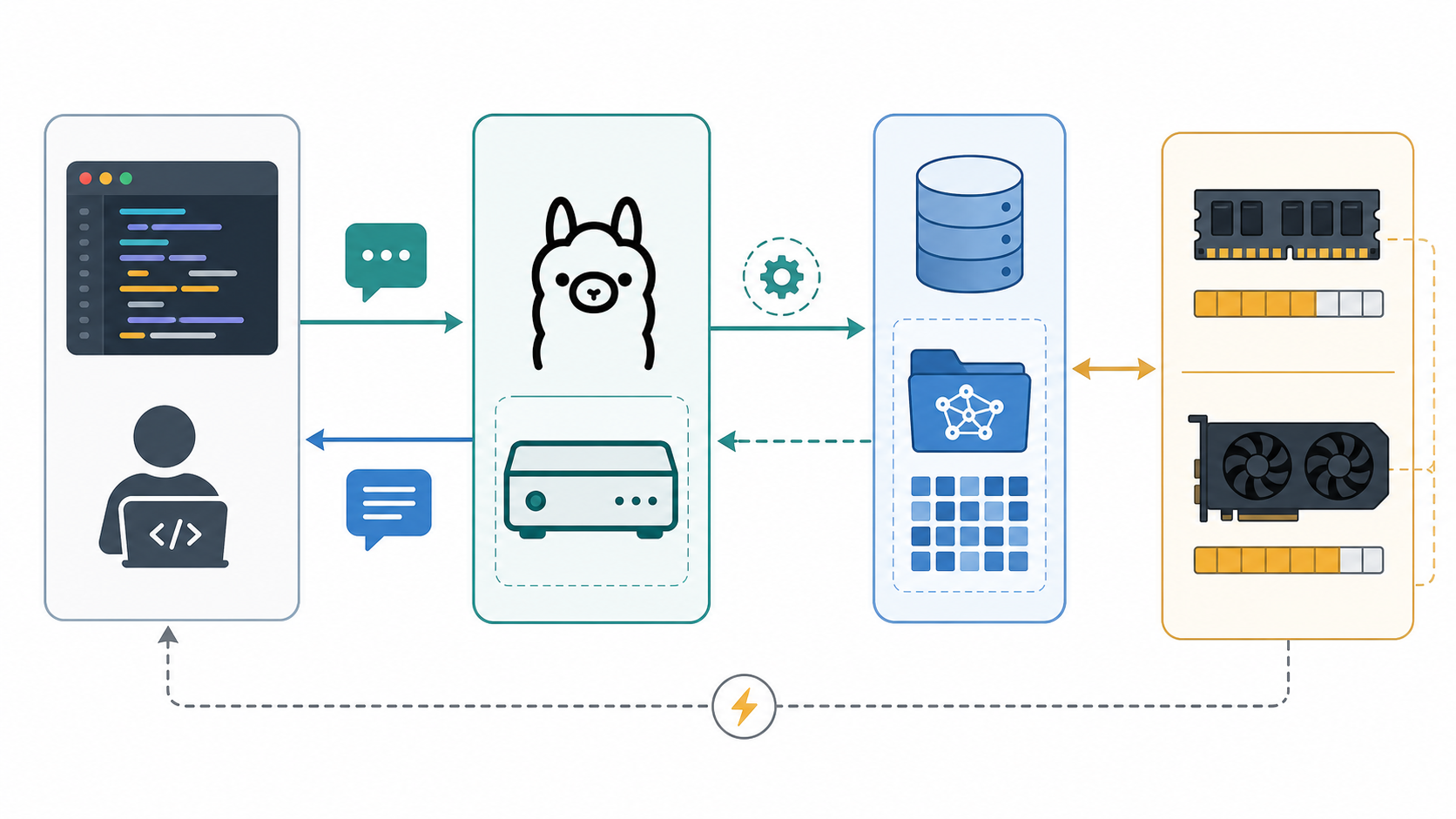
The core idea is simple: your application sends a prompt to a local Ollama service, Ollama loads the selected model from local storage, the model runs on available CPU/GPU resources, and the response comes back to your process. The default local API endpoint is commonly http://localhost:11434. Ollama also documents REST endpoints such as /api/generate and /api/chat, plus experimental OpenAI-compatible endpoints for teams that want to reuse existing OpenAI SDK patterns.
For background on how generative AI works before you go hands-on, read What Is Generative AI? A Beginner’s Guide. If you plan to connect local models to your own documents, also read What Is RAG (Retrieval-Augmented Generation)?.
Why Run LLMs Locally?
Local LLMs are not automatically better than hosted AI services, but they solve several real developer problems.
Privacy and Data Control
When you run a model locally, prompts and outputs can stay on your machine or inside your internal network. That matters when you are testing with logs, draft policies, source code, support transcripts, incident notes, or internal documentation. You still need security discipline, but the baseline data path is easier to reason about than a remote API call.
Offline and Low-Latency Development
Local inference can work without internet access after models are downloaded. It is useful during travel, in restricted enterprise environments, or when prototyping on a local laptop. For small models on capable hardware, round trips can also feel fast because there is no remote network call.
Cost Control
Hosted model APIs charge by tokens, requests, subscriptions, or platform usage. Local models shift cost toward hardware and electricity. For experimentation, learning, internal demos, and repeated prompt testing, local inference can reduce variable API spend.
Better Understanding of AI Application Architecture
Running a local model teaches practical tradeoffs: model size, quantization, context length, latency, memory pressure, prompt design, streaming, and model lifecycle. Those lessons transfer directly to production AI systems, even when the final deployment uses a managed API.
When Ollama Is a Good Fit
- Developer learning: understand prompting, chat completion patterns, local APIs, and model behavior.
- Prototype applications: build local chatbots, coding tools, document assistants, and workflow automations.
- RAG experiments: test retrieval pipelines before choosing a production model provider.
- Internal tools: create small private assistants where latency and accuracy requirements are realistic.
- CI-like prompt checks: run lightweight prompt evaluations without calling a hosted API for every test.
When a Hosted Model May Be Better
- Frontier reasoning quality: the best hosted models often outperform laptop-friendly local models on hard reasoning, long-context tasks, and agentic workflows.
- Production scale: cloud APIs and managed inference platforms handle autoscaling, monitoring, quotas, upgrades, and availability.
- Team operations: centralized access control, audit logs, model governance, and billing are easier with managed services.
- Hardware limits: large models can require more RAM, VRAM, cooling, and storage than a typical developer laptop has available.
Install Ollama
Ollama provides official installers for macOS, Linux, and Windows. Check the official download page for the latest platform requirements before installing. As of the current documentation, the macOS download page lists macOS 14 Sonoma or later, and the Windows download page lists Windows 10 or later.
macOS
Install from the official macOS download page, then open a terminal and verify:
ollama --versionLinux
The Linux quick install command from the official Ollama download page is:
curl -fsSL https://ollama.com/install.sh | shAfter installation, verify that the command works:
ollama --version
ollama list
Windows
Use the official Windows installer or the documented PowerShell command from Ollama’s download page. After installation, the ollama command should be available in PowerShell, Command Prompt, or your terminal of choice.
Run Your First Local Model
The exact model you choose should depend on your hardware and task. Start small. A compact model is better for learning because it downloads faster, starts faster, and makes resource problems easier to diagnose.
Example:
ollama pull llama3.2
ollama run llama3.2 "Explain Kubernetes in three beginner-friendly paragraphs."
Useful model management commands:
# List models downloaded on your machine
ollama list

# Show information about a model
ollama show llama3.2

# See which models are currently loaded
ollama ps

# Stop a loaded model
ollama stop llama3.2
If ollama run says the model is not found, pull it first. If the model starts but responses are slow, try a smaller model or close memory-heavy applications.
Call Ollama from the REST API
Ollama exposes a local REST API. This is what makes it useful for real applications, not just terminal demos.
Generate Endpoint
curl http://localhost:11434/api/generate -d '{
  "model": "llama3.2",
  "prompt": "Write a short checklist for reviewing a Dockerfile.",
  "stream": false
}'
Chat Endpoint
curl http://localhost:11434/api/chat -d '{
  "model": "llama3.2",
  "messages": [
    {
      "role": "system",
      "content": "You are a concise DevOps tutor."
    },
    {
      "role": "user",
      "content": "Explain what a Kubernetes readiness probe does."
    }
  ],
  "stream": false
}'
Ollama’s API streams by default for some endpoints. For simple scripts and tutorials, set "stream": false so you receive one final JSON response. For chat UIs, streaming usually creates a better user experience.
Use Ollama from Python
You can use the Ollama Python library or call the REST API directly. For a minimal dependency-free example, use requests:
import requests

response = requests.post(
    "http://localhost:11434/api/chat",
    json={
        "model": "llama3.2",
        "messages": [
            {"role": "system", "content": "You are a helpful DevOps assistant."},
            {"role": "user", "content": "Give me five checks for a slow CI pipeline."},
        ],
        "stream": False,
    },
    timeout=120,
)

response.raise_for_status()
print(response.json()["message"]["content"])
For applications, wrap this in a small client function so you can later swap Ollama for another local model server or hosted provider without rewriting every call site.
Use OpenAI-Compatible Clients Carefully
Ollama documents experimental compatibility with parts of the OpenAI API. This can be useful when you already have code built around an OpenAI-style SDK. A common local configuration is a base URL such as http://localhost:11434/v1/ and a placeholder API key value, because local Ollama does not need a hosted API key for basic local calls.
Treat this compatibility layer as a convenience, not a permanent contract. For full Ollama-specific features, prefer the native Ollama REST API or official Ollama libraries. For production abstractions, isolate provider-specific code behind your own interface.
Choose the Right Model Size
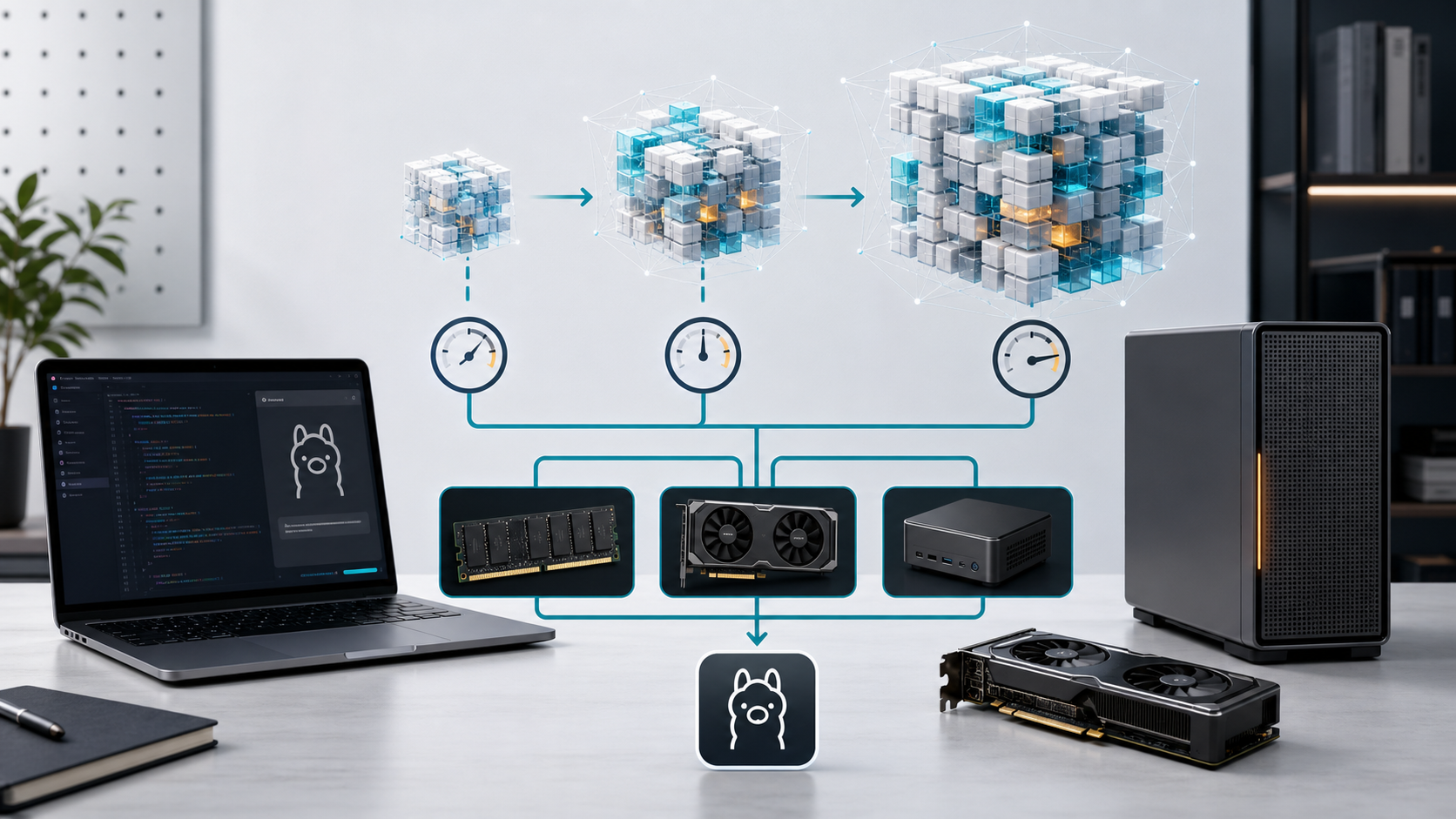
Model selection is where many beginners get stuck. Bigger is not always better. A smaller model that responds quickly is often more useful than a larger model that makes your laptop unusable.
| Scenario | Practical Starting Point | What to Watch |
|---|---|---|
| Learning Ollama basics | Small general chat model | Download size, startup time, basic answer quality |
| Coding help | Code-focused or general model with strong instruction following | Accuracy, hallucinated APIs, local repo privacy |
| RAG prototype | Small or medium chat model plus embedding model | Context limits, citation behavior, retrieval quality |
| Long documents | Model with enough context for your chunk strategy | Memory use, truncation, response consistency |
| Team demo | Reliable medium model on a dedicated machine | Concurrency, thermal throttling, repeatability |
Build a Small Local AI Assistant
Here is a practical starter pattern for a local assistant that summarizes DevOps notes.
1. Create a Prompt Template
You are a DevOps assistant.
Summarize the following notes into:
1. Incident summary
2. Suspected root cause
3. Immediate actions
4. Preventive follow-ups

Notes:
{{notes}}
2. Call Ollama
from pathlib import Path
import requests

notes = Path("incident-notes.txt").read_text()

prompt = f"""You are a DevOps assistant.
Summarize the following notes into:
1. Incident summary
2. Suspected root cause
3. Immediate actions
4. Preventive follow-ups

Notes:
{notes}
"""

response = requests.post(
    "http://localhost:11434/api/generate",
    json={"model": "llama3.2", "prompt": prompt, "stream": False},
    timeout=180,
)
response.raise_for_status()
print(response.json()["response"])
3. Add Guardrails
Do not treat a local model response as automatically correct. For operational workflows, require human review, keep the original notes linked, and make the assistant cite exact input snippets when possible. Local inference improves privacy control, but it does not remove hallucination risk.
If you are building a RAG system around internal docs, the next step is to chunk documents, create embeddings, store vectors, retrieve relevant chunks, and pass those chunks to Ollama as context. The concepts are covered in the GravityDevOps RAG guide.
Common Mistakes
Starting with a Model That Is Too Large
If the model barely fits in memory, every experiment becomes slow. Start with a smaller model, validate your workflow, then upgrade.
Expecting Local Models to Know Private Data
A local model does not automatically know your files, tickets, or documentation. You must paste context, connect files, or build a retrieval pipeline.
Exposing the Local API Accidentally
A local AI API should not be casually exposed to a public network. Keep Ollama bound to safe interfaces, use firewall rules where appropriate, and do not place it behind a public reverse proxy without authentication, rate limits, and monitoring.
Ignoring Licensing
Model licenses differ. Before using a model in commercial work, review the model’s license and any usage restrictions. Ollama makes models easy to run, but licensing decisions still belong to the model publisher and your organization.
Skipping Evaluation
A demo prompt is not an evaluation. Save test prompts, expected qualities, failure cases, and examples of unacceptable output. Even a small spreadsheet of prompt checks is better than relying on memory.
Troubleshooting Ollama
| Problem | Likely Cause | Fix |
|---|---|---|
connection refused | Ollama service is not running | Start Ollama or run ollama serve, then retry localhost:11434. |
model not found | The model has not been pulled locally | Run ollama pull <model> or use ollama run <model>. |
| Very slow responses | Model is too large, CPU-bound, or memory constrained | Try a smaller model, close heavy apps, or use suitable GPU hardware. |
| API returns streaming chunks | Streaming is enabled by default | Set "stream": false for simple scripts. |
| Answers are generic | Prompt lacks context or examples | Add task details, expected format, constraints, and relevant source text. |
Security and DevOps Notes
Local AI infrastructure is still infrastructure. If you use Ollama beyond personal experimentation, treat it like a service:
- Track installed models and their licenses.
- Keep the host operating system patched.
- Limit network exposure and avoid public unauthenticated endpoints.
- Log enough metadata for debugging without storing sensitive prompt content unnecessarily.
- Use test prompts to catch regressions when changing models.
- Document which workflows are allowed to use local AI and which require approved cloud providers.
For teams that already manage CI/CD systems, the same operational habits apply here: version your scripts, review changes, monitor reliability, and avoid hidden manual setup. The broader delivery mindset is covered in Best CI/CD Tools in 2026.
Recommended Learning Path
- Install Ollama and run one small model from the CLI.
- Call
/api/chatfromcurl. - Build a tiny Python or Node.js wrapper.
- Create a simple prompt template for a real task you do often.
- Add retrieval from one folder of markdown files.
- Compare two models with the same test prompts.
- Document the hardware, model, prompt, and quality tradeoffs.
If you are learning AI as a developer, pair this tutorial with Prompt Engineering for Developers. Prompt quality matters whether your model runs locally or in the cloud.
FAQ
Is Ollama free to use?
Ollama itself can be downloaded and used locally, but model licenses vary. Always check the license of the specific model you pull, especially for commercial use.
Does Ollama need a GPU?
No, Ollama can run models on CPU, but GPU acceleration can significantly improve performance for supported hardware and model configurations. If you only have CPU, start with smaller models.
Can I use Ollama for production?
You can use Ollama in internal or controlled production-like environments, but you must handle reliability, scaling, security, monitoring, model licensing, and evaluation. For high-scale public applications, managed inference or a dedicated serving stack may be more appropriate.
Can Ollama replace ChatGPT or hosted AI APIs?
Not universally. Ollama is excellent for local development, private experiments, and some internal workflows. Hosted models may still provide stronger reasoning, larger context windows, managed reliability, and easier team governance.
How do I connect Ollama to my own documents?
Use a RAG pattern: split documents into chunks, create embeddings, store them in a vector database or search index, retrieve relevant chunks for each question, and include those chunks in the prompt sent to Ollama.
What is the default Ollama API URL?
Most local Ollama examples use http://localhost:11434. The chat endpoint is commonly http://localhost:11434/api/chat, and the generate endpoint is commonly http://localhost:11434/api/generate.
Schema-Ready FAQ Structure
Sources and Further Reading
- Ollama official downloads
- Ollama REST API documentation
- Ollama quickstart documentation
- Ollama OpenAI compatibility documentation
- Ollama GPU documentation


