

Direct answer: The best AI tool for turning a Word document into PowerPoint depends on the workflow. Microsoft Copilot is the strongest native option for Microsoft 365 users; Plus AI and SlidesAI offer quick converters; Adobe Express handles long source files; and Gamma, SlidesPilot and MagicSlides provide more control over redesign and narrative structure.
Reviewed September 2, 2026. Features, free allowances and licensing terms can change, so verify the current product page before uploading an important document.
A Word document and a slide deck serve different purposes. A document can carry detailed argument, citations and supporting explanation; a presentation needs a visible hierarchy, an audience-sized message and room for the speaker. The best AI tools to turn Word documents into PowerPoint therefore do more than copy paragraphs into boxes. They identify sections, compress prose, propose a slide sequence and export an editable PPTX—or generate directly inside PowerPoint.
This guide compares seven credible options using current vendor documentation. It separates permanently free converters from free tiers and time-limited trials, flags branding and format limits, and explains where human review is still essential.
Best AI tools to turn Word documents into PowerPoint at a glance
| Tool | Best for | Word input | PowerPoint output | Important limitation |
|---|---|---|---|---|
| Microsoft Copilot in PowerPoint | Native Microsoft 365 workflow | One Word file in the documented consumer workflow | Native presentation in PowerPoint | Requires an eligible Microsoft plan and app setup |
| Plus AI | Fast one-off conversion | DOC or DOCX upload | Editable PPTX or Google Slides | Free converter differs from the paid add-in |
| Adobe Express | Long or multiple source documents | DOCX among supported formats | Editable presentation with export options | Generative usage is limited by plan |
| Gamma | Visual redesign and collaborative editing | Word file import or pasted text | PPTX export | Free-account exports carry Gamma branding |
| SlidesAI | No-sign-up browser conversion | DOC and DOCX, up to three files and 100 MB | Editable PPTX | Vendor documentation does not promise perfect layout fidelity |
| SlidesPilot | Audience-led restructuring | DOC or DOCX, 50 MB maximum | Editable PPTX | Free use requires an account |
| MagicSlides | Template-led generation and developer workflows | DOCX supported in documented workflows | PPTX and PDF | Consumer free limits are not clearly itemized on the main pricing page |
How we selected and ranked the tools
We screened a broader field of presentation makers and converters, then kept tools that document a Word or DOCX-to-presentation workflow and produce an editable deck or a usable presentation workspace. Rankings reflect source handling, narrative control, editable output, free access, account requirements, branding, file limits, privacy information and fit with PowerPoint.
The facts below come from current official product, pricing and help pages. We did not run a standardized private-document benchmark, so comments about likely workflow fit are editorial analysis rather than claims of hands-on accuracy testing. No service should be trusted to preserve every number, quotation, citation, table or image without review.
1. Microsoft Copilot in PowerPoint: best native Microsoft 365 option
Microsoft Copilot is the most natural choice when the source already lives in Word and the final deck must stay inside Microsoft 365. Microsoft documents a “create presentation from file” workflow that can use a Word document to produce a draft presentation, including suggested images and speaker notes. The result opens in PowerPoint, so users can apply a corporate template, revise slide masters and continue with familiar collaboration controls.
Preparation matters. Microsoft recommends applying Word Styles so headings and sections are explicit, keeping relevant images in the document, and using a source file under 24 MB for the documented workflow. Microsoft also says the older Word for the web “Export to PowerPoint presentation” feature is being deprecated, so that legacy command should not be the basis of a new process.
Why it ranks first: it avoids a third-party round trip and produces a genuinely native PowerPoint draft. Limitation: availability depends on an eligible Copilot or Microsoft 365 configuration, supported app versions and organizational controls; it is not a generally free converter.
See Microsoft’s Copilot in PowerPoint FAQ and presentation preparation guide.
2. Plus AI: best quick Word-to-PPT converter
Plus AI offers a browser-based Word-to-PPT converter that accepts DOC and DOCX files and, according to its product page, does not require sign-up or a credit card for that one-off tool. It generates an editable result that can be downloaded as PowerPoint or opened in Google Slides. That makes it useful for someone who wants a fast first draft without installing an add-in.
The broader Plus AI product is different: its PowerPoint and Google Slides add-in supports document uploads, outline control and in-editor generation, but the company describes that product as a seven-day trial followed by a paid plan. Treat the free converter and the full add-in as separate offers.
Why it ranks highly: the conversion path is unusually direct, and PPTX remains editable. Limitation: sensitive documents are uploaded to a third party, and users should inspect the company’s privacy terms before sending confidential material.
Details are on Plus AI’s free Word-to-PPT converter and document-to-presentation product page.
3. Adobe Express: best for long or multiple documents
Adobe Express can generate presentations from uploaded documents and supports DOCX, PDF, PPTX, TXT, RTF and other formats. Adobe’s help page documents up to 10 source documents with a combined maximum of 150 pages. Users can specify the audience, presentation length and detail level, review an outline, then edit the generated pages.
The feature is available across several Adobe Express plans, including Free, but generative actions consume a plan-dependent allowance. Adobe does not present this as unlimited free generation, so users should confirm the credit balance shown in their account. It is available in English and French, and Adobe says the feature is not available to K–12 users.
Why it stands out: its documented source allowance is useful for combining a brief, appendix and supporting notes. Limitation: the workflow is Adobe-first rather than PowerPoint-native, and the exact free generation allowance can change.
Read Adobe’s Generate presentations documentation.
4. Gamma: best for visual redesign
Gamma can import Word documents and turn them into editable cards, either preserving the source text or using AI to restyle and restructure it. Its help center says document imports create one card per heading, which makes carefully applied Word heading styles especially valuable. The service can then export to PPTX, with editable tables supported across plans.
Gamma’s free plan supports up to 10 slides per prompt and PPTX export. However, presentations created in a free workspace include “Made with Gamma” branding, and paid plans are needed to remove it. Gamma also notes that it imports text rather than original styling and layout, so the output is a redesign rather than a faithful Word reproduction.
Why use it: it is well suited to turning a dense narrative into a more visual, web-friendly deck. Limitation: card-based designs can shift during PPTX export, and free exports remain branded.
See Gamma’s import guide, PPTX export notes and current plans.
5. SlidesAI: best no-sign-up converter
SlidesAI’s dedicated Word-to-PPT page accepts DOC and DOCX files and advertises editable PPTX output without an account. The documented upload control allows up to three files with a 100 MB maximum. The vendor says it reads headings, paragraphs, lists, tables and sections to build the slide structure.
Why it is useful: no-sign-up access lowers friction for a quick, non-sensitive conversion. Limitation: a converter can interpret a table or heading without preserving its meaning or visual hierarchy. The vendor’s marketing claims should not be treated as an independent fidelity test.
Check the current limits on SlidesAI’s Word-to-PPT tool.
6. SlidesPilot: best for audience-led restructuring
SlidesPilot’s Word converter is designed to condense a source rather than reproduce it page by page. Users can specify the audience, objective, tone, content density and slide count, then revise the generated wording, layout and visuals before exporting an editable PPTX. The official page accepts DOC and DOCX files up to 50 MB.
The converter is free after sign-up and does not require a credit card, according to SlidesPilot. That is a free tier or free-access workflow—not anonymous use—so an account and cloud upload are still required.
Why it is included: the audience and decision prompts encourage a presentation narrative instead of a paragraph dump. Limitation: AI condensation can omit qualifying language, and all figures and citations need comparison against the original.
See the SlidesPilot Word-to-PPT documentation.
7. MagicSlides: best for template-led and API workflows
MagicSlides supports DOCX as a source for presentation generation and exports to PPTX. Its platform emphasizes templates, design systems and multiple input types, while its API documentation explicitly lists DOCX-to-presentation generation. That makes it a plausible fit for repeatable workflows or teams that want a consistent visual starting point.
The main consumer pricing page says the service is free to start, but it does not clearly itemize a durable Word-upload allowance. Its separately priced developer API currently advertises a monthly free allowance, which should not be confused with the consumer app. Verify the in-product limit before committing a large batch.
Why it makes the list: broad source support and template controls. Limitation: consumer free-use boundaries are less transparent than the dedicated converters above.
Review MagicSlides pricing and its DOCX-capable API documentation.
How to prepare a Word document for better slides
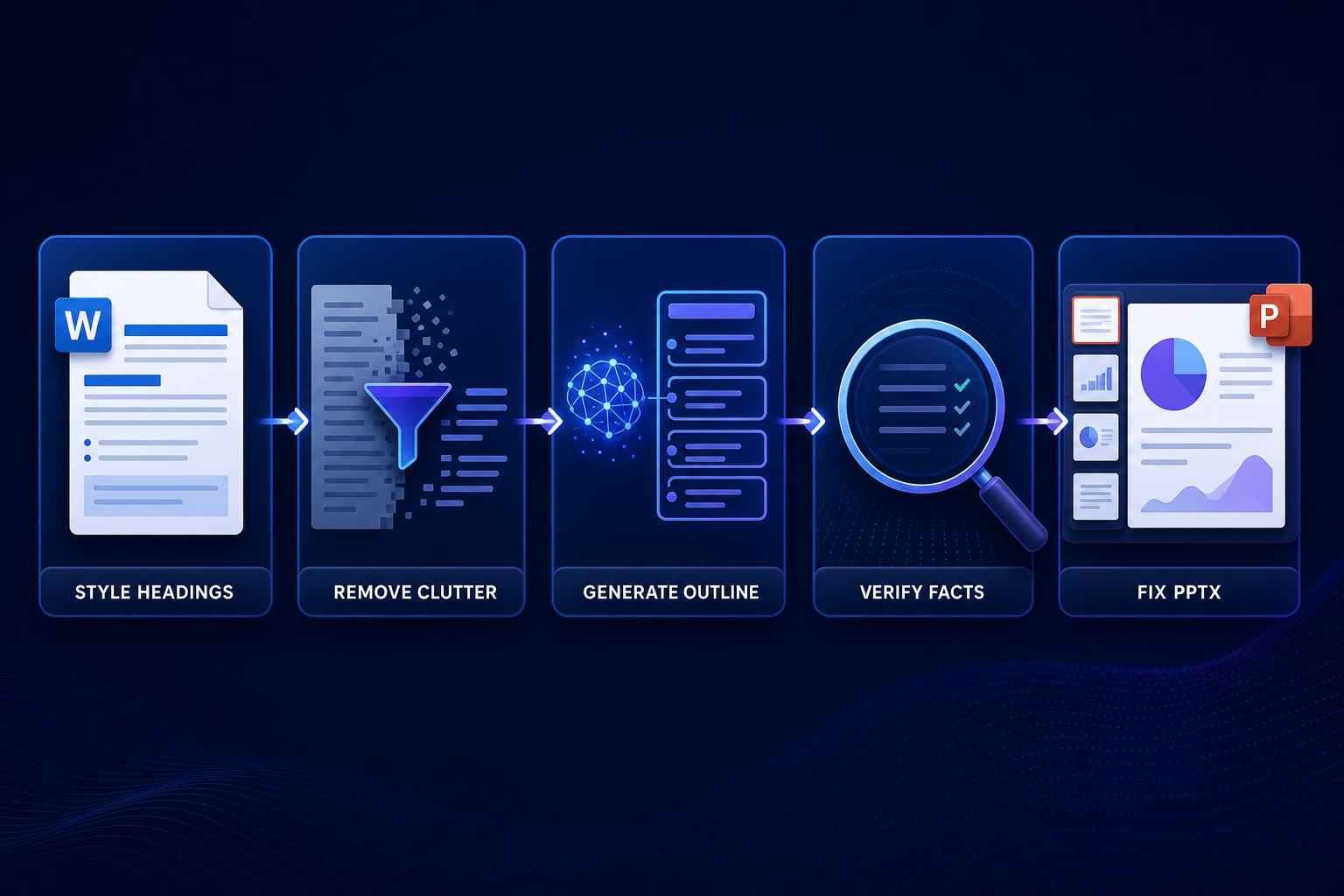
- Use real heading styles. Apply Heading 1 and Heading 2 rather than manually enlarging text. Several tools use headings as slide or section boundaries.
- State the audience and decision. Add a short instruction above the source or in the generation prompt: who will see the deck, what they should learn and what action should follow.
- Remove document-only clutter. Move long legal text, raw references and supporting calculations to an appendix plan instead of asking the model to squeeze them onto slides.
- Label tables and images. Give every important visual a descriptive title and specify whether it must be reproduced, summarized or converted into a chart.
- Mark non-negotiable facts. Identify exact numbers, quotations, citations and compliance language that may not be paraphrased.
A good prompt can improve the transformation. Our prompt engineering guide explains how to make constraints and expected output explicit. For a broader view of how generative systems synthesize source material, see what generative AI is.
Free plans, privacy and licensing caveats
“Free” is not one condition. Plus AI and SlidesAI advertise free one-off converters; SlidesPilot requires a free account; Adobe Express and Gamma provide plan-limited access; Microsoft Copilot requires an eligible subscription; and MagicSlides’ consumer allowance needs an in-product check. A trial is not a permanent free tier, and a free PPTX export may still contain branding.
Before uploading client, employee, medical, financial or unpublished research material, check the service’s privacy notice, retention controls, model-training terms and organization policy. Remove personal data when possible. Enterprise Microsoft or Adobe deployments may offer administrative protections that a public converter does not, but configuration matters.
Generated images and suggested copy also require rights review. Do not assume that a tool’s output is automatically cleared for commercial use, that a stock image license transfers unchanged, or that a generated likeness is safe to publish. Retain source citations and obtain consent for identifiable people.
How to choose the right Word-to-PowerPoint tool
- Choose Microsoft Copilot when the organization already uses Microsoft 365 and needs a native, governed PowerPoint workflow.
- Choose Plus AI or SlidesAI for a quick editable conversion with minimal setup, using only non-sensitive test material first.
- Choose Adobe Express when multiple or long source documents must be combined into a designed presentation.
- Choose Gamma when visual reframing matters more than preserving the original document layout.
- Choose SlidesPilot when audience, objective and narrative compression need explicit control.
- Choose MagicSlides when templates, repeat generation or API integration matter more than a precisely documented consumer free allowance.
If the source is actually a PDF, use our separate comparison of AI tools that turn PDF into PowerPoint. For a wider survey of deck generators, see AI presentation tools for people without design skills. Teams building the source first may also benefit from our guide to AI document creation tools.
Final review checklist
Open the exported PPTX in the exact PowerPoint version used for delivery. Compare every statistic, quotation and citation with the Word source; inspect tables and charts; confirm that images have the correct rights; check fonts, line breaks and speaker notes; run accessibility checks; and rehearse the actual timing. AI can produce a strong draft, but the presenter remains responsible for accuracy, emphasis and audience fit.
Frequently asked questions
Can ChatGPT turn a Word document into PowerPoint?
ChatGPT can help extract an outline, shorten sections and draft slide copy, but the available file and export workflow depends on the product and plan being used. For a native editable deck, a dedicated PPTX exporter or PowerPoint-integrated tool is usually more predictable.
Does Word still export directly to PowerPoint?
Microsoft says the Word for the web Export-to-PowerPoint feature is being deprecated. PowerPoint can still import a structured Word outline, and eligible Microsoft users can create a presentation from a Word file with Copilot.
Will an AI converter preserve Word formatting?
Usually not exactly. Most tools extract text and structure, then design a new deck. Heading styles, labeled visuals and clean sectioning improve results, but final formatting must be checked in PowerPoint.


