

The best free AI video background remover for most people is Pixelcut for short clips: its free plan includes three 720p, watermark-free downloads. BGRemove is better for one-minute transparent exports, Media.io offers the largest documented signup allowance, and UnBG or NSS keep footage on your device. CapCut is the strongest full-editor option.
“Free” does not mean the same thing across these tools. Some provide recurring exports, some provide a one-time trial, and others process locally but depend heavily on your browser and GPU. We checked current US-facing product, pricing and help pages on September 29, 2026. Limits can change, so verify the export screen before uploading sensitive footage or committing to a long edit.
Best free AI video background removers at a glance
| Tool | Best for | Free access checked | Main limitation |
|---|---|---|---|
| Pixelcut | Fast short clips | 3 free 720p downloads, up to 5 seconds each, no watermark | The free usable duration is very short |
| BGRemove | Reusable transparent video | 3 successful clips per 24 hours, up to 60 seconds, no watermark | Google sign-in required; files retained for 24 hours |
| Media.io | A longer one-time allowance | First 10 seconds without an account; 5 additional minutes after signup | Allowance is not described as recurring |
| UnBG | No-upload privacy | Unlimited local processing, clips up to 3 minutes, no signup or watermark | Browser and GPU performance determine speed and stability |
| NSS Video BG Remover | Local model choice | No account, quota, upload or watermark; up to 60 seconds | Maximum 1280-pixel edge and desktop-class hardware recommended |
| CapCut | Background removal plus editing | Free auto removal and watermark-free export claimed | Availability and asset entitlements can vary by device and region |
No tool wins every workflow. Pixelcut has the simplest documented short test. BGRemove is more practical when you need a real alpha channel for a clip approaching one minute. Media.io gives registered users more total free processing, but its allowance appears promotional rather than renewable. UnBG and NSS are compelling for privacy because video stays in the browser, although local processing is less predictable on older devices.
How we selected and ranked these tools
We screened ten services: Pixelcut, BGRemove, Media.io, UnBG, NSS, CapCut, VEED, Adobe Express, Canva and Runway. A ranked tool needed a current zero-dollar path for a US user, a real video-background-removal workflow rather than image-only cutout, and enough official documentation to describe the usable export honestly.
This is a documentation-based comparison. We evaluated allowance, reset behavior, account and card requirements, clip length, input limits, output resolution, transparent export, watermarks, editing control, file retention, privacy language and documentation clarity. We did not run a matched-video quality benchmark, purchase plans or claim that one model produces the cleanest hair and motion edges.
VEED was screened but not ranked because its free plan currently provides one AI background-remover try, although chroma key remains free. Adobe Express places video background removal in Premium. Canva’s one-click video background remover is also a Pro feature. Runway’s older Green Screen workflow is no longer the clearest free browser recommendation for this intent. Those products can still be useful if you already pay for them.
1. Pixelcut: best free AI video background remover for short clips
Pixelcut’s video background remover supports MP4, MOV, WebM, MKV and GIF input. Its official page says the free plan includes three HD downloads at 720p without a watermark. The free usable clip is capped at five seconds, even though the upload interface accepts larger source files for other plan paths.
Why it ranks first: the free boundary is unusually specific, the output can preserve transparency through WebM, MKV, ProRes or GIF, and the result can be previewed before download. Pixelcut also says uploaded files are deleted after processing.
Limitations: five seconds is enough for a sticker, product spin, reaction overlay or quality test, not a full tutorial. The wider product page mentions 30-second source and 50 MB upload limits, but users should distinguish those upload limits from the five-second free download entitlement. 4K output is a paid feature.
Choose it if: you need a clean, watermark-free cutout from a very short clip and want multiple transparent export formats.
2. BGRemove: best for one-minute transparent exports
BGRemove publishes a clear free allowance: a signed-in user can complete three successful removals per 24-hour window. Each source can be up to 60 seconds and 2 GB. Output is a watermark-free VP9 WebM with a real alpha channel at the source dimensions; failed jobs do not consume the allowance.
Why it ranks second: the recurring limit is practical, transparent output remains reusable in another editor, and the quota limits volume rather than resolution. The service also lets users add a color, blur, image or video background and export MP4 without consuming another removal.
Limitations: Google sign-in is required. Source files and results are stored for 24 hours before deletion, so this is not a local-only workflow. Transparent WebM is flexible, but some mobile editors and Apple workflows may need conversion before the alpha channel behaves as expected.
Choose it if: you need a recurring free allowance and a reusable transparent layer instead of a flattened video with one permanent replacement background.
3. Media.io: best documented signup allowance
Media.io’s dedicated pricing page says anyone can download the first 10 seconds free, while a registered free account receives an additional five minutes of watermark-free downloads. It accepts MP4 and MOV, up to five minutes and 200 MB, and limits free registered users to five uploaded files per day.
Why it ranks third: five minutes is the largest clearly documented no-cost processing pool among the hosted services we ranked. The tool returns transparent output and charges the allowance only when a processed result is downloaded.
Limitations: Media.io does not describe the five-minute grant as a monthly refill, so treat it as a one-time evaluation allowance. Its guidance says human portraits work best and that blurred portrait edges or footage without a person may fail. The product is also being migrated into a newer Media.io platform, so interface and entitlements may change.
Choose it if: you have several portrait clips to evaluate once and prefer a larger initial allowance over a small recurring quota.
4. UnBG: best no-sign-up, no-upload option
UnBG processes video in the browser with WebGL and MediaPipe. Its page says MP4, MOV and WebM clips up to three minutes stay on the device, with no signup, card, quota or watermark. The output is a VP9 WebM with transparency and the original audio preserved.
Why it ranks fourth: local processing minimizes server-upload risk and removes the usual credit meter. That is useful for ordinary internal footage when organizational rules permit browser-based local tools.
Limitations: “unlimited” does not mean effortless. The browser downloads a model and processes every frame on your hardware, so older laptops, disabled hardware acceleration and long high-resolution clips can be slow or unstable. MediaPipe-style segmentation is strongest on people and may struggle with transparent objects, motion blur and fine product edges.
Choose it if: keeping footage off a vendor server matters more than predictable cloud speed.
5. NSS Video BG Remover: best local tool with model choices
NSS documents an on-device video workflow that decodes, processes and re-encodes frames in the browser. Its People model uses recurrent video matting for frame-to-frame consistency, while other tiers target broader subject types. The service says it requires no account, has no quota or watermark, and does not upload footage.
Why it ranks fifth: it explains more of the processing tradeoff than most free utilities and combines a transparent WebM result with a local video editor for replacement backgrounds.
Limitations: clips are limited to 60 seconds and a 1280-pixel maximum edge. Model downloads, memory use and encoding load fall on the user’s device. The People model is the most predictable choice; “any subject” segmentation is a harder problem and should be tested on a short excerpt first.
Choose it if: you want browser-local processing but prefer explicit people-versus-object model choices and a documented resolution boundary.
6. CapCut: best all-in-one editor
CapCut’s video background remover sits inside a full editor. Users can apply Auto removal to ordinary footage, use chroma key for a green or blue screen, refine the cutout, add a new background and export without moving to another application. CapCut’s current page describes the workflow as free and says desktop exports can be watermark-free.
Why it ranks sixth: a cutout is rarely the finished video. CapCut can also crop, resize, caption, add overlays and prepare social formats, making it more efficient than exporting a transparent file and rebuilding the edit elsewhere.
Limitations: CapCut does not publish one durable global quota for Auto removal. Feature availability, templates, stock assets and Pro labels can vary by account, platform and region. A clean export can also become paid if the project uses premium effects or media even when background removal itself is available.
Choose it if: you want to remove and replace a background as one step in a larger social-video edit.
How to choose an AI video background remover
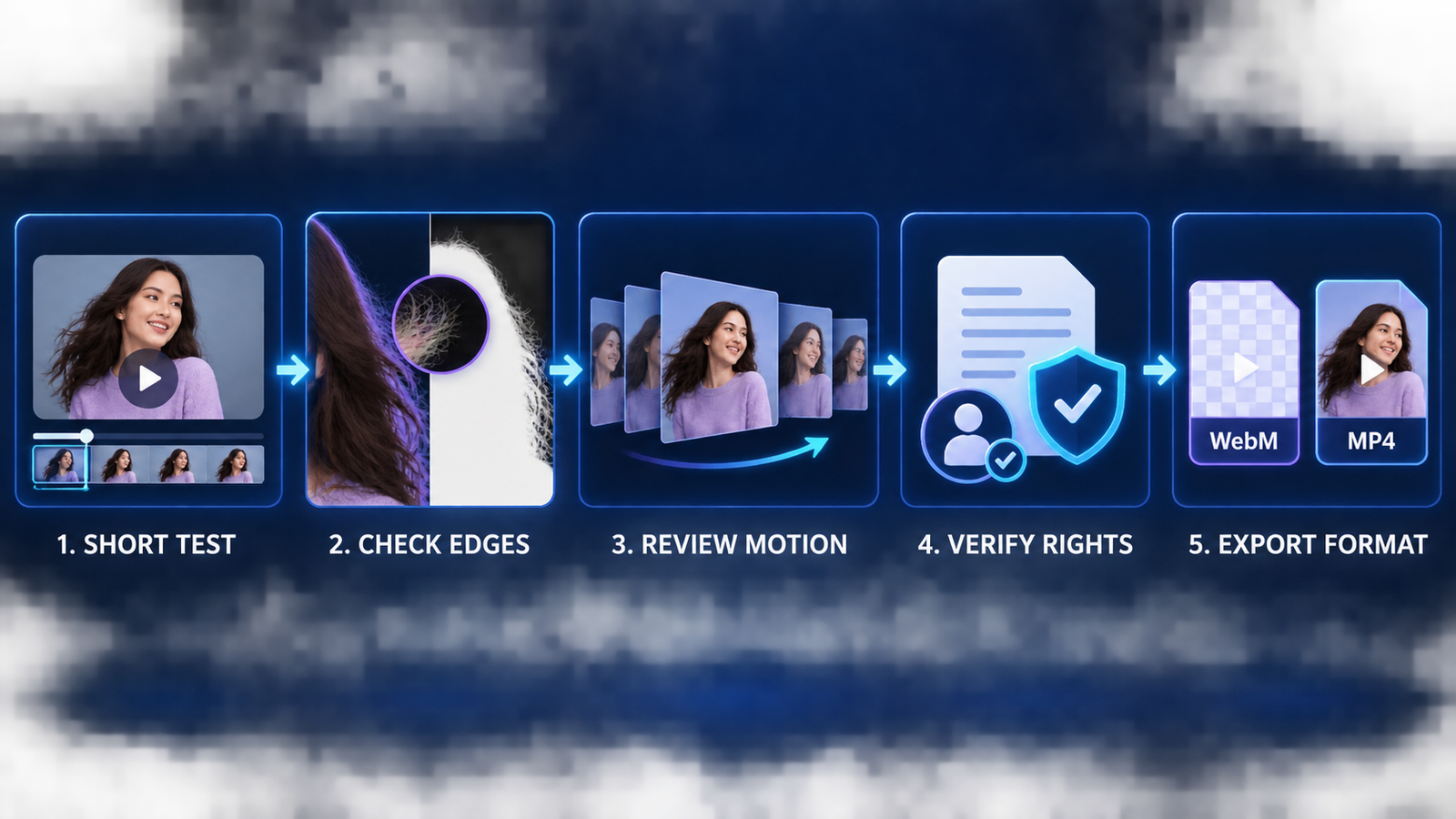
Decide whether you need transparency. A transparent WebM or ProRes file keeps the subject reusable over many backgrounds. A normal MP4 usually flattens the subject onto one selected background. If you only need a finished social clip, MP4 is simpler. If another editor will composite the subject, preserve alpha.
Test difficult frames before the whole video. Use a five- to ten-second excerpt containing hair movement, hands crossing the body, motion blur and any transparent or reflective objects. Inspect the result frame by frame. A crisp still preview can hide edge flicker that becomes obvious during playback.
Match the tool to the subject. Portrait-focused models are usually better for a person than for a product, pet or vehicle. Even lighting and contrast between subject and background help every model. A physical green screen plus chroma key can still beat AI for long clips, translucent fabrics and repeatable production.
Check privacy and rights. Do not upload confidential client footage, minors or unreleased campaigns without authorization and an acceptable retention policy. Removing a background does not grant rights to the person, logo, music or source video. Keep an untouched master and document consent for identifiable people.
For adjacent workflows, see our comparisons of free AI video generators, free AI lip-sync generators, free AI caption generators and free AI avatar video generators. Our generative AI beginner’s guide explains the broader technology and its limitations.
Frequently asked questions
Can I remove a video background online for free without a watermark?
Yes. Pixelcut currently offers three very short free downloads, BGRemove provides three one-minute jobs per 24 hours, and UnBG and NSS advertise local no-watermark processing. Confirm the current export screen because allowances and premium assets can change.
Do I need a green screen?
No. AI segmentation can isolate a clear subject from an ordinary room or outdoor scene. A well-lit green screen remains more reliable for long footage, fast motion, translucent material and repeat production because chroma key uses a controlled color rather than predicting the subject boundary.
Why does a transparent video look black?
Some video players display transparent pixels as black because they do not composite alpha over a visible background. Import the WebM or ProRes file into an editor that supports transparency and place an image, color or video on the layer below it.
Is browser-local processing always private?
It can reduce exposure because the source file does not need to leave the device, but review the actual site behavior and policy rather than relying on a label. Browser extensions, analytics, downloaded models and organizational rules can still matter. Use approved offline software for highly sensitive footage.
Bottom line
Pixelcut is the easiest starting point for a short clean test, BGRemove offers the best recurring transparent-video allowance, and Media.io provides the largest documented signup grant. UnBG and NSS favor local privacy, while CapCut is the better choice when removal is only one part of the edit. Start with the hardest ten seconds, inspect motion edges and verify the actual export before processing the full clip.

