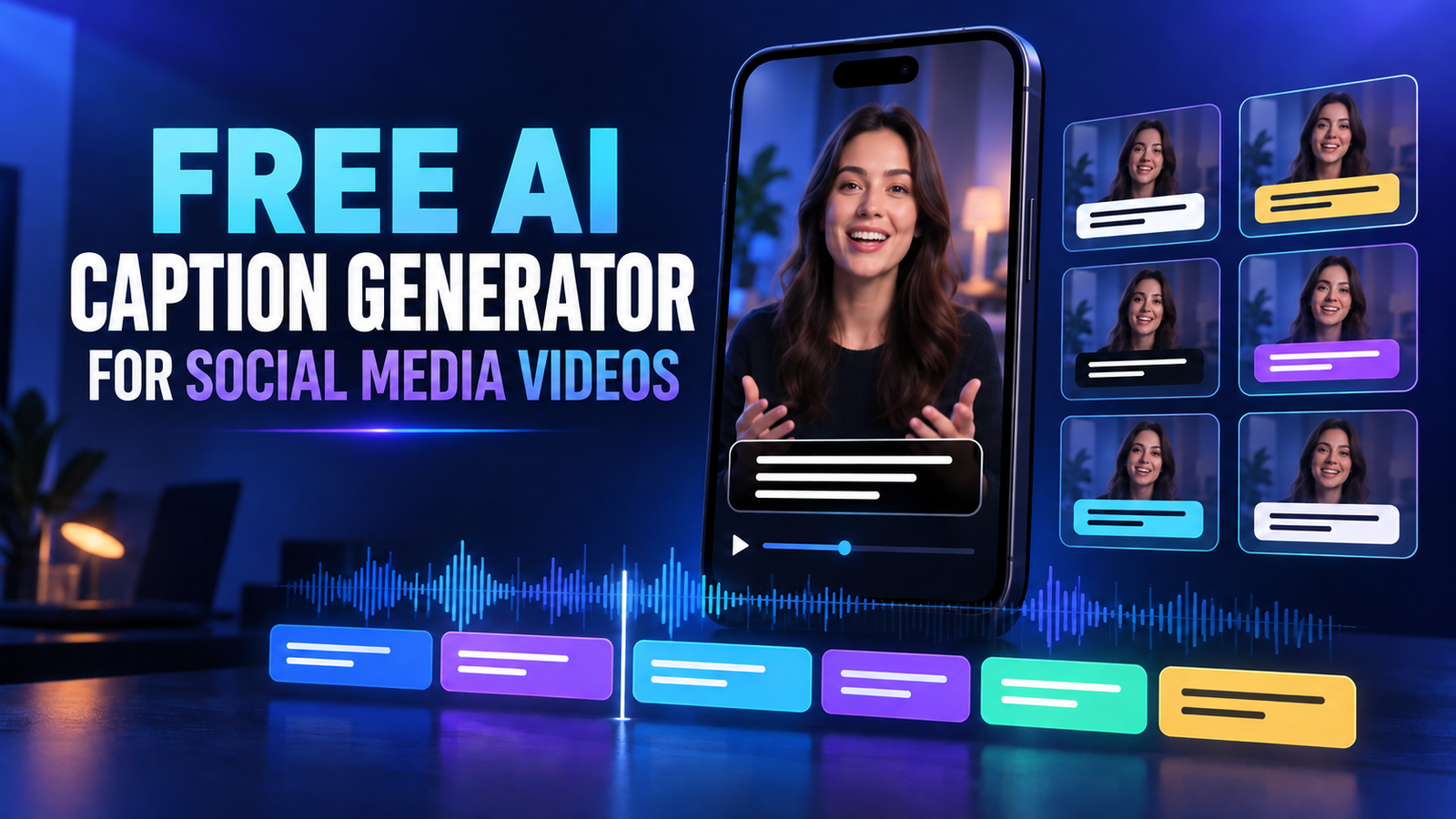

The best free AI caption generators for social media videos are Microsoft Clipchamp for clean exports and downloadable SRT files, Canva for unlimited caption generation, Adobe Express for quick short clips, CapCut for mobile-first styling, Descript for transcript-led editing and VEED for testing animated captions. Each has a real zero-cost path, but watermarks, minutes and export rules vary.
We checked these tools on September 28, 2026. This guide is about transcribing spoken audio into timed on-screen captions or subtitle files for Reels, TikToks, Shorts and other social videos. It is not about writing the post copy that appears below a video; for that separate task, see our comparison of AI caption writers for Instagram and TikTok.
Free AI caption generators for social media videos at a glance
| Tool | Best for | Free access checked | Main limitation |
|---|---|---|---|
| Microsoft Clipchamp | Best overall free workflow | Auto-captions, SRT download and up to 1080p export without a Clipchamp watermark | Requires a Microsoft account; one transcription language per video |
| Canva | Captions plus social design | Canva says free users can generate captions for as many videos as they want | Premium assets can block a clean free export |
| Adobe Express | Fast short-video captioning | Free caption generation and MP4 download; Adobe says the quick action has no video-count limit | Quick-action uploads are limited to short files; account may be required to continue editing |
| CapCut | Mobile-first animated captions | Core auto-captioning is available on web, desktop and mobile | Quotas, Pro styles and watermark behavior vary by region, device and template |
| Descript | Editing video through text | 60 media minutes per month and 720p local video export | Free video exports carry a Descript watermark |
| VEED | Trying dynamic caption styles | Free-to-start auto-subtitles for short clips with monthly limits | Every Free export is watermarked; subtitle-file downloads require payment |
There is no single winner for every creator. Clipchamp has the clearest combination of automatic transcription, editable captions, a downloadable SRT file and clean 1080p output. Canva is simpler when the video, brand graphics and captions already live in one design. CapCut offers the most familiar short-form styling, but its free boundary is less predictable.
How we selected and ranked these tools
We screened eight credible captioning workflows and ranked six. The review is documentation-based: we compared current product pages, help centers and pricing documentation rather than claiming a matched-audio accuracy test. We evaluated genuine zero-dollar access, account and card requirements, transcription allowance, export resolution, watermarks, SRT or VTT download, caption editing, timing control, social-video formats, privacy disclosures and documentation clarity.
YouTube Studio and Instagram’s native captions were screened as platform alternatives. They are useful when a video will stay on that platform, but they are not general editors for creating one captioned master file that can be reused across networks. We did not treat a card-required trial as a free plan, and we ranked an unclear or changing quota below a documented recurring allowance.
“Best” means best fit for a workflow, not highest transcription accuracy. Accuracy changes with microphones, accents, names, music, overlapping speakers and language. Every tool needs a human review, especially for names, prices, medical or financial statements and accessibility cues.
1. Microsoft Clipchamp: best free AI caption generator overall
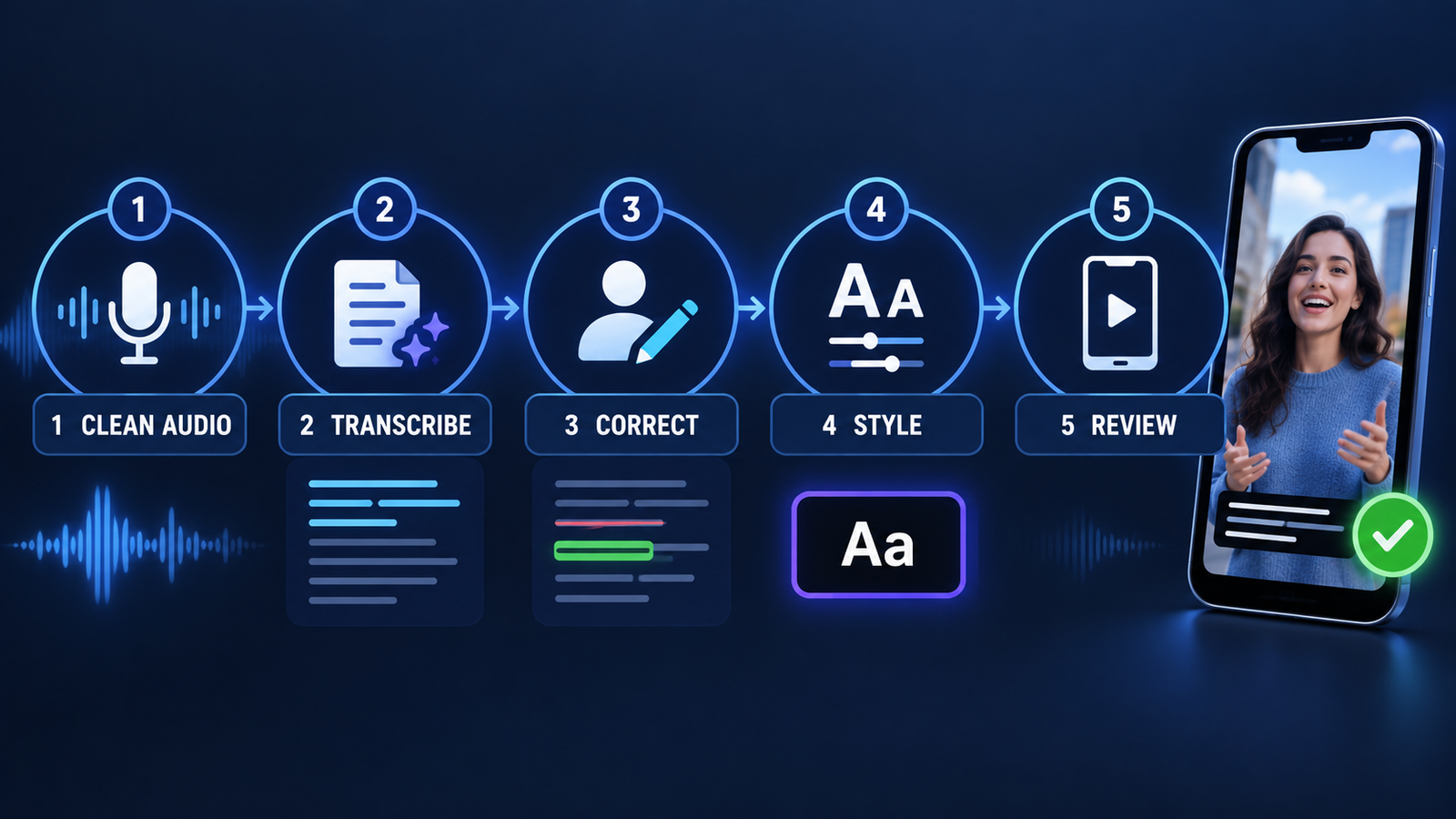
Clipchamp auto-captions detect speech, create timed subtitles and expose an editable transcript. You can correct words, change font and placement, burn captions into the exported video or download a separate SRT file. Microsoft says the free personal tier exports up to 1080p, and Clipchamp does not add a watermark when the project uses features and assets included in your plan.
The privacy explanation is more concrete than most competitors provide. Caption audio is processed by Azure Cognitive Services; Microsoft says automatic speech recognition involves no human access, while caption data remains stored with the editing project. The main constraints are a required account, one transcription language per video and Microsoft’s right to restrict excessive transcription use with notice.
Pros: clean 1080p export, editable transcript, SRT download, no published minute quota and clear processing documentation. Cons: account required, captions are processed in the cloud and premium assets must be removed before a free export.
Choose Clipchamp if: you want one reusable captioned MP4 plus an SRT file for platforms that support switchable captions.
2. Canva: best when captions and social design belong together
Canva’s video subtitle generator transcribes speech, adds editable captions to the timeline and lets you style the result inside a social-video design. Canva says caption generation is free for as many videos as you want. Its updated help documentation also describes more than 20 caption style packs and MP4 export.
Canva works well when a vertical video still needs a cover, logo, progress bar or brand colors. The important free-plan boundary is the project as a whole: the caption feature may be free, but a design containing premium stock, music, fonts or other Pro elements may require payment or show licensing restrictions at export.
Pros: unlimited caption generations according to the product page, editable styles, strong vertical-video templates and an integrated design workflow. Cons: account required, no clearly documented SRT download in the caption workflow and a clean free export depends on using only Free assets.
Choose Canva if: your captioned video is part of a broader Instagram, TikTok or campaign design and you prefer a visual editor over a transcript-first tool.
3. Adobe Express: best for a quick short clip
Adobe Express Caption Video is a focused upload, transcribe, correct, style and download workflow. Adobe says the caption tool is free, lets you download an MP4 and does not limit the number of videos you can caption. The current help page also supports generating captions directly inside a larger Express video project.
The quick action is intended for short social clips. Adobe’s regional documentation states a one-gigabyte and five-minute upload boundary for this caption workflow. That is enough for Reels, TikToks and Shorts, but not for a long webinar. Free Express accounts include basic creation tools and limited generative features without a credit card; premium templates and assets remain separate.
Pros: simple interface, editable transcript, customizable styling, MP4 download and no stated video-count limit. Cons: short-file boundary, limited subtitle-file workflow and an Adobe account may be needed when moving beyond the quick action.
Choose Adobe Express if: you need to caption a short clip quickly and care more about a finished MP4 than a portable SRT file.
4. CapCut: best for mobile-first animated captions
CapCut’s Recognise Subtitles feature is available on web, desktop and mobile. It creates timed captions that can be edited and styled, with platform-specific options such as animation and speaker detection in some regions. CapCut is particularly convenient for fast word-by-word treatments common in Reels and TikTok videos.
The caveat is predictability. CapCut’s own help center says free-use counts for AI features can vary during testing, and advanced caption controls or subtitle-file export can differ by platform and region. Its watermark guidance also depends on the editing path: standard edits can export cleanly, while templates, a default ending clip, stock elements or Pro features may introduce branding or block the expected free route.
Pros: strong mobile workflow, animated styles, easy timing edits and direct social sharing. Cons: variable allowance, region-dependent features, changing Pro boundaries and inconsistent watermark rules across templates and devices.
Choose CapCut if: you edit on a phone and want energetic burned-in captions. Before doing a full project, generate and export a 15-second sample on the exact device and account you plan to use.
5. Descript: best for transcript-led editing
Descript’s Free plan includes 60 minutes of processed media each month, multilingual transcription and 720p local video export. Its defining feature is text-based editing: remove a word or sentence from the transcript and Descript can cut the corresponding section of video. Captions can then be styled for the final composition.
The Free plan is better for testing a repeatable workflow than for delivering client-ready social video. Descript’s current pricing table says watermark-free video export is not included on Free. The 60-minute pool is still useful for a small creator who wants to edit a talking-head clip through its transcript before deciding whether the workflow is worth paying for.
Pros: clear recurring allowance, transcript-based editing, collaboration and useful correction workflow. Cons: 720p local export and a watermark on Free video output.
Choose Descript if: your main problem is cutting and restructuring spoken video, not merely placing subtitles on a finished edit.
6. VEED: best for testing dynamic caption styles
VEED’s auto-subtitle generator can create, edit and animate captions, including word emphasis and karaoke-style treatments. It is free to start for short clips with monthly limits and requires no credit card at the beginning.
The limitations are prominent. VEED says longer videos and subtitle-file downloads require a paid plan, and its help center states that every video exported while signed out or on a Free account carries a VEED.IO watermark. That makes the free tier suitable for trying the editor or sharing a rough cut, but weaker than Clipchamp, Canva or Adobe Express for a clean public post.
Pros: attractive dynamic captions, browser-based editing, multiple subtitle formats on paid plans and clear social presets. Cons: watermarked Free exports, vague monthly short-clip quota and paid SRT/VTT/TXT downloads.
Choose VEED if: you want to preview animated caption treatments before deciding whether its paid workflow is worthwhile.
How to choose a free AI caption generator
Choose based on the deliverable. For a clean captioned MP4 and separate SRT, start with Clipchamp. For a designed vertical post, use Canva. Adobe Express is the quickest route for a short one-off clip, while CapCut fits mobile editing and animated words. Descript is strongest when the transcript should drive the edit. VEED is a useful style sandbox, but its watermark makes the Free tier less suitable for final publishing.
If you only need selectable captions on YouTube, the platform’s automatic captions are free and support long-form videos and Shorts in many languages. YouTube warns that machine captions can misrepresent speech because of accents, dialects, pronunciation and background noise, so creators should review and correct them in Studio. For a cross-platform file, use an editor that exports SRT or a captioned master.
For audio-only interviews or longer recordings, our guide to free AI audio transcription tools covers workflows better suited to full transcripts. If captioning is only one step in a larger channel workflow, compare the free AI video generators for YouTube as well.
Six checks before publishing AI-generated captions
- Correct the transcript. Check names, brands, numbers, URLs and any sentence whose meaning changes with one word.
- Add meaningful sound cues. Closed captions should include relevant non-speech information such as music, laughter or a door slamming; a raw speech transcript is not automatically a complete accessibility track.
- Keep text readable. Use strong contrast, a sensible line length and enough screen time. Avoid placing captions under platform buttons, usernames or the bottom navigation area.
- Review on a phone. Export a draft and watch it at actual mobile size with sound off. Check timing, line breaks and whether fast animated words become distracting.
- Preserve a subtitle file when possible. Burned-in captions look consistent across platforms, while SRT or VTT captions can be toggled, searched and adapted. Keeping both gives you more control.
- Protect private material. Caption generation usually uploads or cloud-processes audio. Confirm the vendor’s current privacy terms before sending confidential interviews, unreleased products, customer calls or minors’ voices.
AI captions are a first draft, not a compliance guarantee. Requirements vary by platform, audience, jurisdiction and whether the content previously appeared on television. The safest workflow combines automatic transcription with a deliberate human accessibility review. If you are new to the underlying technology, our beginner’s guide to generative AI explains what these systems do and where their output can fail.
Frequently asked questions
Can I generate video captions for free without a watermark?
Yes. Clipchamp can export up to 1080p without a watermark when the project uses free features and assets. Canva and Adobe Express can also produce clean free exports when the project contains only free elements. CapCut often supports clean standard exports, but templates, Pro effects, regions and devices can change the result.
Which free tool can download an SRT file?
Clipchamp provides an SRT download in its auto-caption workflow. YouTube Studio can also manage subtitle tracks for videos hosted on YouTube. VEED advertises SRT, VTT and TXT downloads, but its current free guidance says subtitle-file download requires an upgrade.
Are burned-in captions better than platform captions?
They solve different problems. Burned-in captions preserve your design and always display, which suits short social feeds. Platform caption tracks can be switched off, read by accessibility tools, searched and translated more flexibly. When practical, keep a clean video, a captioned version and an edited subtitle file.
How accurate are AI video captions?
No percentage applies to every recording. Clear single-speaker audio usually performs better than noisy clips, crosstalk, music, uncommon names or code-switching. Treat vendor accuracy claims as marketing unless they describe a transparent matched-audio benchmark, and review every line before publishing.
Bottom line
Clipchamp is the strongest free starting point because it combines editable auto-captions, an SRT download and clean 1080p export. Canva is better for design-heavy social posts, Adobe Express for quick short clips and CapCut for mobile-first animation. Descript and VEED remain useful trials for transcript editing and dynamic styles, but their Free exports carry watermarks. Whichever tool you use, correct the text, add sound cues, inspect the safe area and watch the exported video on a phone before publishing.


