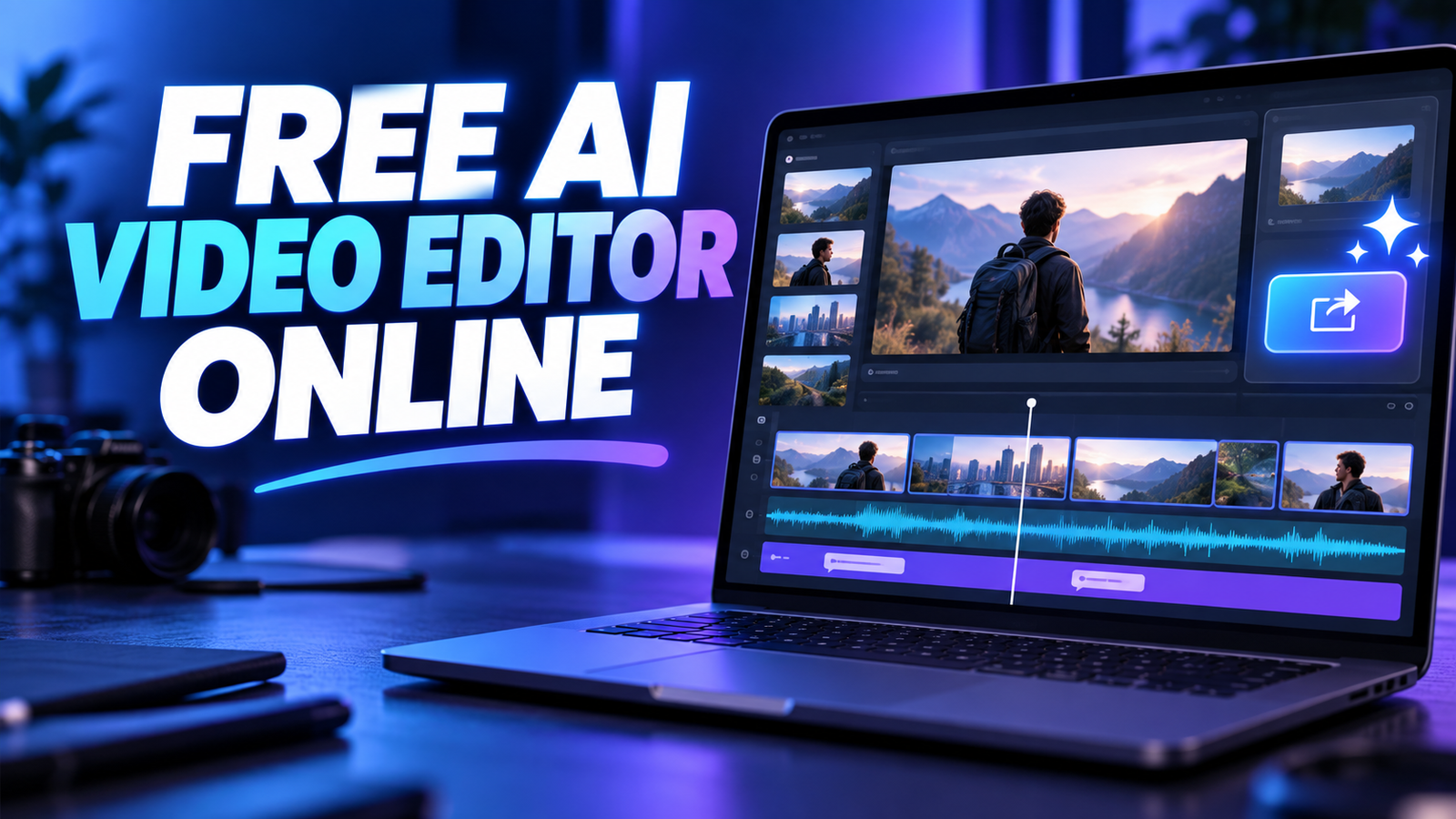

Short answer: Microsoft Clipchamp is the strongest free AI video editor online for most people because it combines a real timeline, automatic captions, silence removal, auto-compose and clean 1080p exports. Canva and Adobe Express are better for design-led social clips, while Descript is the practical choice when you want to edit spoken video by changing its transcript.
A free AI video editor should help with repetitive work without holding the finished file hostage. The useful features are automatic captions, transcript editing, silence removal, reframing, audio cleanup and first-draft assembly—not merely a text box that generates a few seconds of footage. We checked the current US-facing plans and documentation on September 29, 2026. Free allowances and feature labels change often, so confirm the export screen before committing a long project.
This comparison focuses on browser-based editors with a genuine zero-dollar path. It does not treat a credit-card trial as free, and it separates clean exports from watermarked previews. If you need to generate new footage instead of editing clips you already have, see our free AI video generator comparison. For narrower tasks, our guides to free AI caption generators and AI video background removers go deeper.
Free AI video editors online compared
| Tool | Best for | Useful free AI features | Free export | Main limitation |
|---|---|---|---|---|
| Clipchamp | Best overall | Auto-compose, captions, silence removal, noise suppression, text to speech | Up to 1080p, no editor watermark | Microsoft account; premium assets block export |
| Canva | Social and design-led video | Captions, clip highlights, Magic Design for Video, limited generation | Clean MP4 with free assets | Pro assets add watermarks; AI allowance is pooled |
| Adobe Express | Fast branded clips | Captions, Clip Maker, Enhance Speech and basic smart editing | Watermark-free MP4 | Free projects capped at 30 minutes; several advanced tools are paid |
| Descript | Talking-head and podcast video | Transcript editing, captions, speaker detection and limited AI actions | 720p; one watermark-free export monthly | One transcription hour monthly |
| CapCut | Short-form social editing | Auto captions, text to speech, background removal and templates | Usually clean when only free elements are used | Quotas, assets and export rules vary by region and account |
| Kapwing | Short collaborative projects | Auto subtitles, translation, text to speech and smart editing | 720p, up to four minutes | Watermark on every Free export |
| VEED | Quick browser edits and captions | Subtitles, cleanup and limited AI tools | 720p | Free and logged-out exports are watermarked |
Verified from official documentation on September 29, 2026. “Free” means a continuing $0 plan or usable free service, not a temporary paid-plan trial. A clean export can still be blocked when a project contains premium stock, templates, music or effects.
How we selected the best free AI video editors
We screened nine credible editors and ranked seven. The evaluation considered whether a US user can start without a credit card, the editing depth beyond generation, practical AI assistance, account requirements, export resolution, watermarks, project or duration limits, stock licensing, privacy disclosures and the clarity of the vendor’s documentation. InVideo and Runway were screened but not ranked because their free paths are better understood as branded generation or testing allowances than general-purpose free editing.
This is a documentation-based comparison, supported by current product pages, help centers and plan tables. We did not run a controlled same-footage render test, buy paid plans or claim that one editor produces universally better images or cuts. Independent 2026 testing from Buffer’s AI video editor review informed workflow context, while plan and limit claims below come from vendors’ current documentation.
1. Microsoft Clipchamp: best free AI video editor online overall
Microsoft’s current Clipchamp feature table is unusually clear. The personal Free tier includes core timeline editing, templates, a free stock collection, automatic captions with SRT download, text-to-speech voiceovers, auto-compose, image background removal, automatic pause removal and noise suppression. It also exports at 480p, 720p or 1080p.
That combination makes Clipchamp the easiest recommendation for tutorials, screen recordings, explainers and ordinary YouTube or social edits. Auto-compose can build a first draft from your own media, then hand the result back to the timeline. Microsoft says the feature is free, exports at 1080p and processes the source media in the browser rather than using it to train the AI model.
Why it ranks first: it offers useful editing automation and a clean Full HD result without a tiny monthly credit meter. Microsoft also states that Clipchamp adds no visual or audio watermark. If a project uses an unavailable premium asset or feature, the editor blocks export until you remove it or upgrade instead of quietly stamping the result.
Limitation: you need a Microsoft account, 4K and premium stock remain paid, and free projects are not automatically backed up to the cloud. Keep original media files available until the final render is safely stored.
2. Canva: best for social video and design consistency
Canva is strongest when video is part of a larger design workflow. The browser editor combines templates, text animation, free stock, captions and multiple aspect ratios. Its AI-assisted video tools can generate a first layout, find highlights and turn images into short motion clips. That makes it efficient for Reels, promos, product explainers and posts that need matching thumbnails or graphics.
The important distinction is between the editor and its AI allowance. Canva says Free users receive limited AI use, shared across eligible tools. It does not promise an unlimited number of AI edits. Canva’s video-editor documentation does promise a clean export when the project contains only free elements, footage and music.
Why it ranks here: it is easier than a traditional timeline for brand-like layouts, animated text and social formats, and Free users can produce a watermark-free MP4.
Limitation: Magic Design for Video may insert Pro content. A Free user must replace or remove those elements before downloading cleanly. AI availability also pauses or narrows when the shared allowance is exhausted. Review music and stock licenses for the intended commercial channel rather than assuming every library item has identical rights.
3. Adobe Express: best for quick branded clips and captions
Adobe Express combines a simple scene-based editor with templates, stock and quick actions. Its Free plan needs no credit card and includes standard video editing, 5 GB of storage and projects up to 30 minutes. Adobe’s caption-video documentation says the automatic, editable caption tool has no numerical limit on the number of jobs, although the quick-action upload itself has file and duration boundaries.
Adobe’s current Express plan comparison is the right place to check the boundary before starting. Remove Video Background and several advanced animation or generative video features sit above the Free tier. The standard editor, free templates and a limited Adobe Stock collection remain usable without subscribing.
Why it ranks here: it is a polished choice for short marketing, education and social clips, particularly when captions and graphic layout matter. Adobe says videos can be exported as watermark-free MP4 files.
Limitation: “Adobe Express has AI” does not mean every AI feature is free. Generative video, background removal and some premium assets can trigger an upgrade. The Free plan’s 30-minute project ceiling also makes it a poor fit for long interviews.
4. Descript: best for editing spoken video as text
Descript transcribes a recording and lets you cut the video by deleting words from the transcript. All plans include text-based editing, speaker detection, captions, screen recording and templates. For interviews, tutorials and podcasts, this can be faster than searching a conventional timeline for every sentence.
The current Descript pricing table lists one transcription hour per month, 720p output and one watermark-free video export per month on Free. It also provides limited AI actions rather than unrestricted use of its Underlord assistant, Studio Sound, filler-word removal and other automated features.
Why it ranks here: the free allowance is meaningful for one short, dialogue-heavy project, and the editing model is genuinely different rather than a thin AI wrapper.
Limitation: one transcription hour and one clean export disappear quickly. The 720p ceiling is acceptable for drafts and many social posts but not ideal for a recurring 1080p channel. Confirm the live plan screen because Descript has changed its Free watermark rules over time.
5. CapCut: best for fast short-form editing, with variable limits
CapCut’s web editor offers a traditional timeline plus auto captions, text to speech, background removal, templates and social-first effects. Its official online editor page describes a free, browser-based path and clean exports. Current help documentation adds an important qualification: templates, stock assets and features marked Pro can block a clean export or add branding.
Why it ranks here: CapCut packs many useful tools into a fast workflow for vertical video, and ordinary edits made with free assets can export without a watermark.
Limitation: CapCut does not publish one durable global allowance for all AI features. Its US terms explicitly say services and plans can differ by jurisdiction, device and account. The materials license also distinguishes free, paid, commercial and noncommercial assets. Treat every Pro badge and asset-license label as part of the export check, especially for client or advertising work.
6. Kapwing: best for short collaborative browser projects
Kapwing combines a browser timeline with shared workspaces, automatic subtitles, translation, text to speech and smart editing. The current Kapwing pricing table lists 10 credits, 720p output, videos up to four minutes and unlimited exports—but every Free export carries a Kapwing watermark. Its published examples say the allowance can cover up to 10 minutes of auto-subtitling or one minute of text to speech, depending on how credits are used.
Why it ranks here: it is practical for drafting, captioning and reviewing a short clip with collaborators before deciding whether the clean final export is worth paying for.
Limitation: the watermark prevents it from being the best no-cost publishing choice. The free workspace also has storage and upload limits. On privacy, Kapwing says it does not train models on customer data, though AI features can send the required inputs to subprocessors.
7. VEED: useful for quick edits, but Free exports are watermarked
VEED provides a straightforward browser editor for trimming, text, captions and basic cleanup. The Free tier is usable for testing the workflow, and its help center says the export ceiling is 720p. It is a reasonable fallback when you value a simple interface more than a clean finished file.
Why it ranks here: editing and subtitle tools are easy to reach, and a first-time user can produce a complete draft in the browser.
Limitation: VEED confirms that logged-out and Free exports carry its watermark. AI limits are also feature- and region-dependent. Privacy deserves extra attention: VEED’s current terms permit improvement and AI-training use of content uploaded under a Free subscription, with an opt-out route described in its privacy policy. Avoid uploading confidential interviews or unreleased client footage until your organization has reviewed those terms.
Which free AI video editor should you choose?
- Choose Clipchamp if you want the safest general recommendation: a real timeline, useful AI automation and clean 1080p output.
- Choose Canva if the video is part of a broader social or design campaign and you can restrict the project to free assets.
- Choose Adobe Express for short, polished clips where captions, templates and graphic layout matter more than advanced timeline control.
- Choose Descript for interviews, tutorials or podcasts where transcript editing can save more time than visual effects.
- Choose CapCut for short-form speed, but inspect every asset, Pro badge and export option before building a recurring workflow.
- Use Kapwing or VEED as convenient draft and review tools when a Free-plan watermark is acceptable.
How to avoid the most common free-plan trap
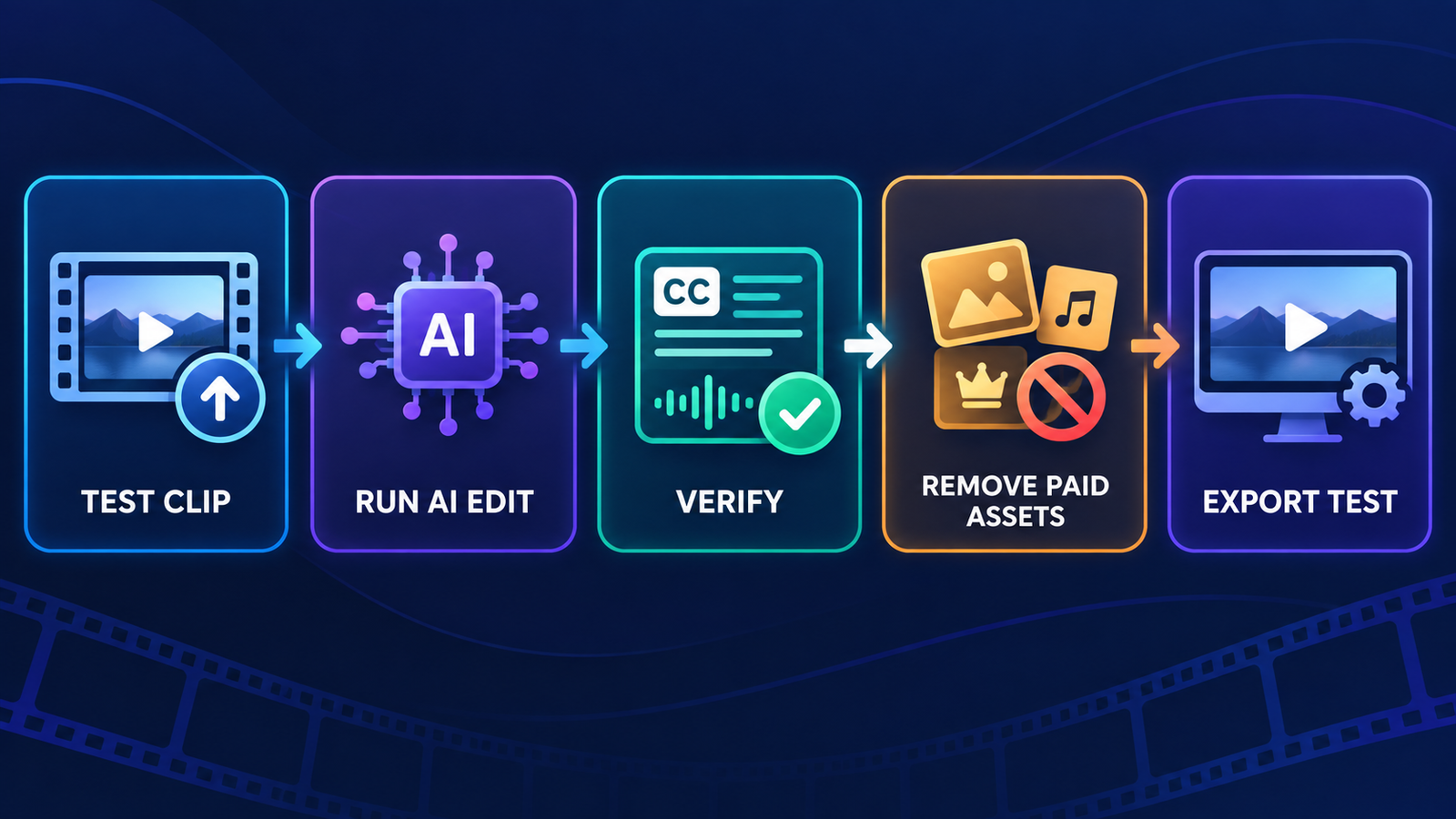
- Upload a representative 20- to 60-second sample. Include speech, motion, music and the aspect ratio you actually plan to publish.
- Run the AI features you need. Generate captions, remove pauses or build the first cut, then inspect every change. AI can delete intentional pauses, miss names and mistime captions.
- Open the export screen early. Confirm resolution, watermark, duration and whether a premium asset has slipped into the project.
- Check rights and consent. Use footage, music, voices and faces you are authorized to edit. “Available in the editor” does not automatically mean unrestricted commercial use.
- Protect sensitive footage. Review retention, AI-training and deletion controls before uploading client calls, minors, health information or unreleased material.
- Export a short test. Check captions, audio sync, color, compression and framing on the destination platform before finishing the full edit.
If your workflow centers on spoken clips, our Instagram and TikTok caption-tool comparison covers written social copy, while the free AI dubbing guide explains translation and voice-replacement limits. Those are separate problems from assembling and polishing a complete video.
Bottom line
Clipchamp offers the most complete free AI-assisted online editing package today: clean 1080p output, captions, auto-compose, silence removal and noise suppression without a tiny published credit pool. Canva and Adobe Express are better when design is the center of the job, and Descript is better for dialogue-heavy footage. CapCut is powerful but less predictable; Kapwing and VEED remain useful when a watermarked draft is enough.
No AI editor removes the need for a final human pass. Verify names and numbers in captions, listen for broken audio edits, check the license on every stock asset, and disclose materially altered or synthetic media when a platform or context requires it.


