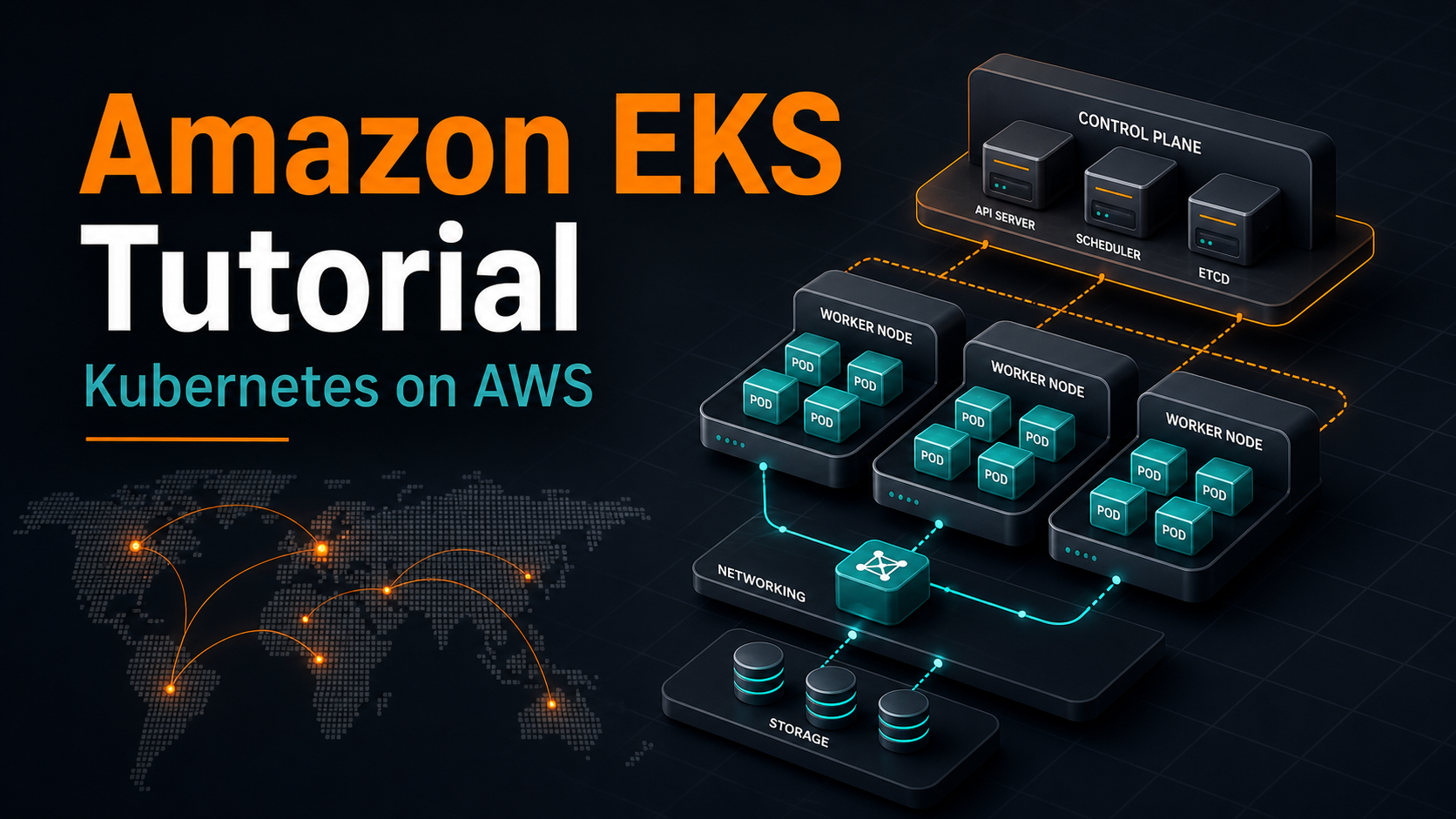

Quick Answer: Amazon EKS is AWS’s managed Kubernetes service. AWS runs the Kubernetes control plane, while you choose how to run worker capacity with EKS Auto Mode, managed node groups, self-managed EC2 nodes, or AWS Fargate. For most beginners in 2026, the safest learning path is to create a small test cluster with eksctl, deploy a sample application, expose it with a Service, inspect logs and events with kubectl, then delete the cluster before it becomes an idle bill. For production, plan networking, IAM, add-ons, upgrades, observability, and cost controls before the first workload goes live.
Kubernetes gives teams a consistent way to package, schedule, scale, and operate containerized applications. Amazon EKS gives you that Kubernetes API without asking your team to build and maintain the control plane from scratch. That tradeoff matters: Kubernetes is powerful, but the operational burden grows quickly when you add networking, security, upgrades, logging, autoscaling, storage, ingress, and incident response.
This Amazon EKS tutorial walks through the practical path: what EKS manages, what you still own, how to create a first cluster, how to deploy an application, how to troubleshoot common failures, and how to avoid beginner cost mistakes. It is written for developers, DevOps engineers, platform engineers, and cloud learners who know containers but want a clear route into Kubernetes on AWS.
What is Amazon EKS?
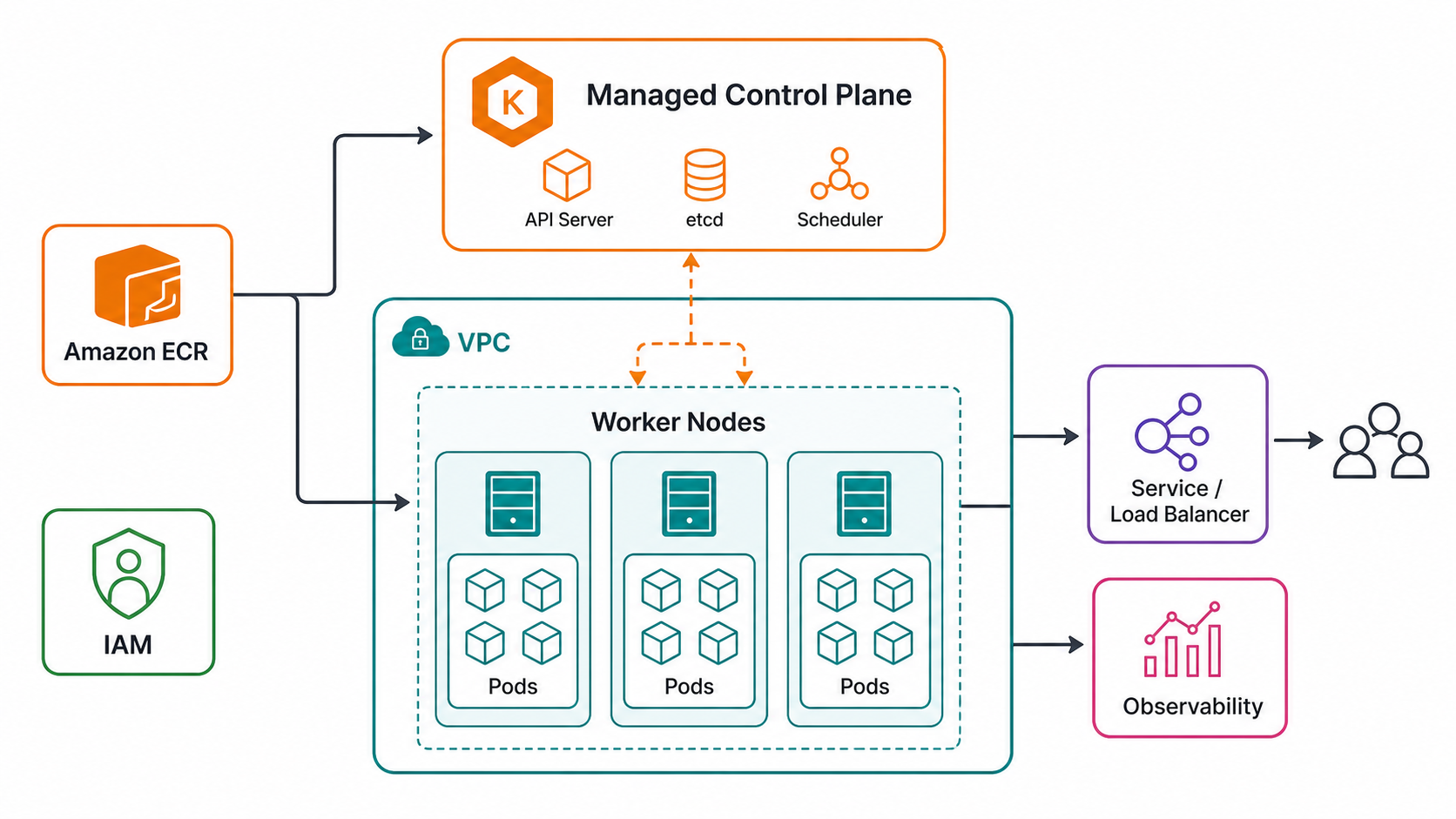
Amazon Elastic Kubernetes Service, usually called Amazon EKS, is a managed Kubernetes service from AWS. It provides a standard Kubernetes control plane and integrates it with AWS infrastructure such as VPC networking, IAM, Elastic Load Balancing, Amazon ECR, CloudWatch, and AWS storage services.
The important point is that EKS is not a completely hands-off platform. AWS manages the control plane availability and the EKS API integration, but your team still makes design choices that affect reliability, security, cost, and developer experience.
| Area | AWS manages | You still manage |
|---|---|---|
| Kubernetes control plane | Control plane infrastructure, API endpoint, availability, patching of the managed control plane components | Version upgrade timing, API access, cluster configuration, admission controls, workload policy |
| Worker capacity | Depends on mode: EKS Auto Mode automates more; managed node groups automate part of EC2 lifecycle | Instance sizing, workload requests and limits, scaling policy, disruption handling, image hygiene |
| Networking | EKS integrates with Amazon VPC and AWS load balancers | VPC design, subnet sizing, private/public exposure, security groups, ingress rules, DNS |
| Security | AWS IAM, EKS access entries, Pod Identity integrations, managed add-on support | Least privilege, secrets handling, image scanning, RBAC, namespace boundaries, network policies |
| Observability | CloudWatch and AWS observability integrations are available | Metrics, logs, traces, alerts, dashboards, SLOs, incident runbooks |
If you are still deciding whether AWS is the right cloud to learn first, read AWS vs Azure vs Google Cloud: Which to Learn in 2026. If you want a broader career path around AWS skills, pair this tutorial with Best Cloud Certifications 2026.
How EKS Fits Into Kubernetes on AWS
A basic Kubernetes cluster has a control plane and worker nodes. The control plane stores cluster state, exposes the Kubernetes API, schedules pods, and coordinates controllers. Worker nodes run your application pods. In EKS, AWS provides the managed control plane; you decide how workloads run.
In 2026, a new learner will usually see four EKS compute options:
- EKS Auto Mode: AWS automates more of the cluster infrastructure, including compute, scaling, networking, storage-related operations, and node lifecycle tasks. It can reduce operational work, but it has its own pricing model and design constraints.
- Managed node groups: AWS manages parts of the EC2 node lifecycle for groups of worker instances. This is a common default for teams that want EC2 flexibility without fully self-managed nodes.
- Self-managed nodes: You run and manage the EC2 worker nodes yourself. This gives more control but more maintenance responsibility.
- AWS Fargate for EKS: Pods run without you managing EC2 nodes. This can be useful for isolated, variable, or low-operations workloads, but it is not the best fit for every workload or every cost profile.
For a first tutorial, managed node groups are easy to understand because they look like normal Kubernetes nodes. For a new production platform, EKS Auto Mode deserves evaluation because it can remove a significant amount of day-two operations work. For cost-sensitive steady workloads, compare Auto Mode, managed node groups, EC2 purchase options, and Fargate instead of assuming one mode is always cheaper.
Prerequisites for This EKS Tutorial
You do not need to be a Kubernetes expert, but you should be comfortable with a terminal and basic AWS concepts. Before creating a cluster, install and configure these tools:
- AWS CLI: authenticated to an AWS account where you are allowed to create EKS, IAM, VPC, EC2, and load balancer resources.
- kubectl: the Kubernetes command line tool.
- eksctl: a popular CLI for creating and managing EKS clusters.
- Docker or another container tool: optional for this beginner tutorial, but required when you build your own image.
- An AWS region: choose one region and keep all tutorial commands consistent.
Set a region once so later commands are less error-prone:
export AWS_REGION=us-east-1
aws sts get-caller-identity
The identity command is a useful safety check. If it returns the wrong account, stop. Many EKS mistakes are not Kubernetes mistakes; they are AWS account, IAM, or region mistakes.
Create an EKS Cluster with eksctl
The fastest beginner path is to let eksctl create the cluster, VPC, node group, IAM roles, and kubeconfig updates for you. This is not the only production approach, but it is a practical way to learn the moving pieces.
Create a small cluster:
eksctl create cluster \
  --name gravitydevops-demo \
  --region "$AWS_REGION" \
  --version 1.35 \
  --nodegroup-name standard-workers \
  --node-type t3.medium \
  --nodes 2 \
  --nodes-min 1 \
  --nodes-max 3 \
  --managed
Before running this command, check the currently supported Kubernetes versions in your target region. Amazon EKS supports Kubernetes versions through a standard support period and then an extended support period. AWS documentation states that standard support lasts 14 months after a Kubernetes version becomes available on EKS, followed by 12 months of extended support. Extended support costs more, so do not create new clusters on old versions just because an old tutorial used them.
When the command completes, verify that your local kubectl context points to the new cluster:
kubectl config current-context
kubectl get nodes
kubectl get pods --all-namespaces
You should see two worker nodes in a Ready state. If nodes are missing or NotReady, inspect the node and cluster events before deploying anything:
kubectl describe nodes
kubectl get events --all-namespaces --sort-by=.lastTimestamp
Understand the EKS Add-ons
EKS clusters rely on operational add-ons. The exact set depends on how you create the cluster and which compute mode you choose, but beginners should recognize these names:
- Amazon VPC CNI: connects Kubernetes pods to Amazon VPC networking and assigns pod IP addresses from the VPC.
- CoreDNS: provides DNS service discovery inside the cluster.
- kube-proxy: maintains network rules so Kubernetes Services can route traffic to pods.
- Amazon EBS CSI driver: lets Kubernetes use Amazon EBS volumes for persistent storage.
- AWS Load Balancer Controller: commonly used to manage AWS load balancers for Kubernetes ingress and services.
- Observability add-ons: metrics, logs, and tracing agents such as CloudWatch, Prometheus exporters, OpenTelemetry collectors, or managed observability integrations.
AWS recommends Amazon EKS add-ons for supported components because they are validated for EKS and can be managed through AWS APIs, the console, CLI, CloudFormation, or eksctl. For production clusters, track add-on versions as deliberately as you track Kubernetes versions.
Deploy a Sample Application
Now deploy a small web server. Create a namespace first so tutorial resources are easy to identify and delete.
kubectl create namespace demo
Create a deployment:
kubectl create deployment web \
  --image=public.ecr.aws/nginx/nginx:stable \
  --replicas=2 \
  --namespace demo
Confirm that pods are running:
kubectl get deployments -n demo
kubectl get pods -n demo -o wide
If a pod is stuck in ImagePullBackOff, the image cannot be pulled. If it is stuck in Pending, the scheduler could not place it on a node. If it is CrashLoopBackOff, the container starts and then exits repeatedly. These three states explain a large share of beginner Kubernetes failures.
Expose the Application with a Service
A pod IP is not a stable public endpoint. Use a Kubernetes Service to give the application a stable network abstraction.
kubectl expose deployment web \
  --type=LoadBalancer \
  --port=80 \
  --target-port=80 \
  --namespace demo
Watch the service until AWS provisions an external load balancer:
kubectl get service web -n demo --watch
When the EXTERNAL-IP or hostname appears, test it:
curl http://YOUR_LOAD_BALANCER_HOSTNAME
For production, do not expose every application with a separate load balancer. Teams usually use an ingress controller, AWS Load Balancer Controller, internal load balancers, private subnets, TLS certificates, DNS, and application routing rules. A basic LoadBalancer service is useful for learning but can become expensive and messy at scale.
Scale and Update the Deployment
Kubernetes lets you scale replicas and roll out image changes without manually SSHing into servers.
kubectl scale deployment web --replicas=3 -n demo
kubectl get pods -n demo -o wide
Update the image:
kubectl set image deployment/web nginx=public.ecr.aws/nginx/nginx:mainline -n demo
kubectl rollout status deployment/web -n demo
If the rollout fails, pause and inspect it:
kubectl rollout history deployment/web -n demo
kubectl describe deployment web -n demo
kubectl get events -n demo --sort-by=.lastTimestamp
Rollback if needed:
kubectl rollout undo deployment/web -n demo
Add Resource Requests and Limits
A beginner cluster will run without resource requests, but a production cluster should not. Requests tell Kubernetes how much CPU and memory a pod expects. Limits cap how much it can use. Without requests, scheduling and autoscaling decisions become guesswork.
A simple deployment manifest looks like this:
apiVersion: apps/v1
kind: Deployment
metadata:
  name: web
  namespace: demo
spec:
  replicas: 2
  selector:
    matchLabels:
      app: web
  template:
    metadata:
      labels:
        app: web
    spec:
      containers:
        - name: nginx
          image: public.ecr.aws/nginx/nginx:stable
          ports:
            - containerPort: 80
          resources:
            requests:
              cpu: "100m"
              memory: "128Mi"
            limits:
              cpu: "500m"
              memory: "256Mi"
In real systems, avoid copying limits blindly. Use metrics to set requests close to normal usage and limits high enough to absorb bursts without hiding memory leaks or throttling latency-sensitive services.
Use IAM Safely with EKS
EKS security has two layers that beginners often confuse:
- AWS IAM: controls access to AWS APIs such as EKS, EC2, ECR, S3, CloudWatch, and IAM itself.
- Kubernetes RBAC: controls access to Kubernetes API resources such as pods, deployments, services, secrets, and namespaces.
For human access, avoid giving everyone cluster-admin rights. Create role-based access for administrators, developers, CI/CD systems, and read-only viewers. For workloads that need AWS permissions, use pod-level identity patterns rather than storing long-lived AWS keys in Kubernetes secrets.
A practical production rule is simple: every service account should have the minimum AWS and Kubernetes permissions required for its job, and the permission path should be understandable during an incident.
Connect EKS to CI/CD
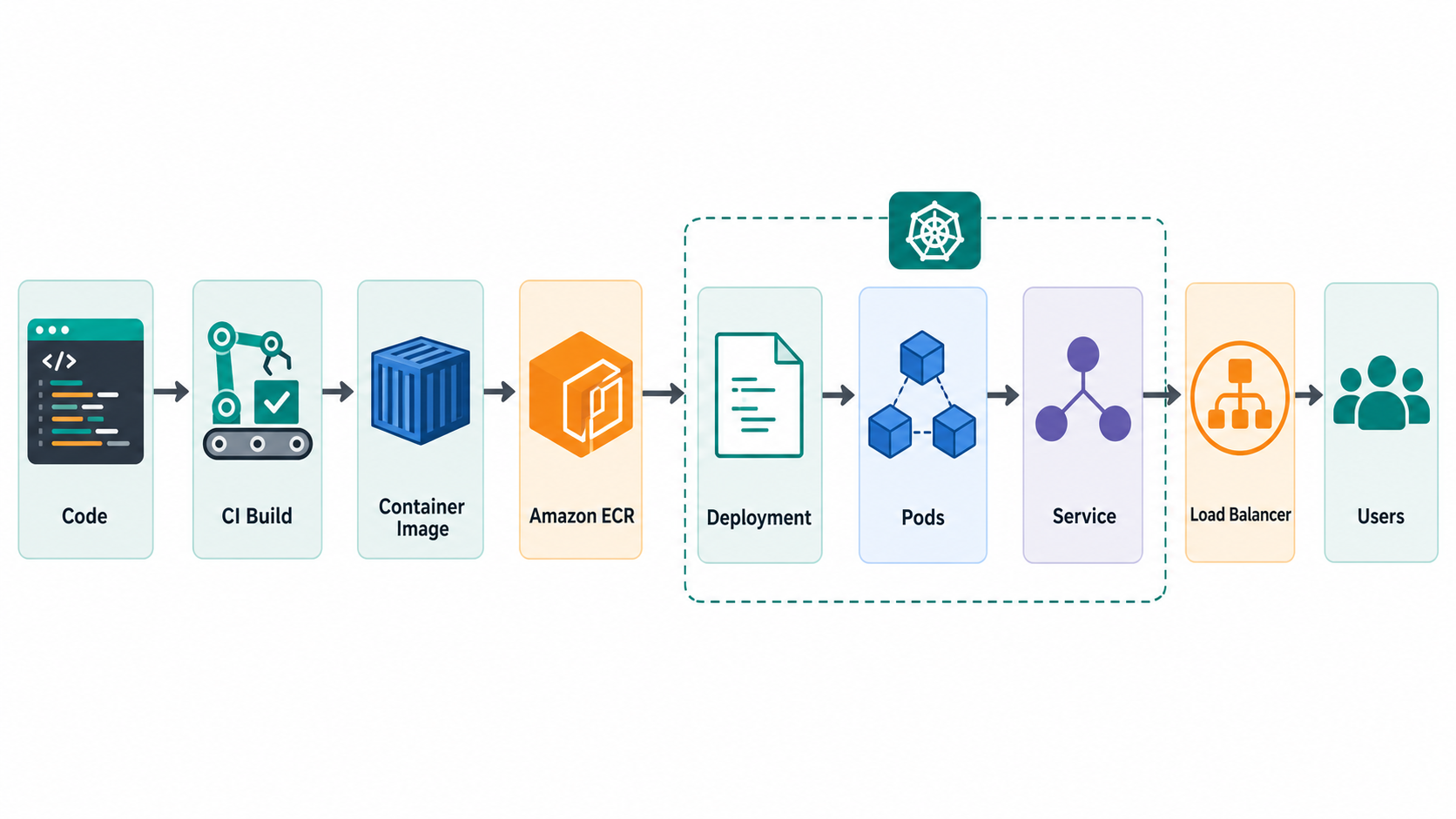
A normal delivery flow for EKS looks like this:
- A developer pushes code to Git.
- CI builds and tests the application.
- CI builds a container image and pushes it to Amazon ECR or another registry.
- A deployment step updates Kubernetes manifests, Helm values, Kustomize overlays, or GitOps repository state.
- Argo CD, Flux, Helm, or a controlled pipeline applies the change to EKS.
- Observability checks confirm the rollout is healthy.
If you are choosing pipeline tooling, see Best CI/CD Tools 2026. The key is not the brand of CI tool; it is whether your delivery process is repeatable, auditable, reversible, and observable.
Monitor an EKS Cluster
Do not wait for production traffic before adding observability. At minimum, track:
- node CPU, memory, disk, and network usage;
- pod restarts, pending pods, evictions, and crash loops;
- deployment rollout status and replica availability;
- API server errors and control plane events;
- load balancer errors, latency, and target health;
- application logs and business-level health signals;
- cluster and workload cost by namespace, service, or team.
Many teams combine CloudWatch, Prometheus, Grafana, OpenTelemetry, and logging pipelines. The specific stack matters less than having actionable alerts. A dashboard that nobody checks is not observability; it is decoration.
Amazon EKS Cost Basics
EKS cost has multiple parts. AWS lists standard Kubernetes version support for EKS clusters at USD 0.10 per cluster hour and extended support at USD 0.60 per cluster hour, before regional tax or pricing changes. You also pay for worker compute, load balancers, storage, NAT gateways, data transfer, logs, monitoring, and any optional managed capabilities you enable. EKS Auto Mode has additional charges for the EC2 instances it manages, on top of normal EC2 instance costs.
Beginner cost mistakes include:
- leaving tutorial clusters running overnight;
- creating multiple load balancers for small test apps;
- using oversized nodes because pods have no resource requests;
- forgetting NAT gateway, log ingestion, and storage costs;
- running old Kubernetes versions into extended support unintentionally;
- treating every environment as production-sized.
Delete tutorial resources when you finish:
kubectl delete namespace demo
eksctl delete cluster --name gravitydevops-demo --region "$AWS_REGION"
After deletion, check the AWS console for leftover load balancers, volumes, Elastic IP addresses, and CloudFormation stacks. Most resources should be cleaned up automatically, but verifying is cheaper than discovering an idle bill later.
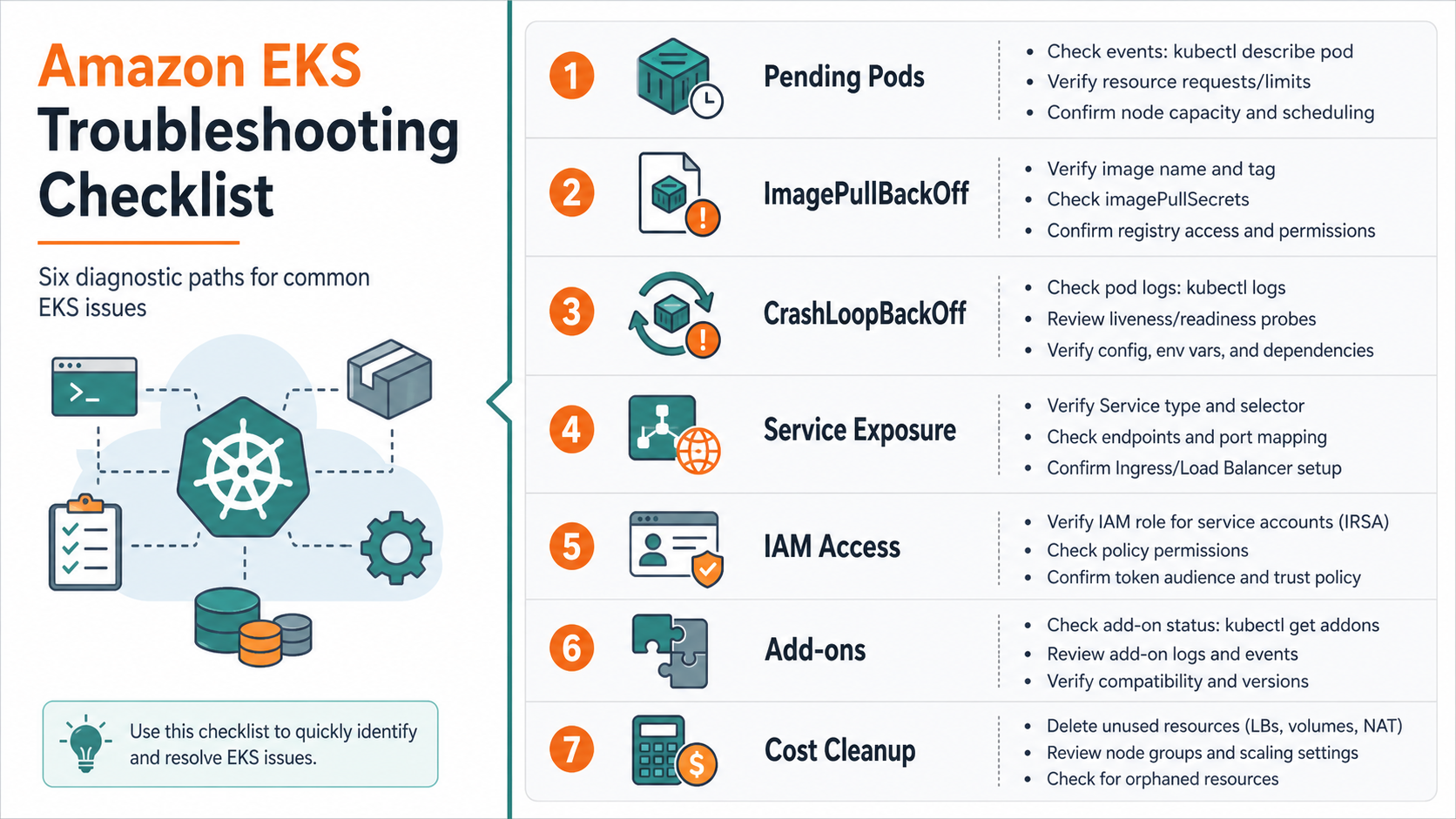
Common EKS Troubleshooting Scenarios
Pods are stuck in Pending
Run:
kubectl describe pod POD_NAME -n demo
kubectl get nodes
kubectl describe nodes
Common causes include no available node capacity, node selectors that match nothing, taints without tolerations, persistent volume issues, or resource requests that are too large for the cluster.
Pods show ImagePullBackOff
Check the image name, tag, registry access, and architecture. If you use Amazon ECR, confirm the worker node or pod identity has permission to pull the image.
kubectl describe pod POD_NAME -n demo
kubectl get events -n demo --sort-by=.lastTimestamp
The Service has no external address
A load balancer can take a few minutes to appear. If it never appears, check AWS permissions, subnet tags, security groups, load balancer controller status, and service events.
kubectl describe service web -n demo
kubectl get events -n demo --sort-by=.lastTimestamp
kubectl says unauthorized
Confirm your AWS identity, kubeconfig, and EKS access mapping. Many access issues happen after switching AWS profiles or assuming a different role.
aws sts get-caller-identity
aws eks update-kubeconfig --name gravitydevops-demo --region "$AWS_REGION"
kubectl auth can-i get pods --all-namespaces
Production Checklist for EKS
Before running important workloads, review this checklist:
- Networking: private subnets for nodes, intentional ingress, enough IP capacity, DNS, and TLS.
- Access: least-privilege IAM, Kubernetes RBAC, separate admin and deployment roles, no shared personal credentials in CI.
- Workload safety: requests, limits, probes, pod disruption budgets, topology spread, graceful shutdown, and rollback paths.
- Cluster operations: managed add-ons, upgrade calendar, node lifecycle plan, backup strategy for stateful systems, and change review.
- Security: image scanning, secret management, admission policy, network segmentation, audit logging, and runtime monitoring.
- Observability: metrics, logs, traces, alerts, SLOs, runbooks, and ownership for each service.
- Cost: requests aligned to real usage, autoscaling, environment schedules, load balancer review, log retention, and Kubernetes version support tracking.
EKS Auto Mode vs Managed Node Groups
| Choice | Best for | Watch out for |
|---|---|---|
| EKS Auto Mode | Teams that want AWS to automate more infrastructure operations such as compute provisioning, scaling, node lifecycle, and core operational components | Additional management charges, compatibility constraints, and less direct control over some infrastructure decisions |
| Managed node groups | Teams that want EC2-based worker nodes with AWS-managed lifecycle help and familiar Kubernetes node behavior | You still need to design scaling, upgrades, add-ons, disruption handling, and cost controls |
| Self-managed nodes | Advanced teams with custom AMIs, specialized bootstrap, or strict infrastructure requirements | More operational burden and more ways to drift from supported patterns |
| Fargate | Workloads where you want pod-level serverless compute and minimal node management | Different runtime constraints, pricing tradeoffs, and not every Kubernetes pattern fits naturally |
The neutral recommendation: learn managed node groups first because they reveal how Kubernetes scheduling, nodes, pods, and services work. Then evaluate EKS Auto Mode for new production platforms where reducing operational toil is worth the management premium.
Next Steps After This Tutorial
Once you can create, inspect, deploy to, and delete an EKS cluster, move from commands to reusable infrastructure. A strong next path is:
- Define the cluster with Terraform, OpenTofu, Pulumi, AWS CDK, or eksctl config files.
- Package applications with Helm or Kustomize.
- Use GitOps with Argo CD or Flux for repeatable delivery.
- Add observability before production traffic.
- Practice one cluster upgrade in a non-production environment.
- Document a rollback and incident response workflow.
For AI and platform teams, EKS can also host model gateways, vector database components, batch jobs, and internal developer platforms. If that is your direction, the related guides on RAG, running LLMs locally with Ollama, and prompt engineering for developers will help connect Kubernetes operations to modern AI workflows.
FAQ: Amazon EKS Tutorial
Is Amazon EKS the same as Kubernetes?
No. Kubernetes is the open-source container orchestration system. Amazon EKS is AWS’s managed Kubernetes service. EKS provides a Kubernetes control plane integrated with AWS services, but you still use standard Kubernetes objects such as pods, deployments, services, namespaces, and ingresses.
Is EKS good for beginners?
EKS is good for beginners who already understand basic AWS and containers. It is not the easiest first step if you have never used Docker, IAM, VPCs, or command-line tools. A good beginner path is Docker basics, Kubernetes basics, then EKS with a small tutorial cluster.
How much does Amazon EKS cost?
EKS cost includes the cluster control plane charge, worker compute, storage, load balancers, data transfer, logs, monitoring, and optional managed features. AWS lists standard Kubernetes version support at a lower per-cluster hourly price than extended support. Always check the current AWS pricing page before creating long-running clusters.
Should I use EKS Auto Mode?
Use EKS Auto Mode when reducing node and infrastructure operations is more valuable than direct control over every worker-node detail. For learning, managed node groups are often easier to reason about. For production, compare Auto Mode against managed node groups, Fargate, and your team’s operations capacity.
What is the easiest way to create an EKS cluster?
The easiest CLI-based path is usually eksctl create cluster, because it can create the EKS cluster, VPC, node group, IAM roles, and kubeconfig entries. Production teams may prefer Terraform, OpenTofu, Pulumi, AWS CDK, or a standardized internal platform module.
Can I run EKS for free?
No. Even small tutorial clusters can create billable resources. You may use free-tier eligible EC2 types for some worker capacity in eligible accounts, but the EKS control plane, load balancers, NAT gateways, storage, logs, and data transfer can still cost money. Delete tutorial clusters after use.
Do I need Helm for EKS?
You do not need Helm for the first deployment, but Helm is widely used to package Kubernetes applications and platform components. Learn plain Kubernetes manifests first, then Helm or Kustomize when you need reusable configuration.
How do I troubleshoot EKS pods?
Start with kubectl get pods, kubectl describe pod, kubectl logs, and kubectl get events. Identify whether the failure is scheduling, image pull, application crash, service networking, permissions, or cluster capacity before changing configuration.


