

The best free AI image upscaler online for most quick jobs is Pixelcut: it offers three watermark-free downloads a day without sign-up. Upscale.media is better when you need 8× enlargement, while Clipdrop suits frequent 2× fixes. Every service has limits, and AI upscaling can invent detail, so inspect faces, text and product edges before publishing.
AI upscalers do more than stretch pixels. They estimate missing texture, reduce compression and sharpen edges as an image grows. That can rescue a small web image for a slide or social post, but it cannot recover objective detail that the camera never captured. This guide compares the free access that is actually documented, not the largest number printed on a landing page.
Reviewed September 21, 2026. Free allowances, file limits and licensing terms can change without notice.
Free AI image upscaler online: the quick answer
Start with Pixelcut’s free image upscaler for an occasional photo because it does not require an account, removes the file after processing and permits three free, watermark-free downloads per day. Use Upscale.media when an 8× option or larger input ceiling matters. Clipdrop’s free tier is more generous for repeated 2× work, while Canva is the practical choice when the enlarged image must go straight into a design.
| Tool | Best for | Documented free access | Account | Main limitation |
|---|---|---|---|---|
| Pixelcut | Fast no-sign-up jobs | 3 watermark-free downloads daily | No | Batch tools and unlimited use are paid |
| Upscale.media | Large inputs and 8× scaling | Guest use, watermark-free 2×, 4× or 8× | Not for guest mode | Guest input ceilings fall as scale rises |
| Clipdrop | Frequent basic 2× fixes | 20 2× upscales per 24 hours | Free account for tracked use | 4× to 16× high-resolution modes are paid |
| Fotor | Simple 2× enlargement | Free 2× download without watermark | May be requested | 4× high-resolution download is paid |
| Canva | Upscaling inside a design | Part of shared Free AI allowance | Yes | Allowance is shared and usage varies |
| Let’s Enhance | Testing print-oriented controls | 10 sign-up credits, no card | Yes | Free output is watermarked and capped at 8 MP |
Limits above come from current official product, pricing and help pages. “Free” means a usable no-cost tier or starter allocation, not an unlimited service.
How we selected and ranked these upscalers
We screened eight credible tools and ranked six. The comparison weighs usable free exports, watermark status, account requirements, enlargement options, input and output limits, workflow control, privacy disclosures and ease of handoff. Pixelcut, Upscale.media, Clipdrop, Fotor, Canva and Let’s Enhance made the ranked list. Picsart was screened but its current English page did not publish a sufficiently clear recurring free allowance; Upscayl appears later as a local alternative because it is not an online service.
This is a documentation-based review. We checked official product, pricing, help and privacy pages and compared the field with published third-party testing, but we did not run a controlled matched-image quality benchmark or test paid accounts. Output quality depends heavily on the source: a portrait, compressed screenshot, logo and AI illustration can favor different models.
1. Pixelcut: best free AI image upscaler for no-sign-up use
Pixelcut has the cleanest documented free boundary in this group. Its official tool accepts JPG, PNG and HEIC files up to 100 MB and 8,000 by 8,000 pixels, promises no login and no watermark, and states a limit of three free downloads a day. The same page says uploaded images are removed after processing. Those specifics make Pixelcut the easiest recommendation for someone who needs to enlarge a few product shots, portraits or social assets without creating another account.
The page advertises output up to 16K, but that headline should not be mistaken for a quality guarantee. Large scale factors ask the model to invent more information. For logos, packaging and screenshots with small text, compare the result against the original at 100 percent and reject any changed letters, labels or geometry.
Pros: no sign-up, no watermark, generous input size, clear daily limit. Cons: only three free downloads per day; bulk workflows and higher-volume use require an upgrade.
2. Upscale.media: best for 8× enlargement and large guest uploads
Upscale.media offers 2×, 4× and 8× scaling in a browser and describes the output as watermark-free. Its current limits are unusually transparent: a guest can upload up to 5,000 by 5,000 pixels for 2×, 2,500 by 2,500 for 4×, and 1,250 by 1,250 for 8×. Logged-in ceilings are twice those dimensions. It supports PNG, JPEG, JPG, WebP and HEIC.
The privacy tradeoff deserves attention. The company’s privacy policy classifies photos as sensitive personal data and says images are stored anonymously for as long as necessary to fulfill stated purposes. That is not the same as an immediate-deletion promise. Avoid uploading confidential documents, unreleased product photography or sensitive personal images unless the policy fits your risk requirements.
Pros: high scaling range, broad formats, useful published input limits, watermark-free. Cons: smaller guest ceilings at higher scales; cloud retention language is less specific than Pixelcut’s.
3. Clipdrop: best for repeated 2× cleanup
Clipdrop combines upscaling with denoising and compression cleanup. Its current pricing page lists 20 free 2× upscales per 24 hours, far more recurring attempts than most browser tools disclose. The editor can accept up to 10 files in one drop, although free-tier throughput and queue behavior can still slow a batch.
The boundary is straightforward: the free tier is 2×, while the high-resolution 16× mode sits in Pro. Clipdrop’s product page displays 2× through 16× controls, so confirm the plan gate before investing time in a larger workflow. The service is useful for web photos and compressed screenshots, but aggressive denoising can remove intentional grain or fine fabric texture.
Pros: 20 daily 2× uses, fast cleanup workflow, multi-file intake. Cons: high-resolution scaling is paid; the pricing page does not publish every file-size and retention detail beside the free allowance.
4. Fotor: best for a simple free 2× download
Fotor’s official upscaler supports JPG, JPEG, PNG, WebP, HEIC and HEIF. It documents a free 2× download and reserves 4× high-resolution output for members. The current page also says enlarged images have no watermark and may be used for personal or commercial projects.
Fotor is easy to understand when the requirement is modest: turn a small image into a version with twice the width and height, then continue in an editor. Do not assume every adjacent Fotor AI mode has the same license. Some specialized Fotor pages apply different rules to free-credit output, so save the plan and tool terms that were shown when you exported a business asset.
Pros: familiar editor, common photo formats, watermark-free 2× export. Cons: 4× is paid; account and credit prompts can vary by feature and region.
5. Canva: best when the image belongs in a larger design
Canva’s Upscale tool is valuable less as a standalone upscaler and more as one step in a complete design workflow. You can enlarge an image, adjust lighting and color, place it in a social post or presentation, and export from the same canvas. That reduces repeated downloads and uploads.
Canva Free is limited by a shared AI pool, not a dedicated upscaler quota. Its AI usage help classifies Image Upscaler as a Standard AI tool and estimates up to 20 Standard or Premium uses a month for Free accounts, depending on task complexity and what other AI features consume the allowance. The number is therefore a ceiling, not 20 guaranteed upscales.
Pros: strong design handoff, manual adjustments, multiple export formats. Cons: sign-in required; variable shared allowance; less transparent per-image resolution limits.
6. Let’s Enhance: best free preview of print-oriented controls
Let’s Enhance offers 10 credits after sign-up with no credit card, and one normal processed image generally costs one credit. Its free plan accepts inputs up to 24 megapixels or 50 MB and caps output at 8 megapixels. The editor includes print-oriented resizing and enhancement choices that are useful when preparing an image for a physical size.
The catch is significant: free downloads carry a watermark. Watermark removal requires payment, even for files previously processed with free credits. That makes this a free evaluation tier, not the best source of publish-ready zero-cost files.
Pros: no-card starter credits, clear size rules, print workflow. Cons: watermark on free output, account required, credits do not form a recurring unlimited plan.
Which free upscaler should you choose?
- One to three quick jobs: Pixelcut has the least friction and the clearest deletion promise.
- An 8× experiment: Upscale.media publishes exact scale-dependent limits.
- Many small 2× fixes: Clipdrop’s 20-per-day allowance is the practical fit.
- A design or presentation: Canva keeps enlargement, layout and export together.
- A print-workflow trial: Let’s Enhance exposes useful controls, but budget for watermark removal.
- Sensitive local files: use the free, open-source Upscayl desktop app instead of uploading to a cloud tool.
How to upscale an image without making it look fake
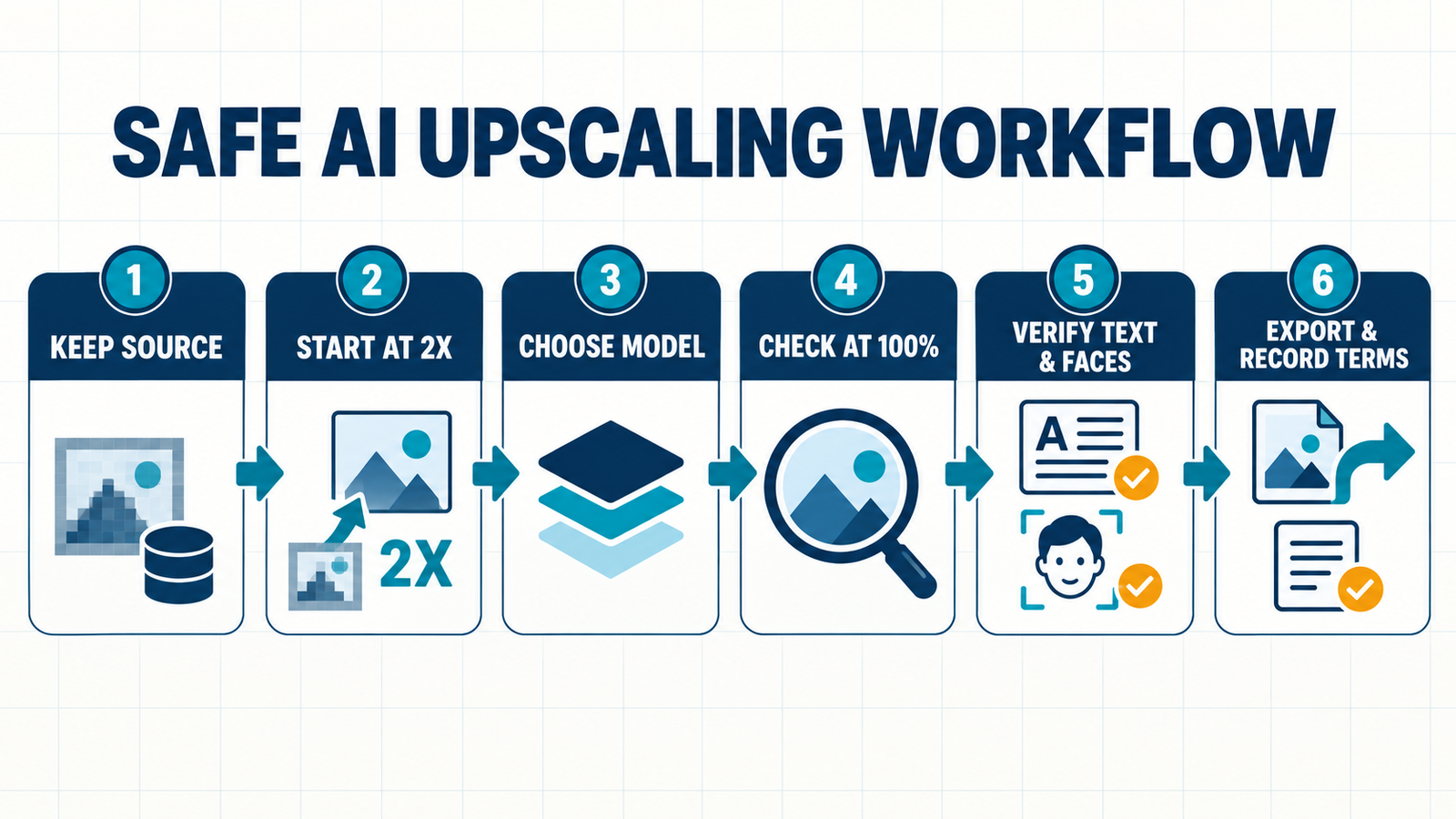
- Keep the untouched source. Never overwrite the only copy of a photo.
- Start at 2×. A smaller jump usually preserves identity, text and edge shape better than 8× or 16×.
- Match the model to the image. A portrait enhancer may smooth skin; an illustration model may sharpen line art; neither is automatically right for a product label.
- Compare at 100 percent. Inspect eyes, teeth, fingers, lettering, logos, repeated patterns and straight edges.
- Check final dimensions, not “4K” marketing. Print quality depends on pixel dimensions, crop and viewing distance, not a label alone.
- Document the export terms. Save the tool name, date and plan when the image supports commercial work.
If the source needs broader cleanup, compare these free AI photo editors. For isolation work, use a dedicated AI background remover before upscaling. If the original is unusable, a new image may be better than invented detail; our guide to free realistic AI image generators explains that separate workflow. The generative AI beginner’s guide covers why models can create plausible but inaccurate pixels.
Privacy, copyright and commercial-use cautions
Only upload images you have the right and consent to process. Upscaling a copyrighted image does not create new ownership, and enlarging a person’s face does not grant permission to use their likeness. Cloud tools receive the source file, even when no account is required. For medical, legal, customer, employee or unreleased brand images, prefer an approved enterprise service or local processing.
AI upscaling can also change evidence. A reconstructed license plate, signature, product defect or facial feature is a prediction, not recovered fact. Do not present an upscaled output as forensic proof. Keep the original and label material edits when accuracy matters.
Frequently asked questions
Is there a completely free AI image upscaler without sign-up?
Yes. Pixelcut currently documents three daily watermark-free downloads without login. Upscale.media also exposes a guest workflow, with input dimensions that vary by scale. Verify the live export screen because free access can change.
Can a free AI upscaler make a blurry photo truly high resolution?
It can increase pixel dimensions and make edges look cleaner, but it cannot retrieve detail that was never captured. The model predicts plausible texture. That may look convincing and still be wrong.
Which free option is safest for private photos?
A local tool such as Upscayl keeps processing on your computer and avoids a cloud upload. If you use an online tool, read its current privacy and retention language first; “no sign-up” does not mean “no data processing.”
Are upscaled images safe for commercial use?
Commercial use depends on your rights to the source image and the service terms shown at export. Fotor’s current upscaler page permits personal or commercial projects, but other tools and adjacent AI modes may use different rules. Keep human review and a record of the terms.


