

The best free AI tool for turning a long video into short clips is OpusClip when you want automatic highlight selection, captions and vertical reframing in one pass. Vizard is the stronger choice when you also want a full editor, while CapCut is useful when watermark-free export matters. Each free route has a catch: watermarks, expiring projects, one-time credits, export limits or licensing restrictions.
This comparison was checked against official US-facing product, pricing, help and terms pages on November 14, 2026. It is a documentation-based comparison, not a claim that we uploaded the same video to every service. Free plans change often, so confirm the allowance shown in your account before processing an important recording.
Free long-video-to-short tools: quick comparison
| Tool | Free access checked Nov. 14, 2026 | Watermark or export catch | Best fit |
|---|---|---|---|
| OpusClip | 60 credits per month; automatic clips, captions and reframing | Watermark; clips exportable for 3 days; free use is restricted to personal, non-commercial use in the terms | Fast automatic first pass |
| Vizard | 60 credits per month; 1 credit per uploaded minute; editor included | 720p, watermark and 3-day storage on Free | Editing generated clips |
| Flowjin | 60 minutes once, not monthly; up to five clip exports | 720p; one-time allowance | Testing a podcast workflow |
| CapCut | Long-video-to-shorts workflow in web, desktop and mobile documentation | Feature availability can vary; check every stock, music and template license | Watermark-free manual finishing |
| Kapwing | 10 credits; free exports and AI Clip Maker access | Watermark, 720p and short export limits; projects can expire quickly | Browser-based collaboration and polish |
| FunClip | Free, open-source local software under the MIT License | You install dependencies and review separate model licenses; optional LLM use can cost money | Local control and technical users |
“Free” does not mean unlimited or automatically safe for client work. OpusClip, for example, offers a real recurring free plan, but its terms reserve commercial use for paid services. Flowjin provides usable output but its free processing credit does not refill. Kapwing exports on Free, but adds its watermark. Those distinctions matter more than a large feature checklist.
How we compared these AI video repurposing tools
We included a tool only when its official documentation described a route from source video to a usable clip, not merely a preview. We compared the free allowance, whether it renews, upload limits, project retention, export resolution, watermark, aspect ratios, caption workflow, editing control and stated content-use terms. We also separated automatic clip finders from general editors.
This article owns the specific job of extracting multiple short clips from an existing long recording. If you need broader timeline editing, effects or cleanup, see our free AI video editors comparison. For captions after the cut, compare the limits in our AI caption generator guide. Generating new scenes from prompts is a different task covered in our free AI video generators guide.
The six best free AI tools to turn long videos into short clips
1. OpusClip: best automatic first pass
OpusClip’s official pricing page lists a Free Forever plan with 60 monthly credits, automatic reframing, AI captions and clips rendered up to 1080p. It accepts multiple source types and is designed around finding short moments in podcasts, interviews, webinars and other long recordings.
The limitations are unusually important. Free clips have an OpusClip watermark and stop being exportable after three days. Editing, music, text overlays and several branding controls are locked. More significantly, the OpusClip terms say free service use is personal and non-commercial, while paid users receive commercial-use permission subject to the agreement. A creator testing personal content may accept that; an agency should not assume the free output is licensed for a client campaign.
Choose it when: you want the quickest route from a talking-head recording to captioned vertical candidates and can review every suggested cut before exporting.
2. Vizard: best free editor around the generated clips
Vizard’s pricing page lists 60 credits per month, with one credit equal to one minute of uploaded video. Free includes AI-generated clips, a full editor, a private workspace and 720p exports. The comparison table lists a 60-minute upload length, 1 GB file limit, automatic subtitles, auto-reframing and one connected social account.
Free projects are stored for three days and exports carry a watermark, as confirmed by the Vizard help center. That short retention window means you should download approved clips and keep your original video, transcript and edit notes elsewhere. Vizard is the practical choice when automatic selection is only the start and you expect to change the transcript, crop or captions before export.
Choose it when: you value editing control more than 1080p or watermark-free output on the free plan.
3. Flowjin: best one-time test for podcasts and interviews
Flowjin’s official pricing gives new users a one-time 60-minute processing credit. It does not refill. Free supports video or audio, automatic reframing, 9:16, 1:1 audio-only and 16:9 layouts, 720p rendering, editing, social copy and up to five clip exports.
This is a genuine trial workflow because you can export finished clips, but it is not a lasting free production plan. Use a representative recording and decide whether its clip selection and editing model fit before spending the allowance. Flowjin’s policy also makes clear that connected YouTube functionality is governed by YouTube’s terms, so only import recordings you control or are authorized to repurpose.
Choose it when: you want to test one complete podcast or interview and compare several candidate clips without committing to a subscription.
4. CapCut: best for flexible finishing and no-watermark export
CapCut documents a Long video to shorts workflow that accepts a source recording, lets you select a target duration, generates multiple vertical clips and then opens them for caption and layout edits. Its current tutorial lists automatic durations from under 60 seconds through three minutes and describes watermark-free export.
The catch is licensing, not just credits. CapCut’s Materials License Agreement distinguishes non-commercial and dual-use assets and can apply different license terms or territories to music, templates and stock material. Your own footage remains the safest base. Before using a soundtrack, template or effect commercially, inspect the label attached to that exact asset rather than assuming everything inside the editor is cleared.
Choose it when: you want to finish clips manually, need a no-watermark path and are prepared to check asset licenses.
5. Kapwing: best browser workspace for a polished short
Kapwing’s AI Clip Maker can identify sections, create clips from 15 seconds to three minutes, reframe them and leave each result inside its full browser editor. The Free plan currently lists 10 credits, 720p output, watermarked exports and up to four minutes per exported project.
Free workspaces also have short project retention and storage constraints. That makes Kapwing better for a deliberate edit you can finish now than for keeping a large archive of evergreen source projects. It is especially useful when you need to correct captions, replace a weak crop, add approved brand elements or collaborate before download.
Choose it when: you prefer a general browser editor and can accept a watermark on free exports.
6. FunClip: best local, open-source option
FunClip is an MIT-licensed application that runs locally with a Gradio interface. It uses speech recognition to generate a transcript, lets you select text or speakers, exports matching video segments and can create full and clip-specific SRT subtitle files. Optional LLM-assisted selection can suggest segments.
There is no vendor plan, watermark or hosted upload allowance. In exchange, you manage installation, hardware, updates and model downloads. The project notes that model weights carry separate licenses, so review the license for each model you use. If you connect an external LLM, the transcript may leave your machine and that provider may charge for usage. Local installation improves control; it does not automatically make every configuration private.
Choose it when: you are comfortable running Python software and want source footage to stay on infrastructure you control.
A safer workflow for turning one long video into short posts
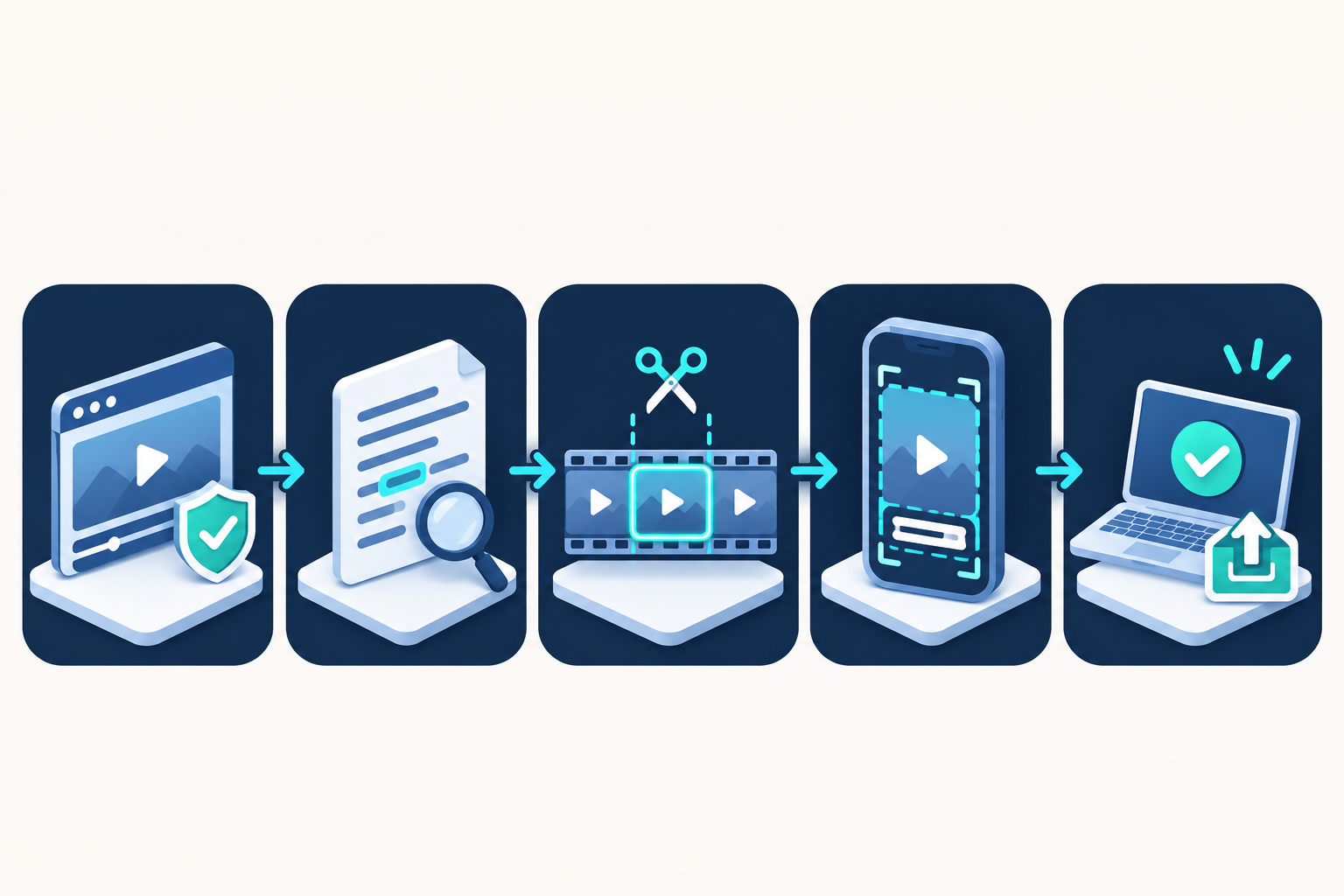
- Start with rights and consent. Confirm that you can reuse the video, music, slides, guest likenesses and spoken material on every destination. A guest agreeing to a podcast does not necessarily grant permission for paid ads or synthetic voice edits.
- Prepare a clean source. Clear speech and stable framing improve transcription and auto-crop results. Keep the original master outside the tool.
- Generate candidates, not final posts. Ask for several clip lengths. AI may select an energetic sentence that loses its premise, qualification or conclusion.
- Review the transcript and crop. Correct names, numbers and technical terms. Watch the entire clip with sound off, then with sound on. Check that a vertical crop does not cut off faces, slides or demonstrations.
- Rebuild the opening when needed. A good short should make sense without the full episode. Add a truthful context line instead of manufacturing a sensational hook.
- Export a clean master. Keep a version without platform stickers or licensed in-app music, then add platform-specific elements in the destination app when appropriate.
- Publish selectively. One strong clip is better than ten near-duplicates. Compare audience retention and useful engagement, then revise future selections. No tool can guarantee reach or virality.
If the source is a podcast, our free AI podcast editing tools guide covers transcript cleanup and audio repair before clipping. For platform-specific narration, see our comparison of AI voice generators for TikTok, including consent and commercial-use warnings.
Rights, privacy and platform rules to check
- Do not upload confidential recordings by default. Hosted clip generators process the source and transcript on their servers. Check retention, deletion and AI-research terms before uploading customer calls, internal meetings, health information or unreleased products.
- Music rights do not travel automatically. TikTok recommends its Commercial Music Library for posts promoting a brand, product or service. Music outside that library requires the necessary rights. A track licensed inside one editor may not be cleared for every platform or paid campaign.
- Longer Shorts have copyright consequences. YouTube currently classifies square or vertical uploads up to three minutes as Shorts, but a Short over one minute with an active Content ID claim can be blocked globally.
- Disclose meaningful synthetic changes. TikTok requires labels for realistic AI-generated content and encourages disclosure when AI significantly edits real images, audio or video. Routine clipping and captions may not create synthetic media, but voice cloning, face alteration or fabricated speech can.
- Keep human approval. Auto-captions can turn names, prices and safety instructions into false statements. Highlight selection can remove qualifying context. Review the final file, not only the editor preview.
Frequently asked questions
Can I turn a long video into Shorts for free without a watermark?
Yes, but choices are narrower. CapCut documents a no-watermark export route, and locally installed FunClip does not add a vendor watermark. Always check whether music, stock footage, templates and model outputs have separate license conditions.
Which free tool is best for podcasts?
OpusClip is the simplest automatic first pass, Vizard offers more editing control, and Flowjin is useful for a one-time test that includes audio-first workflows. FunClip is the strongest option when local processing matters and you can manage the setup.
Will AI choose the most viral moments?
No. A tool can estimate topic changes, speech energy or likely hooks, but it cannot guarantee views, retention, approval or monetization. Treat scores as sorting aids and validate each clip against its audience, context and platform analytics.
Should I post the same clip to YouTube Shorts, Instagram Reels and TikTok?
Start from one clean vertical master, then review duration, caption safe areas, music rights, disclosures and posting controls separately for each platform. Avoid exporting from one social app with its watermark and reposting that file everywhere.
Is it safe to upload client recordings to a free AI clip maker?
Only after the client authorizes that processor and you have reviewed its retention, privacy and subprocessors. For sensitive recordings, a local tool such as FunClip may reduce hosted exposure, but external models, dependencies and cloud storage still require review.
Bottom line: start with OpusClip for fast automatic candidates, Vizard for a more editable free workflow, CapCut when no-watermark finishing matters, or FunClip when local control outweighs setup time. Whichever route you choose, the real quality gate is a human review of context, captions, crop, rights and the final exported file.


