

The best AI coding tool for most beginners is GitHub Copilot Free inside VS Code: setup is simple, the interface is familiar and you can begin with completion and chat before trying an agent. Choose Replit when you want to learn in a browser without local setup, Cursor when you want an AI-first editor, JetBrains AI when you already use a supported JetBrains IDE, or Google Antigravity when you specifically want to learn agent workflows.
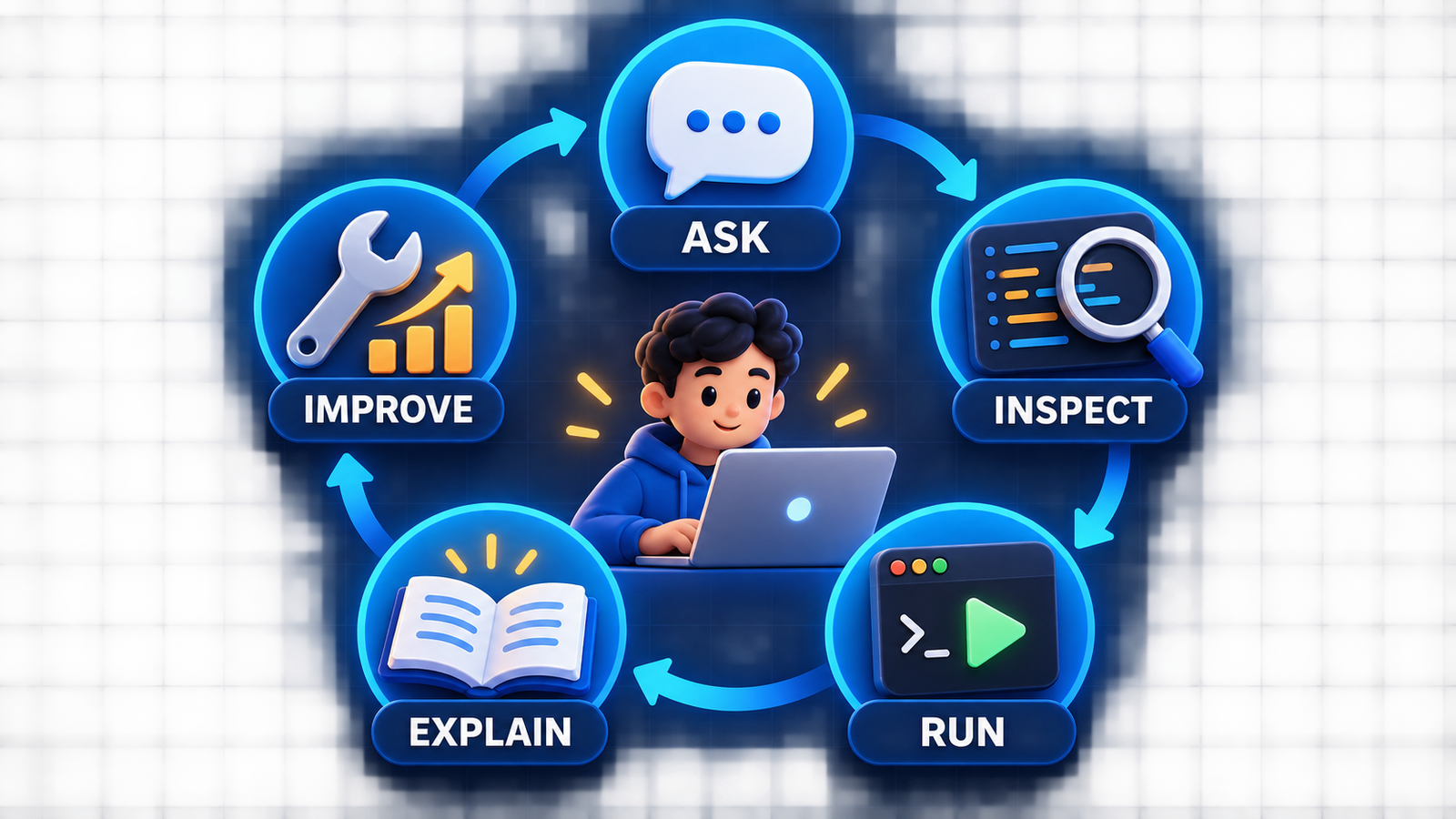
The tool matters less than the learning loop. A beginner should be able to inspect every change, run the program, read the error, ask for an explanation and improve the code in small steps. Avoid starting with a tool that hides the files, dependencies or commands it changes. AI can accelerate feedback, but it cannot decide whether you understand the program or whether the output is safe.
Best beginner AI coding tools at a glance
| Tool | Best for | Starting access | Main beginner tradeoff |
|---|---|---|---|
| GitHub Copilot | Best overall in a familiar editor | Copilot Free for eligible individuals | Suggestions are easy to accept before understanding |
| Replit Agent | Browser-based projects with minimal setup | Account required; free access is limited and paid work is usage-based | Agent-built apps can hide architecture and cost |
| Cursor | Learning an AI-native editor | Free Hobby plan with limited usage | Multi-file agents can change too much at once |
| JetBrains AI | Java, Kotlin, Python and structured IDE learning | AI Free on eligible IDE licenses | Free eligibility and quotas vary by IDE |
| Google Antigravity | Exploring local agents and worktrees | $0 individual plan with weekly limits | Agent autonomy is more advanced than a first completion tool |
| Aider | Learning Git and terminal-based collaboration | Open-source client; model access may cost | Requires comfort with Git, terminals and API/local models |
This is a workflow comparison, not a benchmark. We used current official documentation for access, interfaces and published limits; we did not claim hands-on performance or rank models by generated-code quality. If cost is your primary constraint, the separate free AI coding tools guide compares twelve hosted and open-source options in more detail.
How we compared AI coding tools for beginners
A beginner-friendly tool should reduce setup friction without removing the evidence needed to learn. We assessed each option against six questions:
- Can you see the change? Reviewable diffs are better than silent file rewrites.
- Can you run and debug it? The tool should expose tests, terminal output and runtime errors.
- Can it explain why? Explanations should connect code to language and framework concepts, not merely restate the output.
- Can you control scope? File selection, command approval and checkpoints keep mistakes small.
- Is the access model clear? Free tier, subscription, usage credits and bring-your-own-model paths are different costs.
- Can you grow with it? A useful first tool should still work when projects gain tests, dependencies and multiple files.
We also penalized designs that encourage blind acceptance or broad autonomous execution. A polished answer can still contain a nonexistent API, insecure authentication, an unmaintained dependency or a test that checks the wrong behavior. For the underlying modes and risks, read the AI code generator guide.
Six beginner-friendly AI coding tools
1. GitHub Copilot: best overall starting point
GitHub Copilot is the easiest recommendation for a beginner already using VS Code, Visual Studio or another supported editor. GitHub’s current setup guide says most individual developers can start with Copilot Free and activate it directly in VS Code or Visual Studio. The official plan documentation lists limited monthly completion and premium-request allowances, so it is useful for learning without immediately buying a subscription.
Start with three capabilities: ask chat to explain selected code, request a small test, and use inline completion for code you could approximately write yourself. Wait before using broad agent tasks. GitHub’s feature matrix shows that agent, chat, checkpoints and workspace indexing vary by IDE, so use the latest stable editor and check the support table rather than assuming every surface behaves like VS Code.
Choose it if: you want the shortest path from a conventional editor to helpful explanations and small suggestions. Skip it if: you want a browser-only environment or a fully local model path.
2. Replit Agent: best when setup is the barrier
Replit keeps the editor, runtime, preview, deployment and agent in a browser workspace. That makes it useful for a first web app or script when installing languages, package managers and build tools would otherwise stop progress. Its official pricing page now centers paid Core and Pro plans, free-mode allowances and usage credits; Replit also states that Agent is probabilistic and can make mistakes. Do not assume an older fixed checkpoint price or an unlimited free plan.
The browser convenience is also the risk: an agent can assemble a working-looking project before you understand its files, data model or deployment cost. Use Plan mode first, ask the agent to name every dependency, and inspect each checkpoint. For learning, request one route, component or test at a time instead of “build the whole app.”
Choose it if: local setup is blocking you and you want a visible running result quickly. Skip it if: your goal is to learn local tooling, Git commands or infrastructure details from the beginning.
3. Cursor: best AI-native editor for guided projects
Cursor puts chat, repository search, multi-file editing and agents at the center of the editor. Cursor’s official pricing page lists Hobby at $0 with no credit card, limited Agent requests and Composer access; its pricing help says Hobby can use Agent, Chat and Tab completions with the Auto model. Exact limits can change, so treat the free plan as evaluation access rather than a fixed monthly promise.
For a beginner, Cursor is most useful when the project already has a small structure to explore. Ask it to map the files, explain data flow and propose a plan before editing. Review the diff after each step. An AI-first editor makes large changes feel easy, but a large green diff is not proof that the architecture is correct.
Choose it if: you want repository-aware help and are ready to learn through diffs. Skip it if: you are still learning what a file, terminal, dependency or Git commit represents.
4. JetBrains AI: best for structured language learning
JetBrains IDEs combine deterministic language analysis, refactoring, debugging and framework tools with AI assistance. That combination is valuable for Java, Kotlin, Python and other learners who need the IDE to distinguish a real compiler error from a plausible model explanation. JetBrains documents AI Free as a recurring allowance of 3 AI Credits per 30 days in eligible IDEs, with important exclusions for some free community paths and Android Studio.
Use the AI for explanations, documentation and narrow transformations, then verify with the IDE’s inspections, debugger and test runner. Structural rename and extract-method refactors are usually safer through deterministic IDE actions than through a generated patch.
Choose it if: you are learning a language or framework well supported by a JetBrains IDE. Skip it if: your current IDE/license is not eligible or you want a lightweight editor.
5. Google Antigravity: best for learning controlled agent work
Google moved its individual coding experience from the older Gemini Code Assist consumer path to Antigravity. The current Antigravity pricing page lists a $0 individual plan with models, unlimited Tab completions, command requests and basic weekly limits. Its getting-started documentation supports Local Mode and an isolated New Worktree Mode.
That worktree option is the right beginner default: it gives the agent a separate branch-like workspace and makes the proposed changes easier to compare or discard. Still, Antigravity is an agent platform, not just autocomplete. Never place production credentials in the project, and require confirmation before package installation, destructive commands or external writes.
Choose it if: you already understand basic Git and want to learn how coding agents plan, edit and run commands. Skip it if: you need the gentlest first introduction to programming syntax.
6. Aider: best next step for Git and terminal learners
Aider is an open-source terminal pair programmer that works directly with a Git repository. It creates reviewable commits, builds a repository map and can run lint or test commands. The client is free, but cloud API usage or capable local hardware may cost money. Its strength is visibility: the learner sees files, diffs, commands and Git history rather than working inside an opaque builder.
It is not the easiest first-hour tool. You should already know how to create a repository, inspect a diff, revert a commit and protect secret files. Once those concepts are familiar, Aider can reinforce good habits because every task naturally sits next to version control.
Choose it if: learning Git and terminal workflows is part of your goal. Skip it if: command-line setup is currently a bigger problem than coding.
A learning workflow that preserves real coding skills
- Write the goal and acceptance criteria yourself. State what the program should do, one edge case and how you will know it works.
- Ask for a plan, not a finished application. Have the tool list files, dependencies and steps before it edits anything.
- Generate one small change. A function, test, route or component is easier to understand and reverse than an entire project.
- Read the diff line by line. Ask what unfamiliar syntax means and why each dependency is necessary.
- Run the code yourself. Use the test runner, compiler, linter and debugger. Do not accept “it should work” as evidence.
- Change a requirement manually. If you cannot adapt the result without another full regeneration, you have not learned enough from the step.
- Commit a known-good state. Keep rollback cheap before asking an agent to continue.
This loop also limits security risk. Source files, issues and dependency output can contain instructions that manipulate an agent. Keep credentials out of the workspace, start with least privilege, approve commands and scan new packages. The broader AI coding tools pillar explains context, action boundaries, privacy and team selection, while the NIST Secure Software Development Framework provides a durable review and verification baseline.
Common beginner mistakes with AI coding tools
- Accepting code you cannot explain. Ask for a simpler version or a line-by-line explanation, then rewrite a portion yourself.
- Using agents before version control. Learn status, diff, commit and revert before allowing multi-file edits.
- Sharing secrets. Never paste API keys, production logs with credentials, private customer data or unreviewed proprietary code into a personal tool account.
- Installing every suggested package. Verify the package name, maintainer, license, release activity and security history. Typosquatting is real.
- Skipping failure cases. Ask what happens with empty input, invalid data, lost network access and unauthorized users.
- Confusing output speed with learning speed. A generated app can appear in minutes while leaving you unable to debug it the next day.
Frequently asked questions
Can a complete beginner learn coding with AI?
Yes, if AI acts as a tutor and pair programmer rather than a replacement. Learn variables, control flow, functions, data structures, errors, tests and Git while building small projects. Make the tool explain and verify each step.
Which AI coding tool is easiest for beginners?
GitHub Copilot Free in VS Code is the easiest general starting point. Replit is easier when local setup is the main obstacle. The right answer depends on whether you want to learn conventional development tooling or reach a browser-based result quickly.
Should a beginner use an autonomous coding agent?
Only for bounded tasks in a disposable branch, sandbox or worktree. Begin with suggestion and plan modes, keep command approval on, and inspect every diff. Do not give a learning project production credentials or deployment permissions.
Will AI stop me from learning to code?
It can if you repeatedly accept complete solutions without predicting, reading or modifying them. It can also improve learning by explaining errors and generating targeted exercises. Your workflow determines which effect dominates.
Do I need to pay for an AI coding tool?
No. Several tools have continuing free tiers or open-source clients. Free quotas change, and open-source software may still require paid model access or local hardware. Start free, measure what actually helps and pay only when a stable workflow justifies it.
Bottom line
Start with GitHub Copilot Free if you want familiar editor assistance, or Replit if setup is keeping you from building. Move to Cursor, JetBrains AI, Antigravity or Aider when their workflow matches a skill you are ready to learn. Whichever tool you choose, keep the loop small and visible: plan, inspect, run, explain, test and commit.


