
Best AI presentation makers for teachers: Brisk Teaching is the most practical free choice for turning existing classroom material into editable Google Slides or PowerPoint. MagicSchool is stronger for grade-level lesson drafting, while Curipod is better for live participation. Canva Education offers the best design and collaboration toolkit for verified K–12 educators. Every AI-generated deck still needs a teacher’s factual, accessibility and curriculum review.
AI slide makers can remove the blank-page work, but they do not understand your students, pacing or local curriculum as well as you do. The useful question is not which service makes the prettiest first draft. It is which one fits the material you already have, produces an editable deck, respects school privacy rules and leaves enough control for a teacher to correct the result.
This comparison was checked on September 3, 2026, using US-facing product, pricing, help and privacy pages. Free plans and school entitlements change, so confirm the allowance in your account before planning a unit around any one tool.
Best AI presentation makers for teachers at a glance
| Tool | Best for | Free access checked | Main limitation |
|---|---|---|---|
| Brisk Teaching | Turning source material into classroom slides | Educator Free includes Presentation Maker | Requires a Chrome or Edge extension |
| MagicSchool | Grade- and standards-aware lesson drafts | Forever Free teacher plan | Unlimited generations and editing are paid |
| Curipod | Interactive, teacher-paced lessons | Unlimited creation; two teaching sessions weekly | Live-session cap is restrictive |
| Canva Education | Design, collaboration and multimedia | Free for verified K–12 teachers and students | Verification required; AI limits can vary |
| Gamma | Fast visual decks and flexible export | Free, no card; up to 10 slides per prompt | Free exports retain Gamma branding |
| SlidesAI | Working inside Google Slides or PowerPoint | 12 presentations per year | Small annual allowance and short text input |
| Adobe Express | Higher education and adult-learning decks | Generate Presentation is on the Free plan | Currently unavailable in K–12 accounts |
How we selected and ranked these tools
We screened 11 credible products and ranked seven. The criteria were classroom fit, source-file support, grade and audience controls, editable export, live interaction, accessibility tools, free-plan boundaries, branding, student privacy documentation and ease of teacher review. Brisk, MagicSchool, Curipod, Canva, Gamma, SlidesAI and Adobe Express made the list. Microsoft Copilot in PowerPoint, Gemini in Google Slides, Plus AI and Beautiful.ai were screened but not ranked because the relevant AI workflow is paid, institution-dependent or less compelling for a teacher seeking practical entry access.
This is a documentation-based comparison, not a controlled visual-quality benchmark. We used official pages for changing limits and an Edutopia teacher-tested roundup for independent workflow context. We also considered Common Sense Media’s AI teacher-assistant risk assessment, which warns that these products require training, policies and human oversight. We did not upload real student records or test paid school accounts.
1. Brisk Teaching: best for turning class resources into slides
Brisk is the clearest first choice when your lesson already has a source. Its Presentation Maker can work from a webpage, PDF, YouTube video, Google or Word document, or pasted material. Teachers choose grade level, standards, imagery and a deck length from one to 20 slides, then export an editable result to Google Slides or Microsoft PowerPoint.
The feature is included in Brisk’s $0 teacher plan. That is a more useful free boundary than a short trial, particularly for teachers who live in browser-based resources. Edutopia’s teacher-tested review also highlights the extension’s ability to work directly on the page a teacher is viewing.
Pros: source-grounded workflow, grade and standards controls, editable Google Slides and PowerPoint output, and a genuinely useful educator free plan.
Cons: it depends on a Chrome or Edge extension, and school-managed browsers may block installation. A generated slide can still misread the source or simplify it badly, so compare every claim with the original.
2. MagicSchool: best for differentiated lesson drafts
MagicSchool’s AI Presentation Generator starts from a topic, pasted text, uploaded classroom material or a YouTube video. It can adjust depth, language, grade level and standards, making it useful when the same unit needs different versions for different classes.
The Forever Free plan includes more than 80 teacher tools, the Raina chatbot, quizzes and basic professional-development resources. The important boundary is that unlimited generations, unlimited output history and unlimited AI-output editing belong to Plus, listed at $12.99 monthly or $99.96 annually when checked.
Pros: education-specific prompts, differentiation controls, a broad free teacher toolkit and detailed student-data documentation.
Cons: free usage is limited even though the pricing page does not publish a simple presentation count. Confirm the live meter before building a multi-week workflow. MagicSchool says student data handled for schools is not used to train models, but teachers should still follow district policy and avoid unnecessary personally identifiable information.
3. Curipod: best for interactive classroom presentations
Curipod is less like a conventional deck designer and more like an interactive lesson system. It combines slides with polls, drawings, word clouds, open questions and AI feedback. Students join with a code rather than creating individual accounts, and the teacher controls what is shown.
According to Curipod’s current pricing documentation, free users can create, edit and save lessons without a creation cap. The limit applies when teaching: the free plan provides two teaching sessions per week, resetting on Sunday. Reusing the same lesson with several classes in the same week counts as one session. Three School Plan trials are separate and do not renew.
Pros: participation is built into the lesson, student accounts are not required, and free creation is generous.
Cons: two weekly live sessions will not support every class. It is also not the best choice when the required deliverable is a normal PPTX that colleagues must edit offline.
4. Canva Education: best for design and collaboration
Canva Education is free for verified K–12 teachers and their students. It combines templates, presentations, charts, polls, quizzes, collaboration, captions, translation and accessibility checks in one familiar editor. Teachers can also use Magic Write for lesson ideas and presentation notes, then replace or refine the generated material visually.
Canva is strongest after the outline exists. Its template and media system offers more design control than most prompt-only generators, and teachers can invite students into managed classroom projects. Verification is the tradeoff: applicants may need to identify their school or upload proof of educator status. Canva describes Education as free, but individual AI features can have pooled or changing usage limits rather than a single guaranteed unlimited allowance.
Pros: polished templates, multimedia, collaboration, accessibility tools and a no-cost K–12 education tier.
Cons: eligibility and verification create friction, and it is easy to spend more time decorating than checking the substance of a lesson.
5. Gamma: best for fast visual first drafts
Gamma produces scrollable visual presentations quickly and is useful for lecture overviews, professional development and student-facing explainers. Its Free plan requires no credit card, creates up to 10 slides per prompt, accepts PDF and PPTX imports, and exports to PDF, PPTX, PNG or Google Slides.
The plan page does not present a simple recurring free-generation count, so teachers should treat the available AI balance as variable. Gamma branding remains on free exports; removing it is a paid feature. Export also deserves a visual check because layouts designed for Gamma can shift when converted to PowerPoint or Google Slides.
Pros: fast layout, useful export choices and a low-friction free start.
Cons: free branding, variable AI capacity and less classroom-specific control than Brisk, MagicSchool or Curipod.
6. SlidesAI: best for staying inside Google Slides or PowerPoint
SlidesAI works in the tools many schools already use. Teachers can generate from a prompt or text, review a slide-by-slide outline, choose an audience and tone, then continue in Google Slides or PowerPoint. Its current workflow documentation also describes manual outline editing before generation, which is a valuable accuracy checkpoint.
The Basic plan currently lists 12 presentations per year and 120 AI editing credits per year. SlidesAI’s US-facing English and localized pricing surfaces showed inconsistent per-presentation text limits during our check—1,000 characters on one surface and 2,500 on others—so verify the counter inside the app. Document upload is listed on paid plans.
Pros: native Google Slides and PowerPoint workflows, editable output and useful outline review.
Cons: only 12 free decks yearly, a short input allowance and inconsistent published character limits.
7. Adobe Express: best for higher education and adult learning
Adobe Express can generate a presentation from a prompt and as many as 10 reference files totaling 150 pages, including PDF, DOCX, PPTX, TXT and spreadsheets. Teachers can set audience, length and detail, review the outline, choose a template and continue editing in Express.
Adobe’s Generate Presentation help page says the feature is available on Free and Higher Education plans, but it is currently unavailable for K–12 accounts. That makes it a credible option for college instructors, tutors using a normal account and adult-learning teams—not a recommendation for a K–12 teacher relying on Adobe’s school profile. The feature is also limited to English and French at the time of review.
Pros: broad source-file support, outline review, strong editing tools and free-plan access outside K–12 profiles.
Cons: the central AI presentation feature is unavailable in K–12 accounts, and the complimentary generation allowance is not stated as a stable number.
Which AI presentation maker should a teacher choose?
- Choose Brisk when the deck should stay close to an article, video, PDF or document.
- Choose MagicSchool when grade level, standards and differentiated versions matter most.
- Choose Curipod when students need to respond during the lesson rather than watch passively.
- Choose Canva Education when design, multimedia, accessibility and group creation are the priority.
- Choose Gamma for a quick visual draft or professional-development deck.
- Choose SlidesAI when the final file must remain inside Google Slides or PowerPoint from the start.
If the source is a PDF, our dedicated guide to AI PDF-to-PowerPoint tools compares conversion and reconstruction workflows. For a Word-based lesson, see the Word-to-PowerPoint comparison. Teachers starting from only a prompt may also want the broader guide to AI presentation tools without design skills.
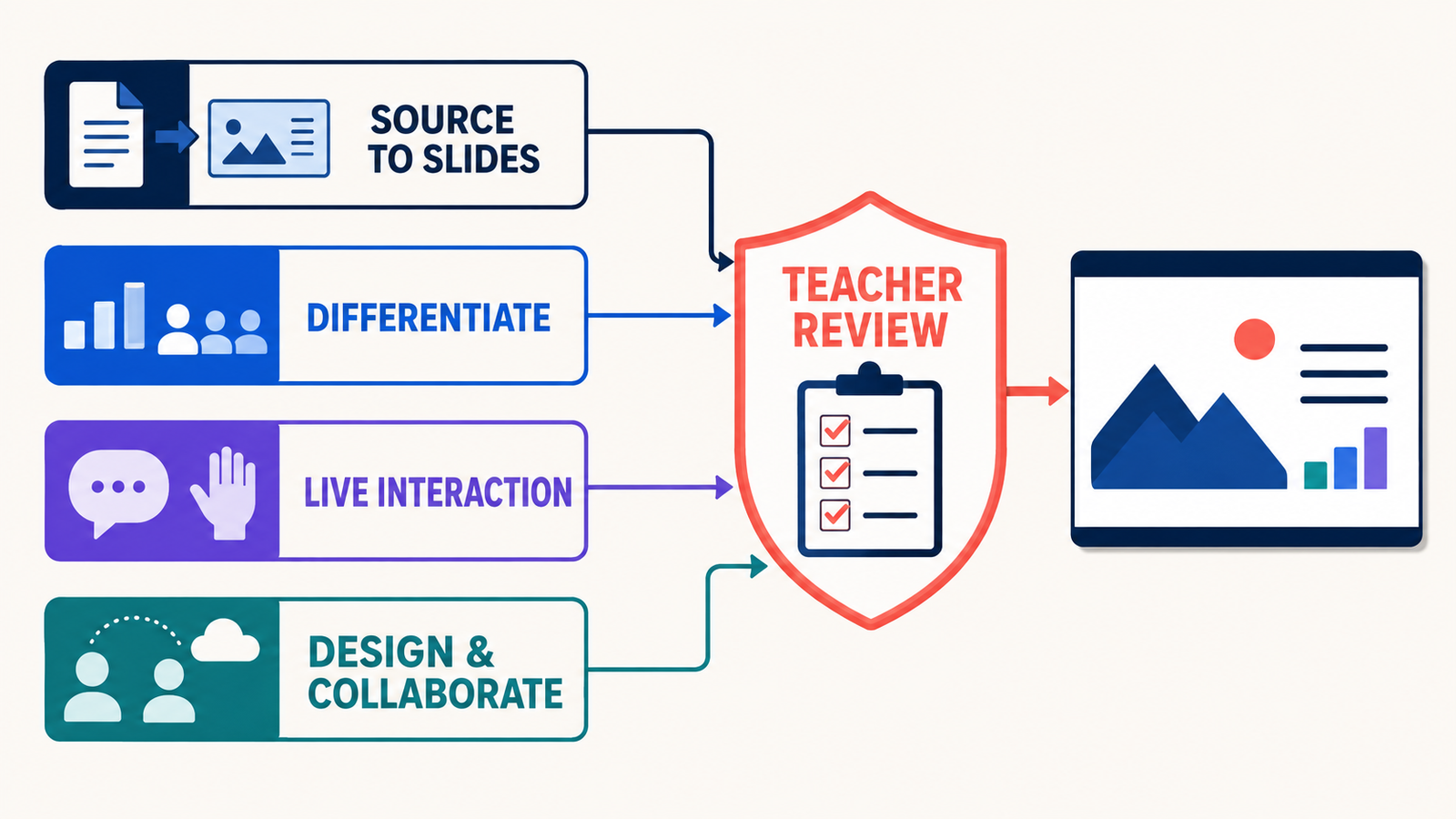
A safe teacher-review workflow
- Start with approved material. Give the tool your curriculum text, notes or vetted source instead of asking for an unsourced lesson.
- Specify the learning goal. Include grade, prior knowledge, vocabulary, lesson duration and what students should be able to do.
- Review the outline before design. Remove tangents and fix the sequence while changes are cheap.
- Verify every factual claim. Check quotations, dates, equations, citations and examples against primary sources.
- Check accessibility. Use readable type, high contrast, concise slide text, captions, alt text and a nonvisual path to essential information.
- Protect student data. Do not upload names, grades, accommodations, work samples or other records unless the school has approved the service and workflow.
- Make the lesson yours. Add discussion pauses, local examples, misconceptions and formative checks that fit the actual class.
For better first drafts, use the principles in our prompt-engineering guide: provide context, constraints, examples and a clear output format. The same discipline applies in education even when the interface hides the prompt.
Privacy, copyright and accuracy caveats
“FERPA compliant” on a marketing page is not a substitute for district approval. The relevant questions are whether the school has an agreement with the vendor, what data the teacher will send, which subprocessors receive it, how long it is retained and whether an administrator can control student access. A tool can have thoughtful safeguards and still be unsuitable for a particular record or age group.
AI-generated wording and images may also reproduce errors, stereotypes or confusingly similar creative material. Keep source attribution, check media licenses, and do not assume that an available image automatically has unrestricted classroom, public-web or commercial rights. For foundational context, see our beginner’s guide to generative AI.
Frequently asked questions
What is the best free AI presentation maker for teachers?
Brisk is the strongest general free choice when a teacher wants editable slides from existing materials. Canva Education is better for design and student collaboration, while Curipod is better for live interactive lessons. The best option depends on whether the job is drafting, designing or teaching.
Can AI make a complete lesson presentation?
It can make a useful first draft, but not a reliably classroom-ready lesson. A teacher should verify facts, align the sequence to the curriculum, add checks for understanding, adapt language to the class and review accessibility before presenting it.
Can teachers use student work in an AI slide generator?
Only when the school has approved the product and the specific use. Remove unnecessary identifiers, follow district policy and obtain any required consent. A public privacy promise does not by itself authorize uploading education records.
Will free AI presentation tools add a watermark?
It varies. Brisk exports editable classroom slides without describing a free export watermark, while Gamma says removing its branding is paid. Canva, SlidesAI and other products can also apply plan- or asset-specific restrictions. Check the final exported file before class.
Bottom line: use AI to shorten the distance from source material to an editable draft, not to outsource instructional judgment. Brisk, MagicSchool and Curipod are the strongest teacher-specific options; Canva is the best design environment; Gamma and SlidesAI are practical general alternatives. The final quality still comes from the teacher’s review.


