

Quick Answer
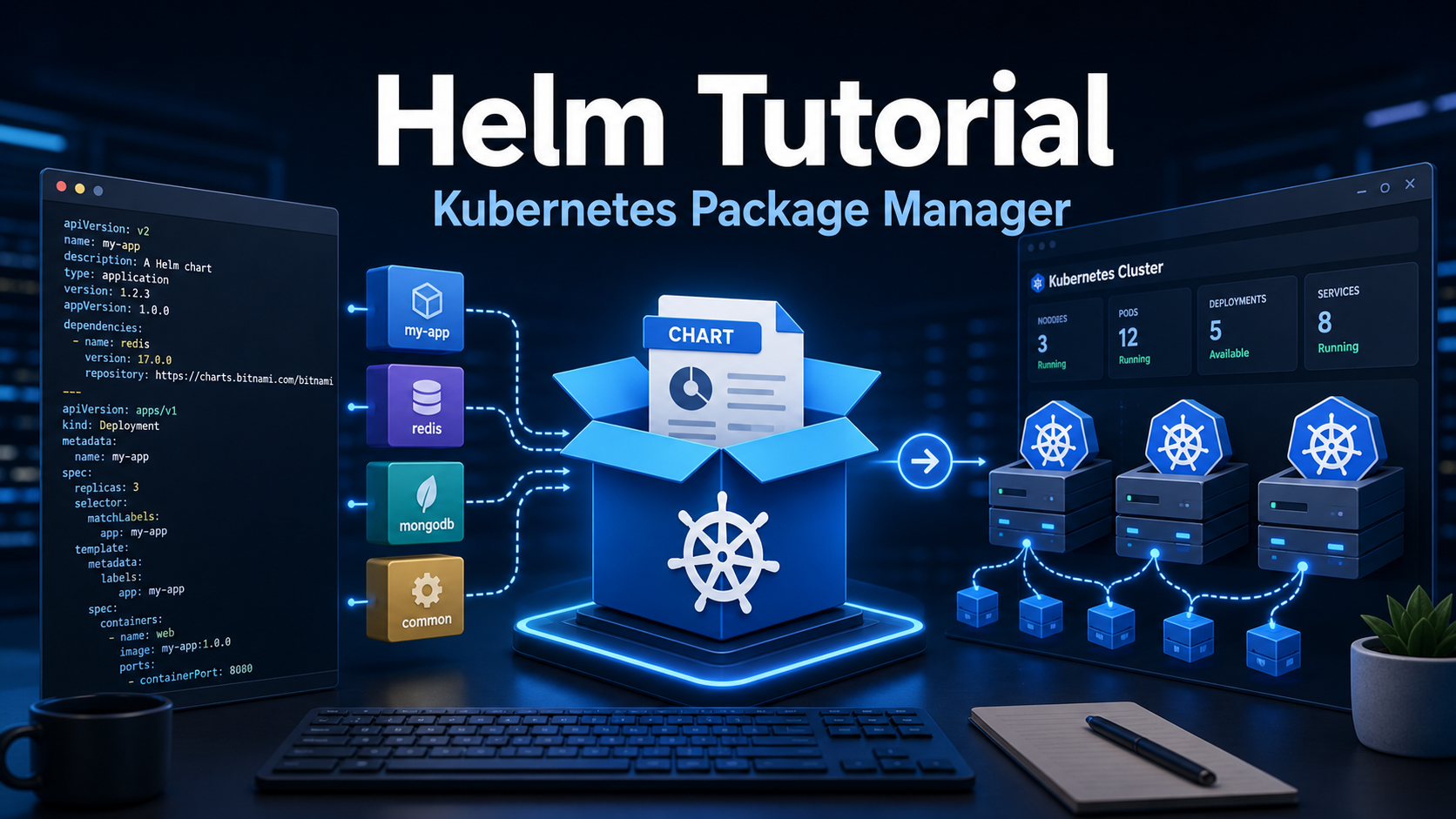
Helm is the package manager for Kubernetes. It packages Kubernetes manifests into reusable charts, installs them into a cluster as releases, and gives teams a repeatable way to configure, upgrade, roll back, and share applications. If you are tired of copying dozens of YAML files between environments, Helm lets you keep defaults in values.yaml, override only what changes, and manage the application lifecycle with commands such as helm install, helm upgrade, helm rollback, and helm uninstall.
Helm is one of the first Kubernetes tools most DevOps engineers and SREs learn after Deployments, Services, Ingress, and ConfigMaps. Kubernetes gives you the primitives to run applications; Helm gives you a practical packaging workflow for those primitives.
This tutorial explains Helm in beginner-friendly language, but it also includes the operational details practitioners need in real clusters: chart structure, values management, release history, upgrade strategy, rollbacks, linting, dry runs, secrets caveats, GitOps usage, and troubleshooting.
What Is Helm?
Helm is an open source package manager for Kubernetes maintained by the Helm community and graduated within the Cloud Native Computing Foundation ecosystem. The official Helm documentation describes Helm as the package manager for Kubernetes and charts as the packaging format for Kubernetes applications.
In practical terms, Helm solves a common Kubernetes problem: real applications rarely fit into one YAML file. A production service may need a Deployment, Service, Ingress, HorizontalPodAutoscaler, ConfigMap, Secret reference, ServiceAccount, NetworkPolicy, PodDisruptionBudget, and optional CRDs. Without a packaging layer, teams often duplicate YAML for dev, staging, and production, then slowly drift.
Helm helps by giving you:
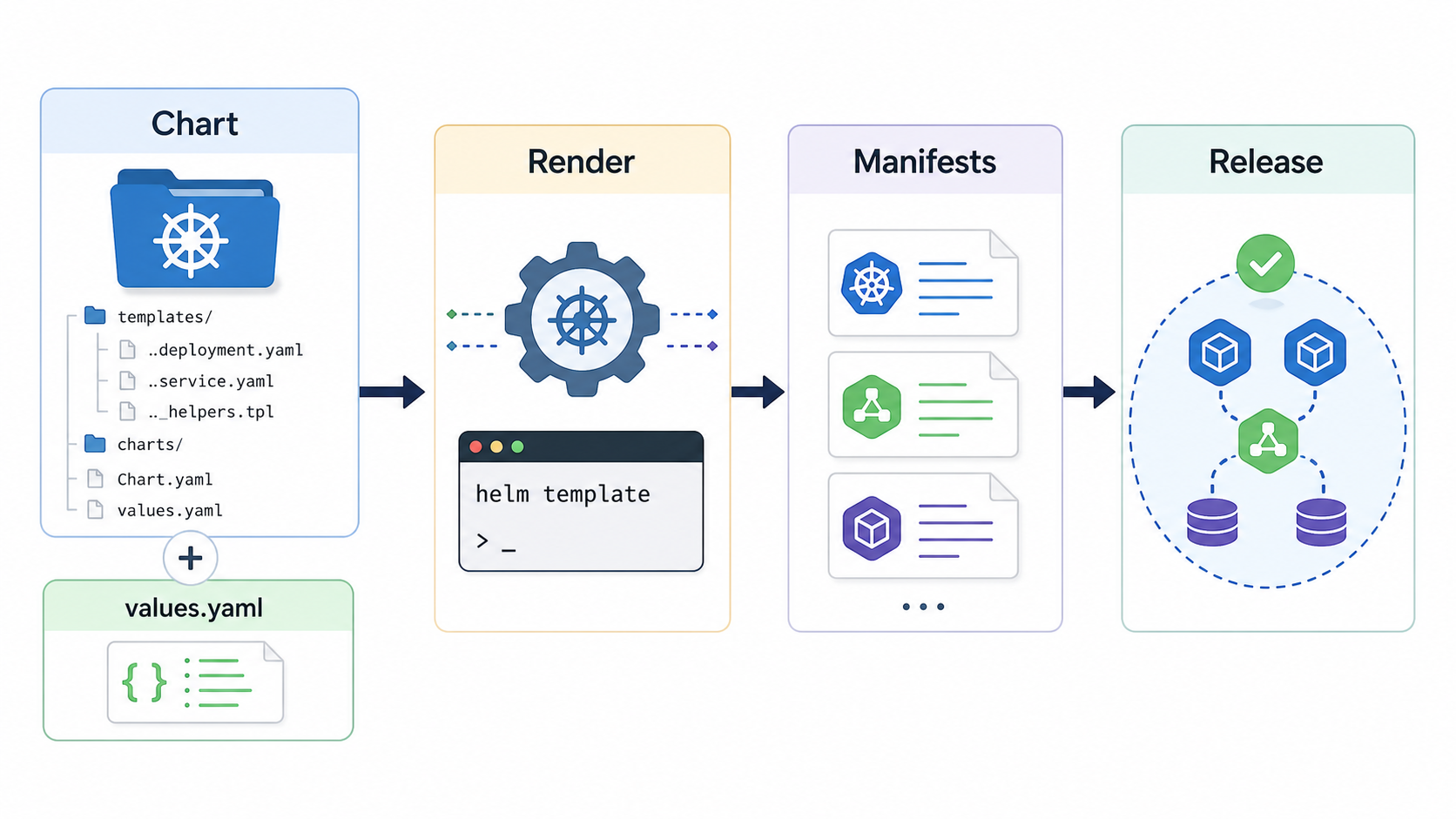
- Charts: packages containing Kubernetes templates, default values, metadata, and optional dependencies.
- Values: configuration inputs that change between environments without rewriting templates.
- Releases: installed instances of a chart in a Kubernetes namespace.
- Repositories: places to publish and consume charts, including HTTP chart repositories and OCI registries.
- Lifecycle commands: install, upgrade, rollback, inspect, test, and uninstall workflows.
Why Helm Matters in DevOps
Helm is useful because Kubernetes YAML is powerful but verbose. A single application might require hundreds of lines of configuration. If every environment owns a full copy of those manifests, small changes become risky: one namespace gets a different label, another misses a probe, and production has an old resource limit.
Helm keeps the reusable application shape in templates and the environment-specific knobs in values files. For example, the same chart can deploy:
- a small development release with one replica and no autoscaling,
- a staging release with realistic limits and test ingress,
- a production release with multiple replicas, HPA, network policy, and stricter probes.
That pattern matters for platform teams, SREs, and application developers. Developers can ship a chart with sane defaults. Platform teams can publish internal charts for common app types. SREs can review the rendered manifests before rollout and roll back quickly when a bad release reaches the cluster.
Helm Concepts You Must Know
Chart
A chart is a directory or packaged archive that contains Kubernetes resource templates and chart metadata. Think of it as a Kubernetes application package. A chart can install something simple, such as a single web app, or something larger, such as a monitoring stack with several components.
Release
A release is an installed instance of a chart. You can install the same chart multiple times with different release names or namespaces. For example, payments-dev and payments-prod can come from the same chart but use different values files.
Values
Values are configuration inputs passed into templates. The chart includes default values in values.yaml, and you can override them with -f custom-values.yaml or --set key=value.
Template
A template is a Kubernetes manifest with Helm template expressions. Helm renders templates into plain Kubernetes YAML before applying them to the cluster.
Repository
A Helm repository stores charts so users can install them by name. Modern Helm also supports OCI registries, which lets teams store charts in registry systems similar to container images.
Install Helm
Before using Helm, you need a working Kubernetes cluster and a configured kubectl context. You can use a local cluster such as kind, minikube, Docker Desktop Kubernetes, or a managed Kubernetes service such as Amazon EKS, Azure AKS, or Google Kubernetes Engine.
Check Kubernetes access first:
kubectl cluster-info
kubectl get nodes
Install Helm using the method for your operating system.
macOS
brew install helm
helm version
Linux
curl https://raw.githubusercontent.com/helm/helm/main/scripts/get-helm-3 | bash
helm version
Windows
winget install Helm.Helm
helm version
Use the official Helm installation documentation if your environment needs a package manager-specific setup or signed binary verification.
Your First Helm Install
Let us install a real chart. The Bitnami NGINX chart is a convenient beginner example because it creates a web server with the resources needed to expose it.
helm repo add bitnami https://charts.bitnami.com/bitnami
helm repo update

kubectl create namespace demo-nginx

helm install web bitnami/nginx \
  --namespace demo-nginx
Now inspect the release and Kubernetes resources:
helm list -n demo-nginx
helm status web -n demo-nginx
kubectl get all -n demo-nginx
In this command, web is the release name and bitnami/nginx is the chart reference. Helm downloads the chart, renders templates using default values, and creates Kubernetes resources in the demo-nginx namespace.
Customize a Helm Chart with Values
The real value of Helm appears when you customize a chart without editing its templates. First, inspect the default values:
helm show values bitnami/nginx > nginx-default-values.yamlCreate a small override file:
# nginx-values.yaml
replicaCount: 2

service:
  type: ClusterIP

resources:
  requests:
    cpu: 100m
    memory: 128Mi
  limits:
    cpu: 250m
    memory: 256Mi
Upgrade the release using your values file:
helm upgrade web bitnami/nginx \
  --namespace demo-nginx \
  -f nginx-values.yaml
Check the result:
kubectl get deploy web-nginx -n demo-nginx -o wide
kubectl describe deploy web-nginx -n demo-nginx
For repeatable environments, prefer values files over long --set chains. --set is fine for quick experiments, but values files are easier to review in Git and easier to reuse in CI/CD.
Create Your Own Helm Chart
Now create a simple chart so you understand what Helm is doing under the hood.
helm create hello-helm
tree hello-helm
A typical chart structure looks like this:
hello-helm/
  Chart.yaml
  values.yaml
  charts/
  templates/
    deployment.yaml
    service.yaml
    ingress.yaml
    serviceaccount.yaml
    _helpers.tpl
    tests/
The most important files are:
Chart.yaml: chart name, version, app version, and metadata.values.yaml: default configuration values.templates/: Kubernetes resource templates rendered by Helm._helpers.tpl: reusable template snippets for names, labels, and common expressions.
Edit values.yaml for a basic web app:
replicaCount: 2

image:
  repository: nginx
  pullPolicy: IfNotPresent
  tag: "1.27"

service:
  type: ClusterIP
  port: 80
Render the chart locally before installing it:
helm template hello ./hello-helmThis command is one of the best learning tools in Helm. It shows the plain Kubernetes YAML that Helm would send to the cluster.
Validate chart quality:
helm lint ./hello-helmInstall your chart:
kubectl create namespace hello

helm install hello ./hello-helm \
  --namespace hello
Inspect it:
helm status hello -n hello
kubectl get pods,svc -n hello
Understand Helm Templates
Helm templates use Go template syntax. You do not need to become a template expert on day one, but you should understand the basics.
A template might reference values like this:
apiVersion: apps/v1
kind: Deployment
metadata:
  name: {{ include "hello-helm.fullname" . }}
spec:
  replicas: {{ .Values.replicaCount }}
  template:
    spec:
      containers:
        - name: nginx
          image: "{{ .Values.image.repository }}:{{ .Values.image.tag }}"
When Helm renders the chart, {{ .Values.replicaCount }} becomes the number from values.yaml or from your override file.
Good templates are flexible but not clever. Avoid turning templates into a programming language full of nested conditionals. Keep the chart understandable for the next engineer who has to debug a failed rollout at 2 a.m.
Upgrade and Roll Back Releases
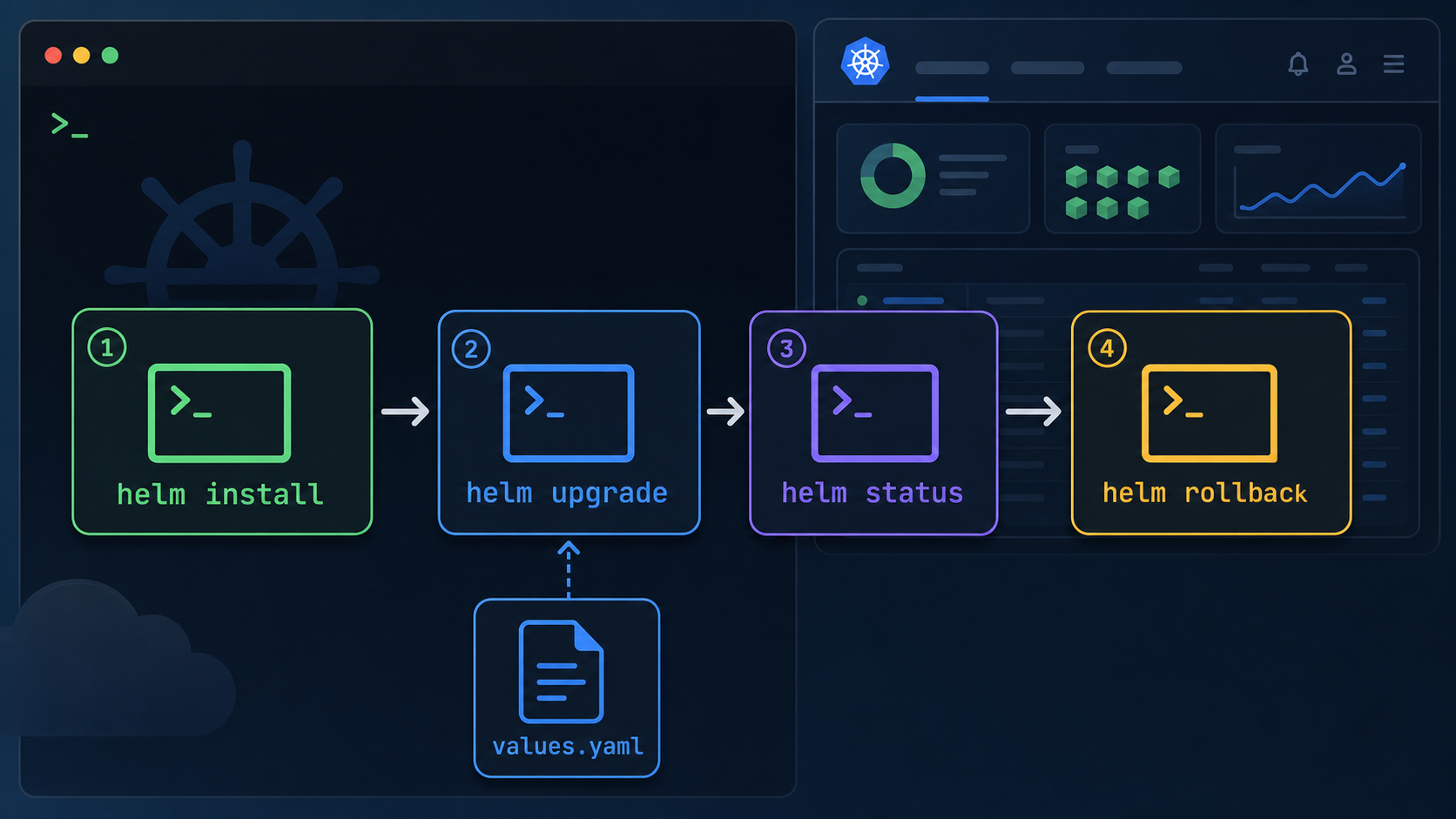
Helm tracks release revisions. Every install or upgrade creates release history that can be inspected and rolled back.
Upgrade a release:
helm upgrade hello ./hello-helm \
  --namespace hello \
  --set replicaCount=3
View history:
helm history hello -n helloRoll back to a previous revision:
helm rollback hello 1 -n helloFor safer production upgrades, combine these flags:
helm upgrade hello ./hello-helm \
  --namespace hello \
  -f values-prod.yaml \
  --install \
  --atomic \
  --timeout 5m
Here is what those flags mean:
--install: install the release if it does not already exist.--atomic: roll back changes automatically if the upgrade fails.--timeout: define how long Helm waits for Kubernetes operations.
Use Helm in CI/CD and GitOps
In CI/CD pipelines, Helm commonly appears in two patterns.
Pipeline-driven Helm
A CI/CD job builds an image, updates the image tag, and runs helm upgrade --install. This is straightforward and works well for many teams.
helm upgrade payments ./charts/payments \
  --install \
  --namespace payments \
  --create-namespace \
  -f environments/prod/values.yaml \
  --set image.tag="$GIT_SHA" \
  --atomic \
  --timeout 10m
GitOps-driven Helm
GitOps tools such as Argo CD and Flux can render Helm charts from Git and continuously reconcile the cluster to the desired state. In this model, the pipeline usually updates Git, and the GitOps controller applies the change.
GitOps is often better for auditability because the desired state is visible in Git. Pipeline-driven Helm is often simpler to start. The right choice depends on your team maturity, compliance needs, and operational model.
Helm Values Strategy for Environments
A clean values strategy prevents chart sprawl. A practical layout looks like this:
charts/
  payments/
    Chart.yaml
    values.yaml
environments/
  dev/
    payments-values.yaml
  staging/
    payments-values.yaml
  prod/
    payments-values.yaml
Keep defaults in the chart’s values.yaml. Put environment-specific differences in separate files. Avoid copying the entire default values file into every environment because it becomes hard to see what actually changed.
Common values to separate by environment include:
- replica count and autoscaling settings,
- CPU and memory requests/limits,
- image tags,
- Ingress hosts and TLS settings,
- feature flags,
- external service endpoints,
- PodDisruptionBudget settings,
- security context and network policy toggles.
Helm Security and Secrets Caveats
Do not put raw production secrets directly into Git-managed Helm values files. Helm values are easy to inspect, and rendered manifests can expose sensitive data if your workflow is careless.
Common safer patterns include:
- referencing existing Kubernetes Secrets created by an external secret manager,
- using External Secrets Operator or cloud secret integrations,
- encrypting values with tools such as SOPS in GitOps workflows,
- injecting sensitive values from a secure CI/CD secret store at deploy time.
Also review third-party charts before installing them into sensitive clusters. A chart can create RBAC permissions, CRDs, webhooks, and privileged pods. Treat chart review like dependency review.
Common Helm Commands Cheat Sheet
| Task | Command |
|---|---|
| Add a chart repo | helm repo add bitnami https://charts.bitnami.com/bitnami |
| Update repo index | helm repo update |
| Search charts | helm search repo nginx |
| Show chart values | helm show values bitnami/nginx |
| Install a chart | helm install web bitnami/nginx -n demo --create-namespace |
| Upgrade a release | helm upgrade web bitnami/nginx -n demo -f values.yaml |
| Upgrade or install | helm upgrade --install web ./chart -n demo |
| List releases | helm list -A |
| Check release status | helm status web -n demo |
| View release history | helm history web -n demo |
| Roll back | helm rollback web 1 -n demo |
| Render locally | helm template web ./chart -f values.yaml |
| Lint chart | helm lint ./chart |
| Uninstall release | helm uninstall web -n demo |
Troubleshooting Helm
Problem: The release name already exists
Check whether a release already exists in the namespace:
helm list -n demo-nginxUse a different release name, upgrade the existing release, or uninstall it if it is no longer needed.
Problem: The chart installs but pods do not start
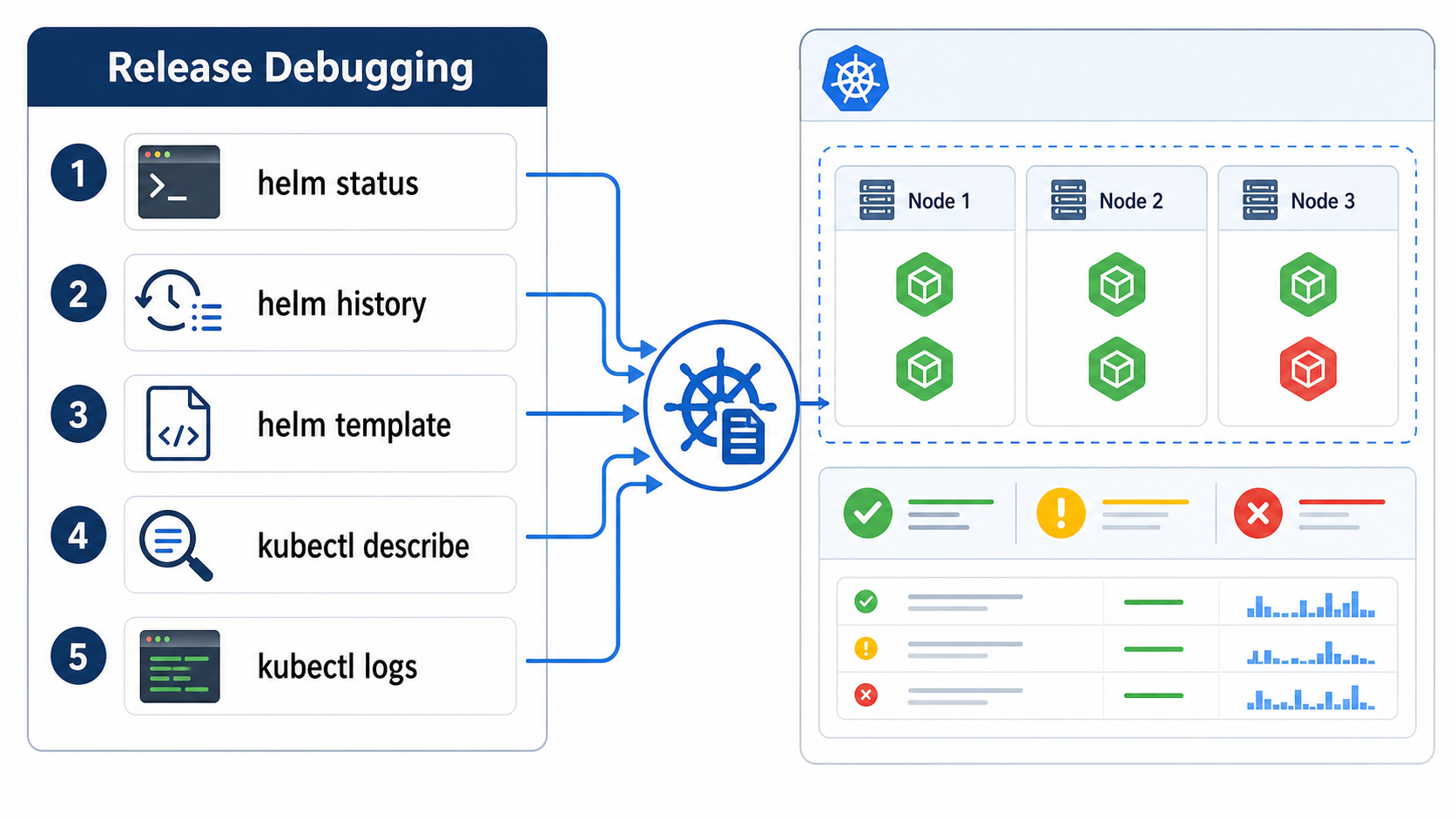
Helm installed the Kubernetes resources, but Kubernetes is responsible for scheduling and running pods. Debug with Kubernetes commands:
kubectl get pods -n demo-nginx
kubectl describe pod POD_NAME -n demo-nginx
kubectl logs POD_NAME -n demo-nginx
Common causes include image pull errors, missing secrets, insufficient resources, failing probes, and invalid environment variables.
Problem: Values are not taking effect
Render the chart locally and inspect the output:
helm template web bitnami/nginx -f nginx-values.yamlAlso verify the values path. Many charts use nested keys, and a small indentation mistake can make your override ineffective.
Problem: Upgrade failed halfway
Check history and status:
helm status web -n demo-nginx
helm history web -n demo-nginx
If a previous revision is healthy, roll back:
helm rollback web REVISION -n demo-nginxFor production, consider --atomic and a realistic --timeout to reduce manual cleanup after failed upgrades.
Common Helm Mistakes
- Using Helm without understanding Kubernetes basics: Helm renders Kubernetes manifests. If you do not understand Deployments, Services, labels, probes, and namespaces, debugging will be painful.
- Copying full values files everywhere: Store only meaningful overrides per environment to reduce drift.
- Putting secrets in plain text values: Use a proper secret management pattern.
- Skipping
helm templateandhelm lint: Render and validate before applying changes to a cluster. - Trusting third-party charts blindly: Review templates, RBAC, security contexts, and CRDs before installing.
- Over-templating: Keep charts simple. Too many conditionals make charts hard to reason about.
- Ignoring release history: Helm history and rollback are valuable during incidents; know how to use them before production breaks.
Helm vs Kustomize
Helm and Kustomize are often compared, but they solve overlapping problems differently.
| Feature | Helm | Kustomize |
|---|---|---|
| Primary model | Package and template Kubernetes apps | Patch and compose plain Kubernetes YAML |
| Best for | Reusable applications, third-party packages, configurable charts | Environment overlays for existing manifests |
| Templating | Go templates | No traditional templating; uses patches and transformers |
| Release tracking | Built-in Helm release history | Handled by Kubernetes/GitOps tooling, not Kustomize itself |
| Learning curve | Moderate because templates can grow complex | Moderate because patches and overlays need discipline |
A practical rule: use Helm when you need a reusable application package with configurable defaults. Use Kustomize when you already have plain manifests and want clean environment overlays. Many GitOps teams use both.
Best Practices for Production Helm
- Pin chart versions when installing third-party charts.
- Keep values files small and environment-specific.
- Run
helm lintandhelm templatein CI. - Use
--atomicfor safer production upgrades where appropriate. - Store chart changes in Git and review them like application code.
- Document important values in the chart README.
- Add resource requests, limits, probes, and security contexts by default.
- Use chart testing for critical internal platform charts.
- Review RBAC permissions before installing charts from outside your organization.
- Avoid storing sensitive values in plaintext repositories.
Beginner Practice Lab
If you are learning Helm, do this small practice lab:
- Create a local Kubernetes cluster with kind or minikube.
- Install NGINX using a public Helm chart.
- Export the default values with
helm show values. - Create a small override file that changes replica count and service type.
- Run
helm upgradewith the override file. - Use
helm historyto view revisions. - Roll back to the previous revision.
- Create your own chart with
helm create. - Render it locally with
helm template. - Uninstall the release and delete the namespace.
Cleanup commands:
helm uninstall web -n demo-nginx
kubectl delete namespace demo-nginx

helm uninstall hello -n hello
kubectl delete namespace hello
Next Steps
After learning Helm basics, connect it with the rest of your Kubernetes workflow. If you are planning your broader learning path, pair this guide with the DevOps and SRE roadmap, the CI/CD tools comparison, and Kubernetes practice resources such as Kubernetes interview questions.
- Use Helm with CI/CD so application releases are repeatable.
- Use Helm with Argo CD or Flux for GitOps-based deployment.
- Add policy checks with tools such as Kyverno, OPA Gatekeeper, or Conftest.
- Publish internal charts for common service patterns in your organization.
- Build observability into your charts with default labels, annotations, probes, and metrics settings.
- For AI platform teams deploying model-serving workloads, use the same chart discipline after you understand the basics in the Generative AI beginner’s guide.
FAQ
Is Helm required for Kubernetes?
No. Kubernetes works without Helm. Helm is useful because it packages and manages Kubernetes manifests, especially when applications have many resources or need environment-specific configuration.
What is the difference between a Helm chart and a Helm release?
A chart is the package that contains templates and defaults. A release is an installed instance of that chart in a Kubernetes cluster.
Should beginners learn Helm or Kustomize first?
Learn basic Kubernetes manifests first, then Helm. Kustomize is also valuable, but Helm is commonly used for installing third-party Kubernetes applications and building reusable internal packages.
Can Helm manage production deployments?
Yes. Many teams use Helm in production through CI/CD pipelines or GitOps controllers. Production usage requires disciplined values management, chart review, secret handling, testing, and rollback planning.
Does Helm store secrets securely?
Helm does not automatically make plaintext values secure. Do not store production secrets in unencrypted values files. Use Kubernetes Secrets with an external secret manager, SOPS, External Secrets Operator, or secure CI/CD secret injection.
What does helm upgrade –install do?
It upgrades an existing release if it exists, or installs it if it does not. This is useful in automation because the same command can handle first deployment and later updates.
How do I debug a failed Helm install?
Start with helm status, helm history, and helm template. Then use Kubernetes commands such as kubectl describe pod, kubectl logs, and kubectl get events to inspect the resources Helm created.
Sources checked: Helm official docs for the package manager definition, chart concept, and command behavior for install, upgrade, package, rollback, and values workflows.


